

Avatars
October 25, 2024 · Last updated on April 7, 2026
How to create your Digital Twin in 15 seconds with HeyGen

# Video Avatars
# Digital Twin
Effortlessly personalize videos with your Digital Twin
Need a fast way to bring your digital twin to life? With HeyGen’s 15-second avatar tool, you can create a high-quality avatar using just your webcam, no studio setup, no complex steps.
This tool is perfect for anyone looking to create personalized, on-brand videos using their real face and voice in just a few clicks.
What's covered in this guide
- What are Digital Twins?
- How to access Digital Twins
- How to create your Digital Twin
- How to edit your Digital Twin
- How to create new Avatar Looks
What is a Digital Twin?
Digital Twin is a lifelike video avatar created in your likeness. They’re designed to look, move, and speak like you, allowing you to personalize your content without needing to be on camera every time.
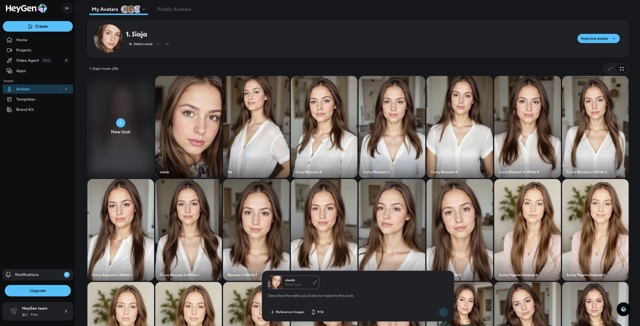
Accessing Digital Twins
To get started, log in to your HeyGen account and navigate to the ‘Avatars’ tab.
It’s easy to find on the dashboard. Once there, you can select an existing avatar or create your own.
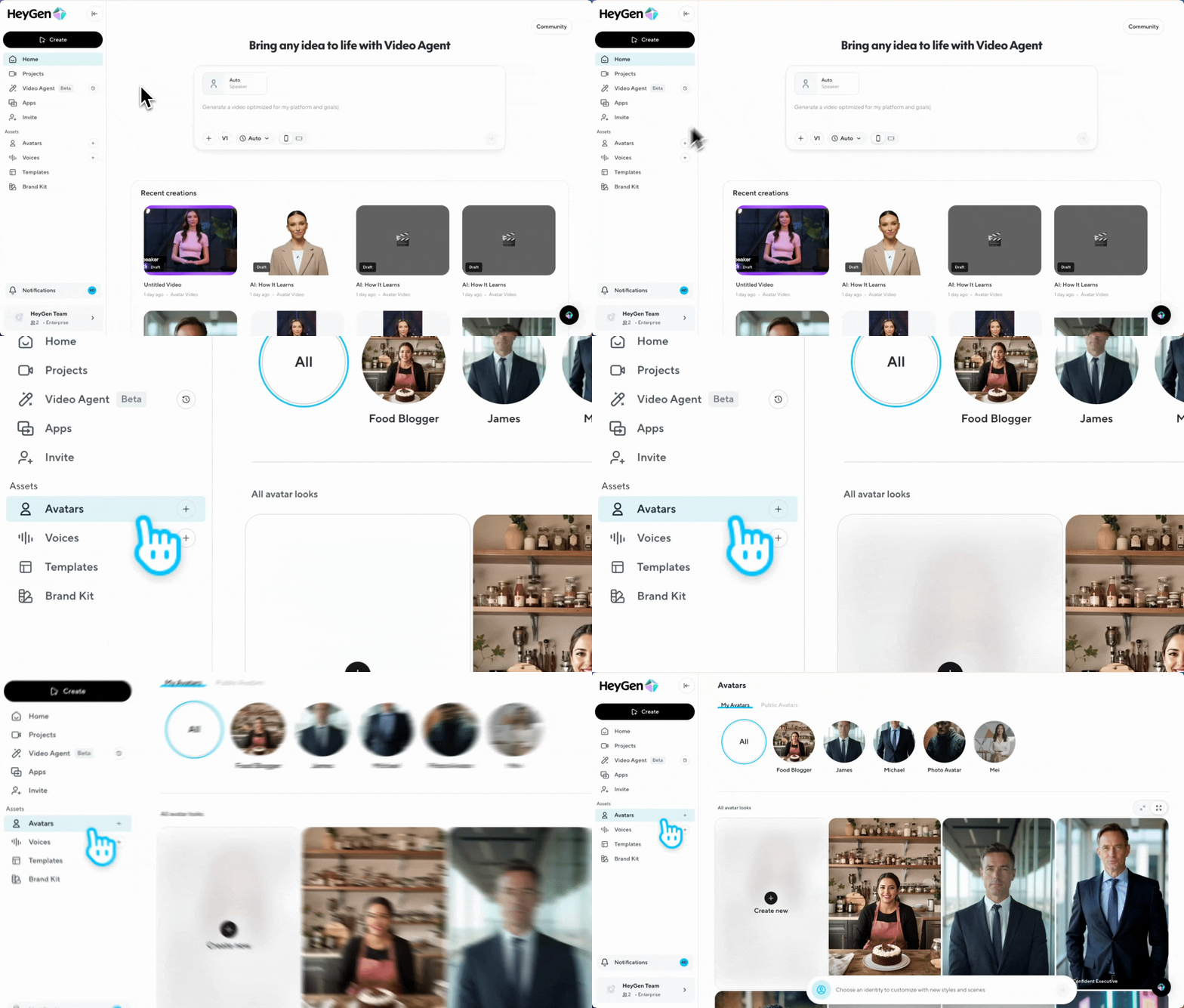
Create your own Digital Twin in 15 seconds
To begin, go to the Avatars tab, tap on your profile and click new Avatar. Select ‘Clone a Real Person’.
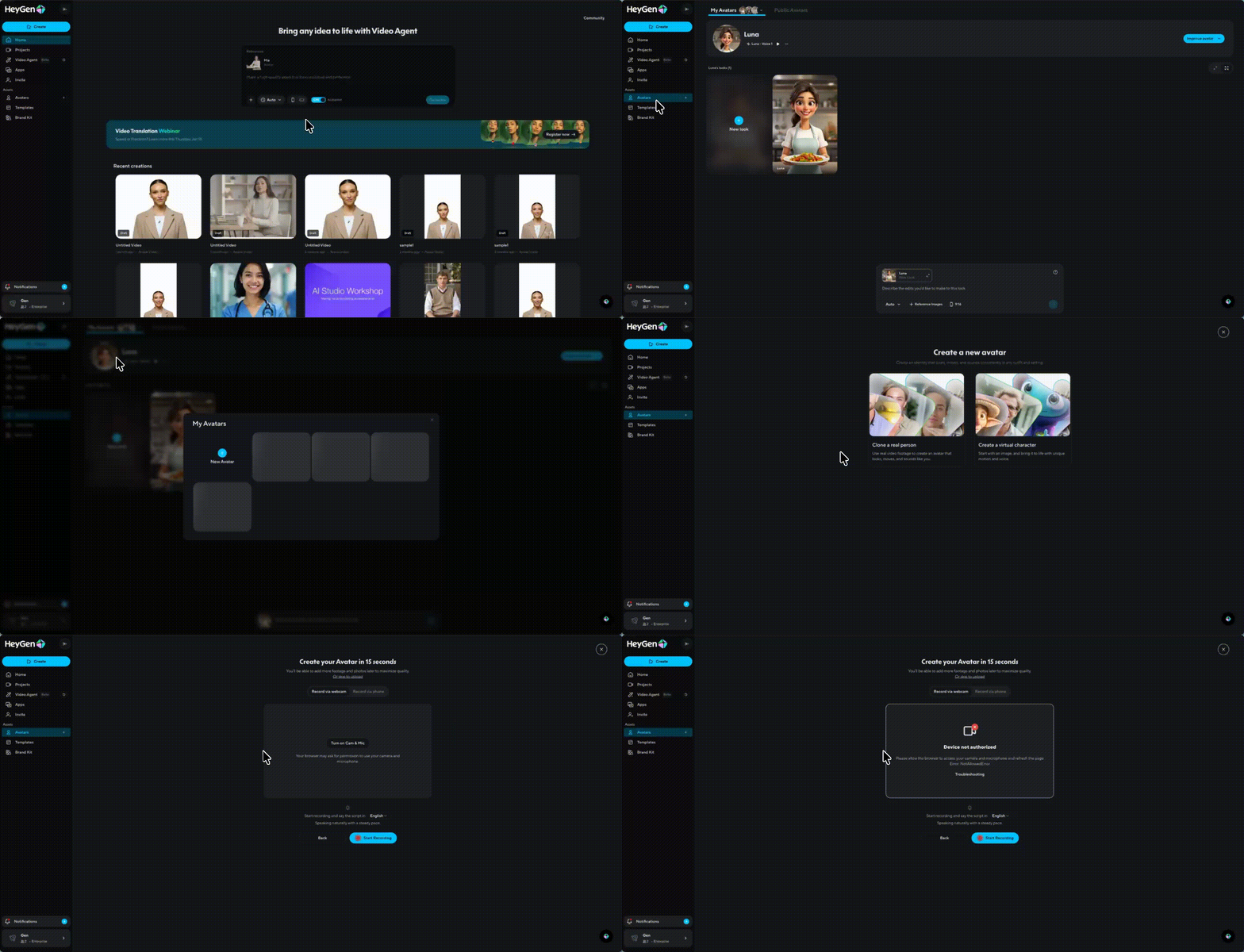
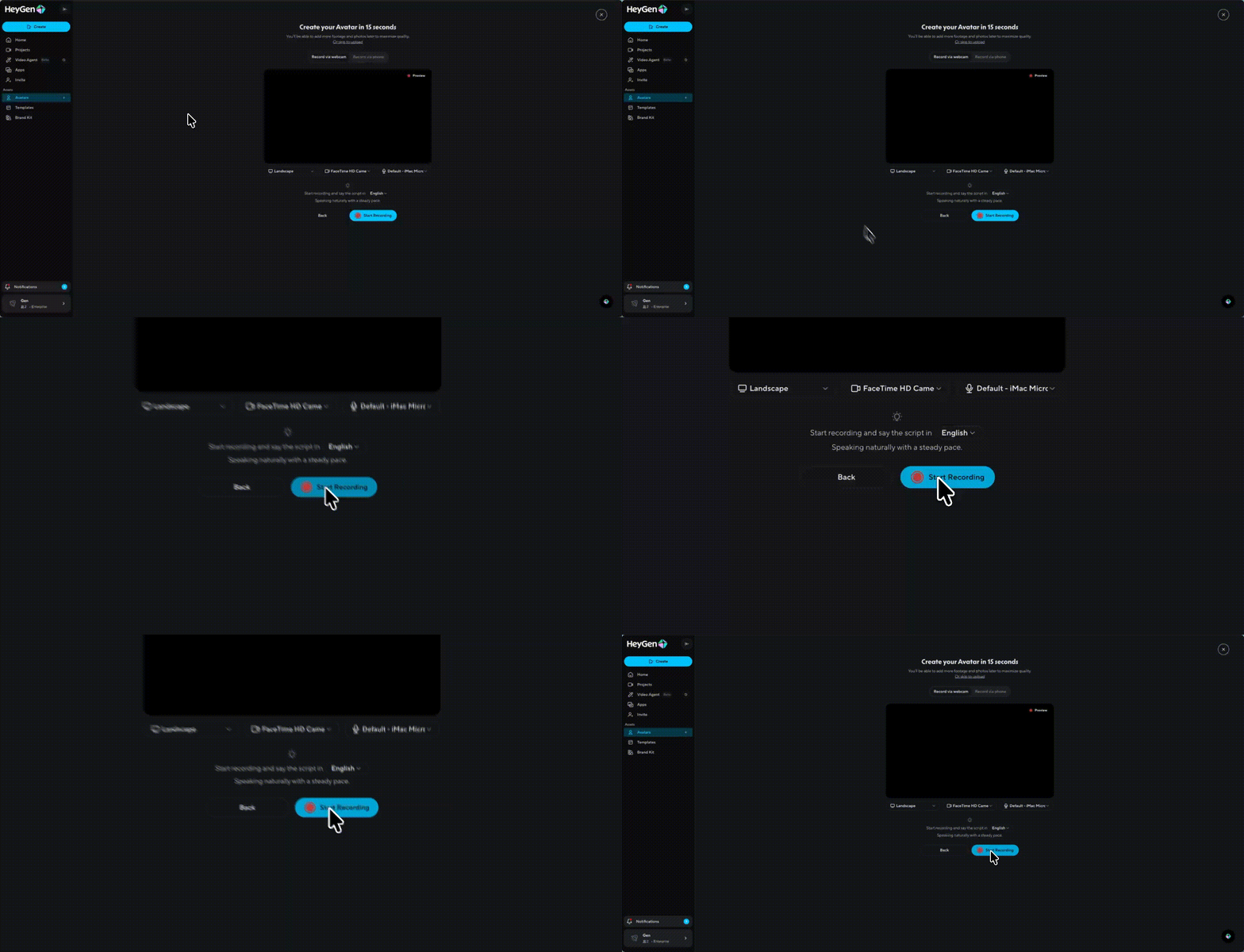
You’ll be taken to the avatar creation screen where you can record using your webcam or using your phone. If you choose to record live, HeyGen will request access to your camera.
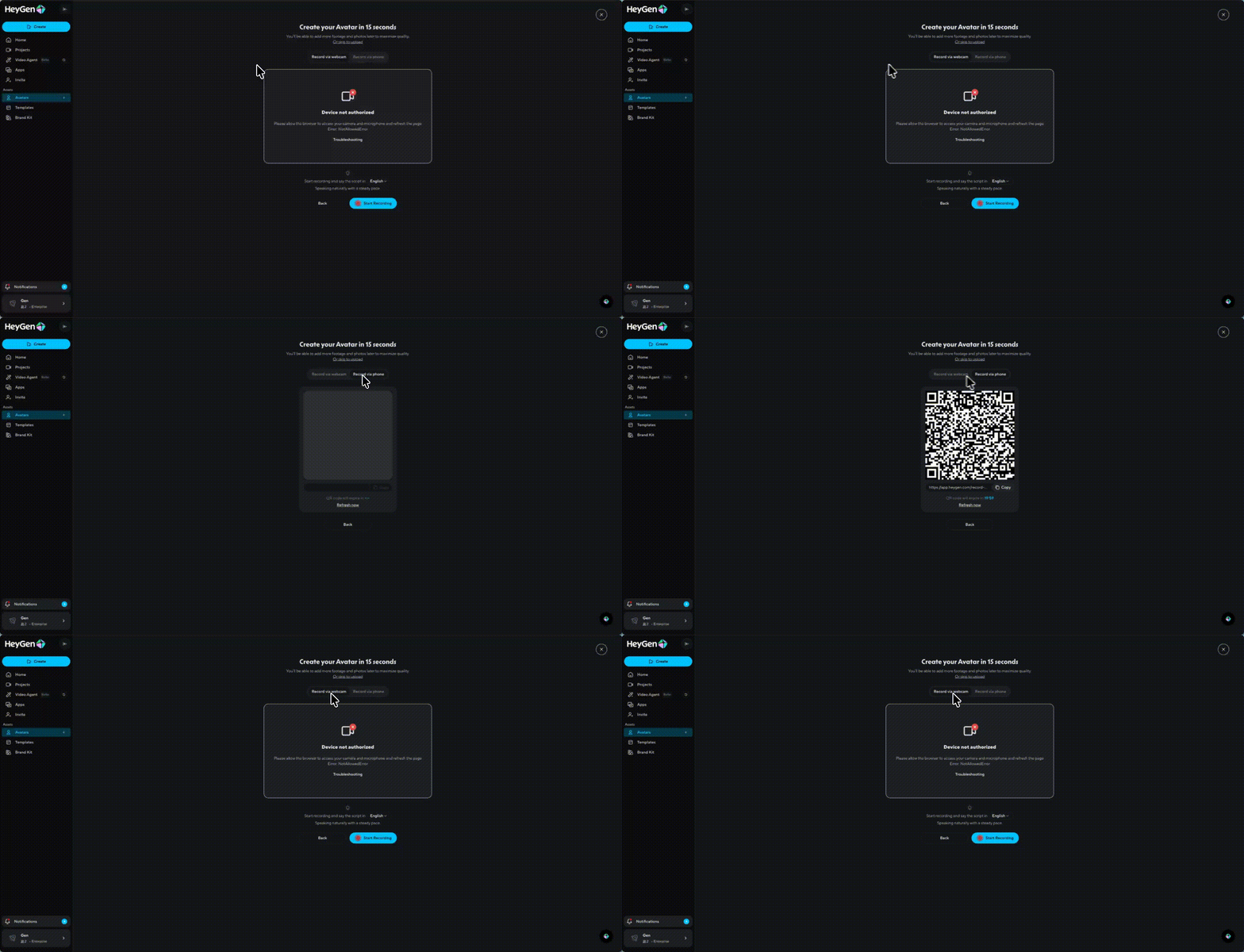
You can also select your preferred language before recording, your avatar will speak naturally in the language you choose.
Click ‘start recording’ and follow the prompts. HeyGen will walk you through what to say and how to position yourself to get the best result.
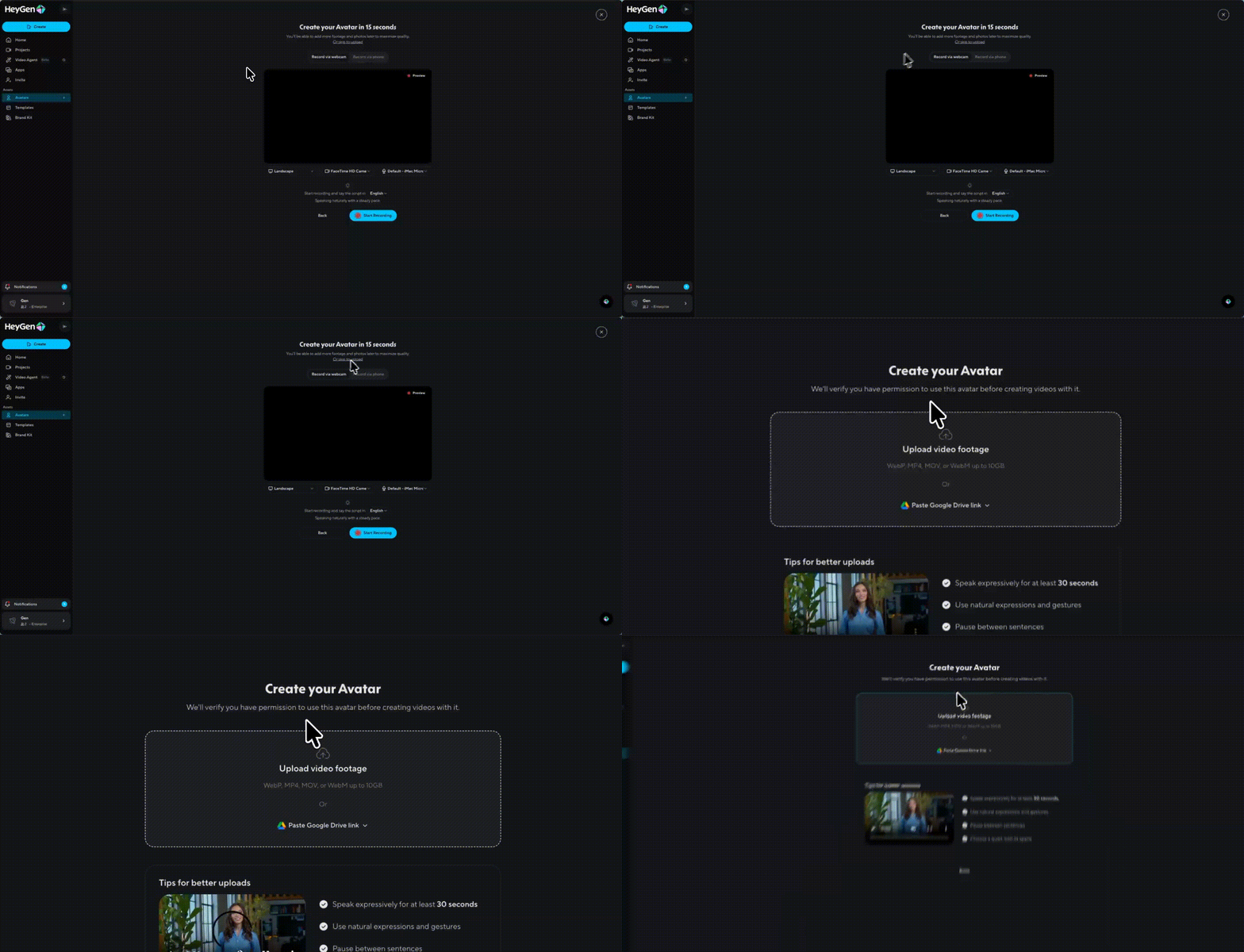
Prefer to upload a video? No problem. Just click on skip to upload, and upload a video at least 30 seconds long. Just make sure it’s clear, well-lit, and follows the instructions provided on the page.
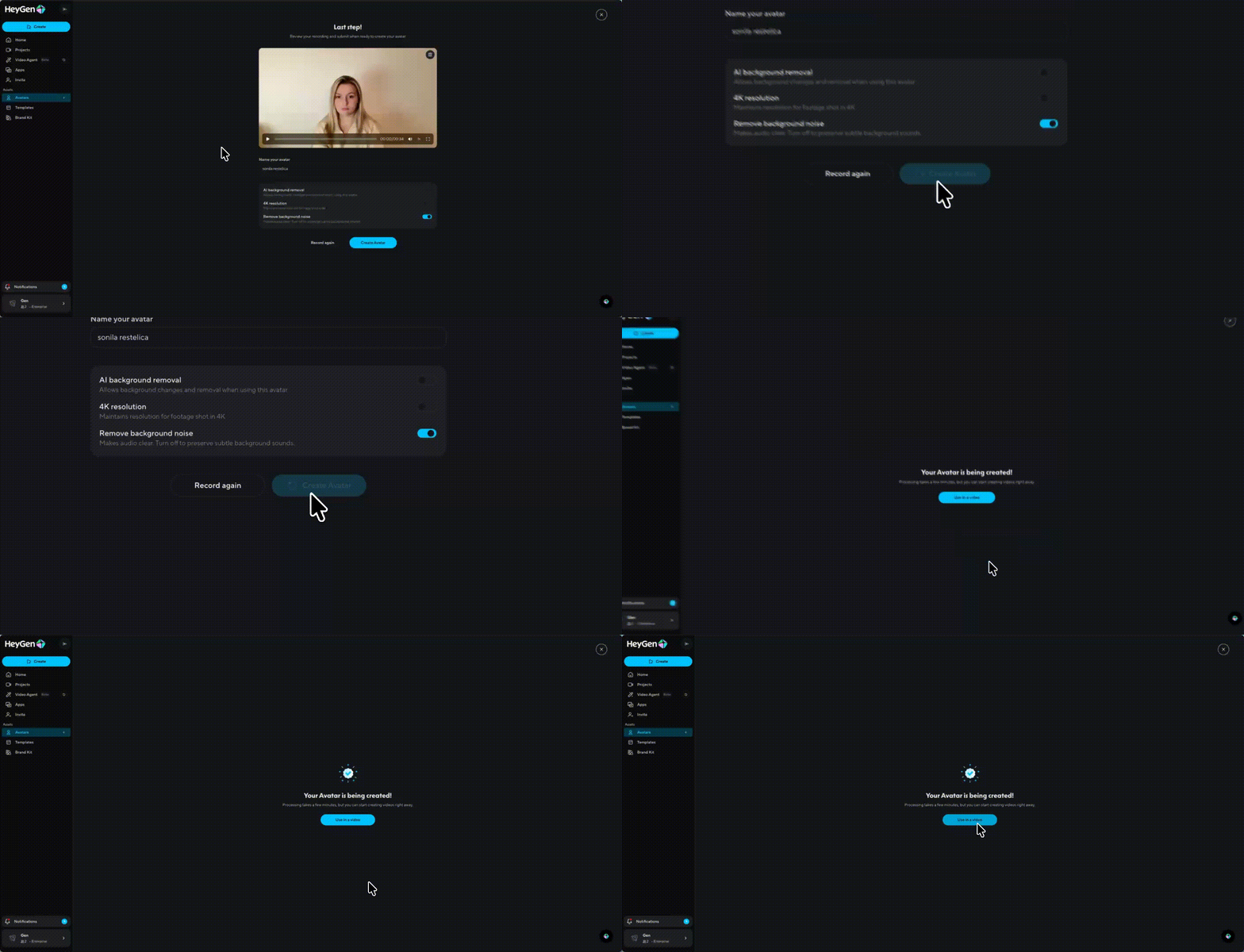
After recording or uploading, you’ll be able to preview the clip. If you’re not satisfied, you can re-record or re-upload until it feels just right.
Once your video is ready, give your avatar a name. Then, choose any optional enhancements like removing the background, cleaning up background noise, or enabling 4K resolution.
When everything looks good, click Create Avatar. HeyGen will process your video and add your avatar to the Avatars tab as soon as it’s ready to use.
Editing your Digital Twin
To edit your Digital Twin, click on your avatar.
Next, click on ‘Edit Avatar.’ You can then change your Digital Twin's name, resolution, remove background, select its voice, and you can enable eye contact correction.
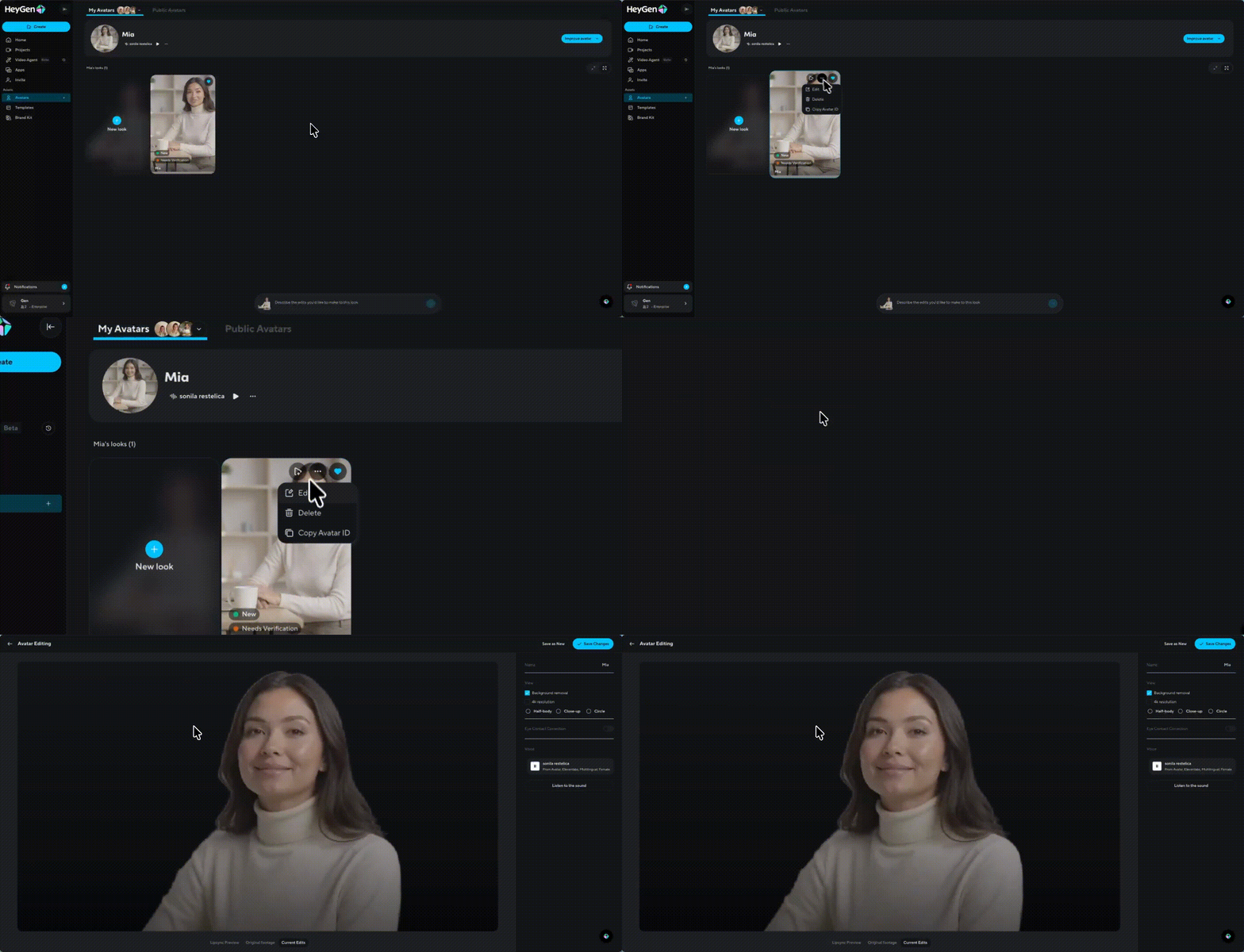
Once you’re done with your edits, click on ‘Save Changes’
And that’s it! Now you’re ready to use your Digital Twin in the videos of your choice!
Creating new avatar looks
Avatars looks are variations of an existing Avatar in different scenes, outfits, stances, and angles. This allows you to create more engaging and varied types of videos using the same Avatar. New Looks can be added using video, or custom photos. You can create up to 300 looks per Avatar and delete and create new looks at any time.
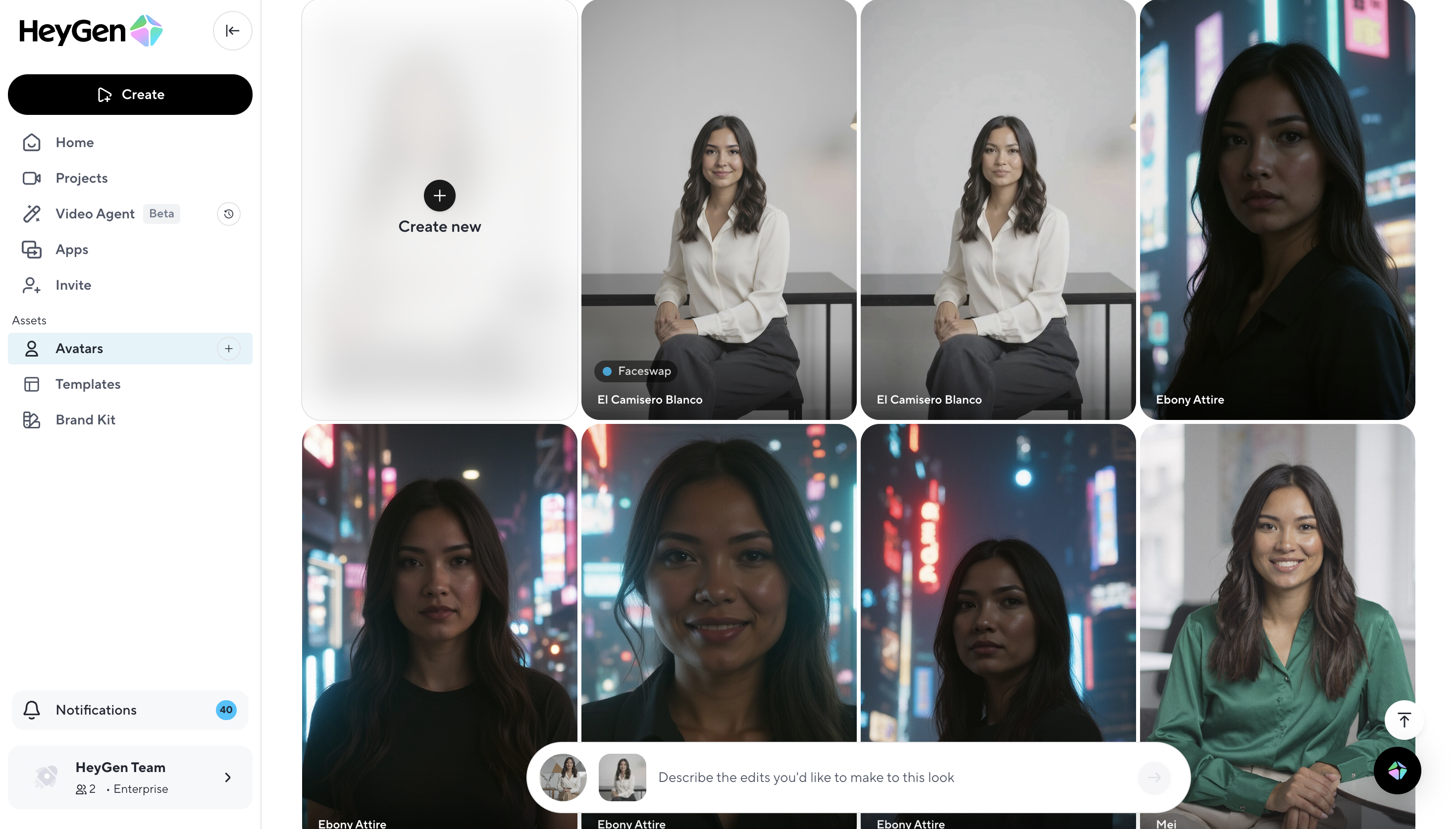
To add new looks using custom photos, click on 'new look' and upload a mix of close-ups and full-body shots, showing different angles and expressions.
Once the images are verified and approved, click 'continue' to add the new looks. Soon your new looks will be available to use at any time.
When creating videos, you can select an Avatar and then select which Look you want to use. Using multiple looks for different scenes can make your videos feel more natural and engaging.
Recap
In this guide, you learned:
- What are Digital Twins?
- How to access Digital Twin
- How to create your Digital Twin
- How to edit your Digital Twin
- How to create new Avatar Looks
We’re looking forward to seeing what you’ll create with HeyGen!
If you’re posting your videos on social media, make sure to tag any videos you create with @HeyGen_Official so we can celebrate them with you.
Comments (0)
Popular

Dive in