

Account Management
April 24, 2026 · Last updated on July 17, 2026
How to track credit usage and account activity in HeyGen

# Account Management and Setup
Everything workspace admins need to track credit usage and account activity
Keeping track of how your team is using HeyGen, and where credits are going, is easier than you might think. In this guide, we'll show you how to monitor credit consumption and track account activity as a workspace admin. Whether you want to keep an eye on how credits are being spent across your team or understand your content creation trends over time, the Usage and History tabs give you everything you need in one place. Let's dive in!
What's covered in this guide
- How to track credit usage
- How to monitor account activity and trends
- How to review your audit logs
- Recap
How to track credit usage
You can access your Usage & History panel from your workspace settings. The Usage tab gives you a full overview of your plan, your credit consumption, and your feature limits.
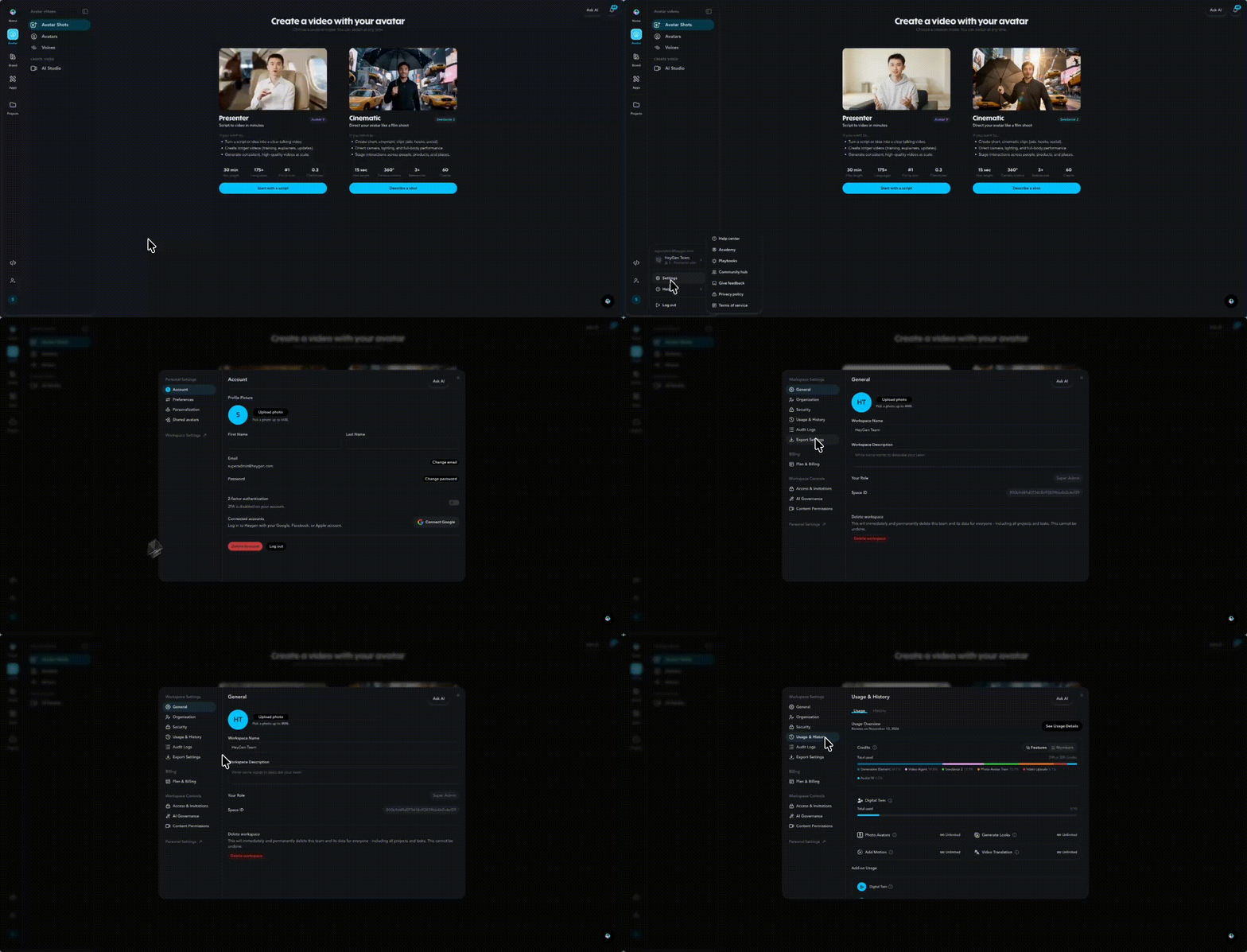
At the top of the tab you'll find your plan renewal date and a Manage button to update your subscription. Below that, the Credits section shows your total credits used out of your monthly allowance, with a breakdown of which features have consumed them. You can toggle between the Features view and the Members view to see credit usage either by feature or by individual team member.
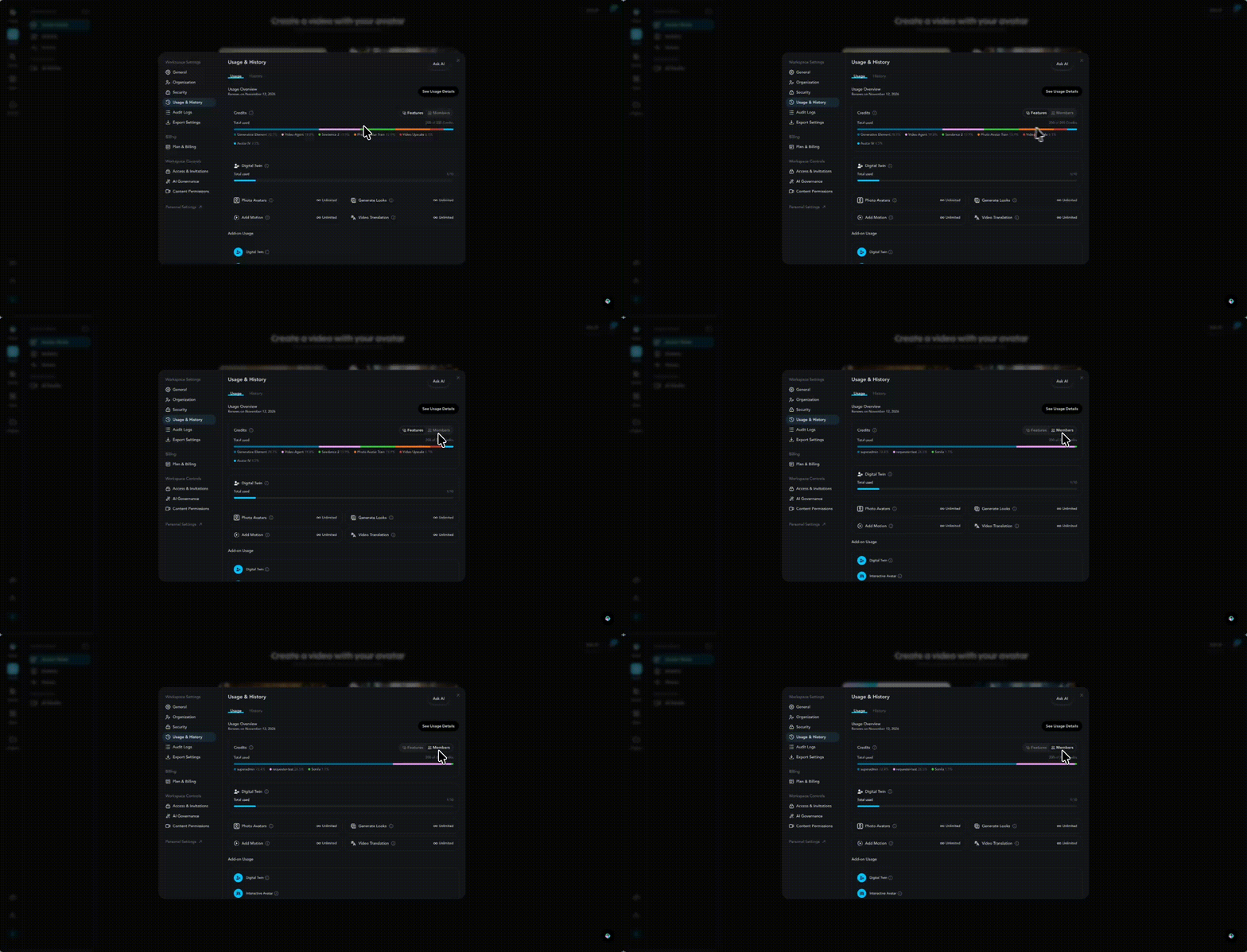
Beneath the credits section, you'll find your plan's limits for other features. This includes your Digital Twin slots, showing how many you've used out of your total allowance, as well as Photo Avatars, which shows how many slots you've used out of your plan's allowance, and Video Translation, which displays your usage against your plan's credit balance.
Below the main usage section, the Add-ons area shows any additional purchases attached to your account. This includes any additional credits purchased, shown with their own usage bar, as well as any Additional Digital Twin slots you may have added. You can click Manage to add or adjust your add-ons at any time.
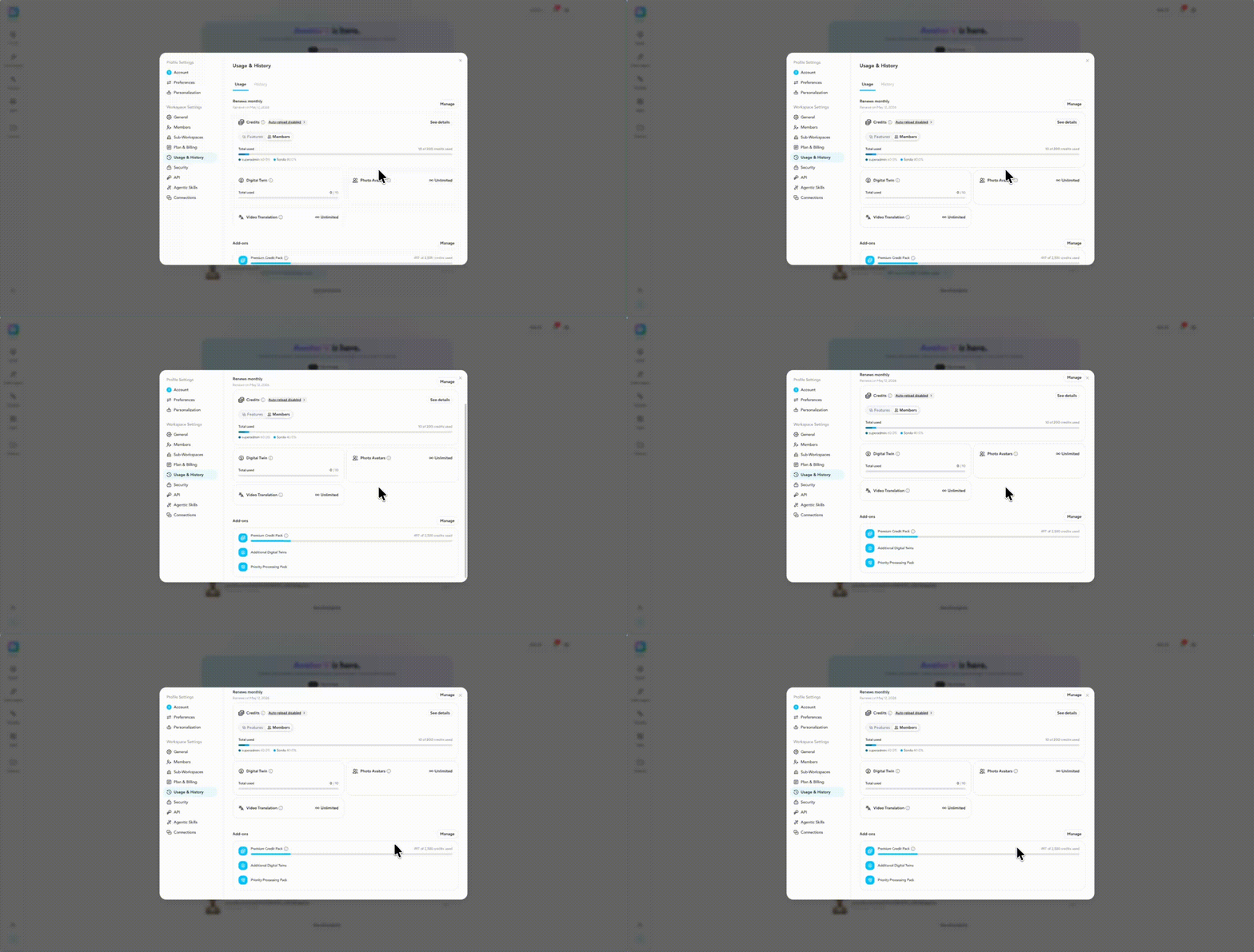
If your workspace has sub-workspaces, the Usage tab gives you more visibility into how resources are being used across your organization. Parent workspace admins can view a resource consumption graph comparing usage across all sub-workspaces, making it easy to see where credits are going at a glance. Sub-workspace admins get their own detailed usage analytics, including breakdowns by member and by feature, so they can understand exactly how resources are being consumed within their own workspace.
How to monitor account activity and trends
The History tab is where admins can monitor overall workspace activity and usage trends over time. At the top, you'll find a summary of key metrics including total avatar videos created, total video translations, total duration, and active users.
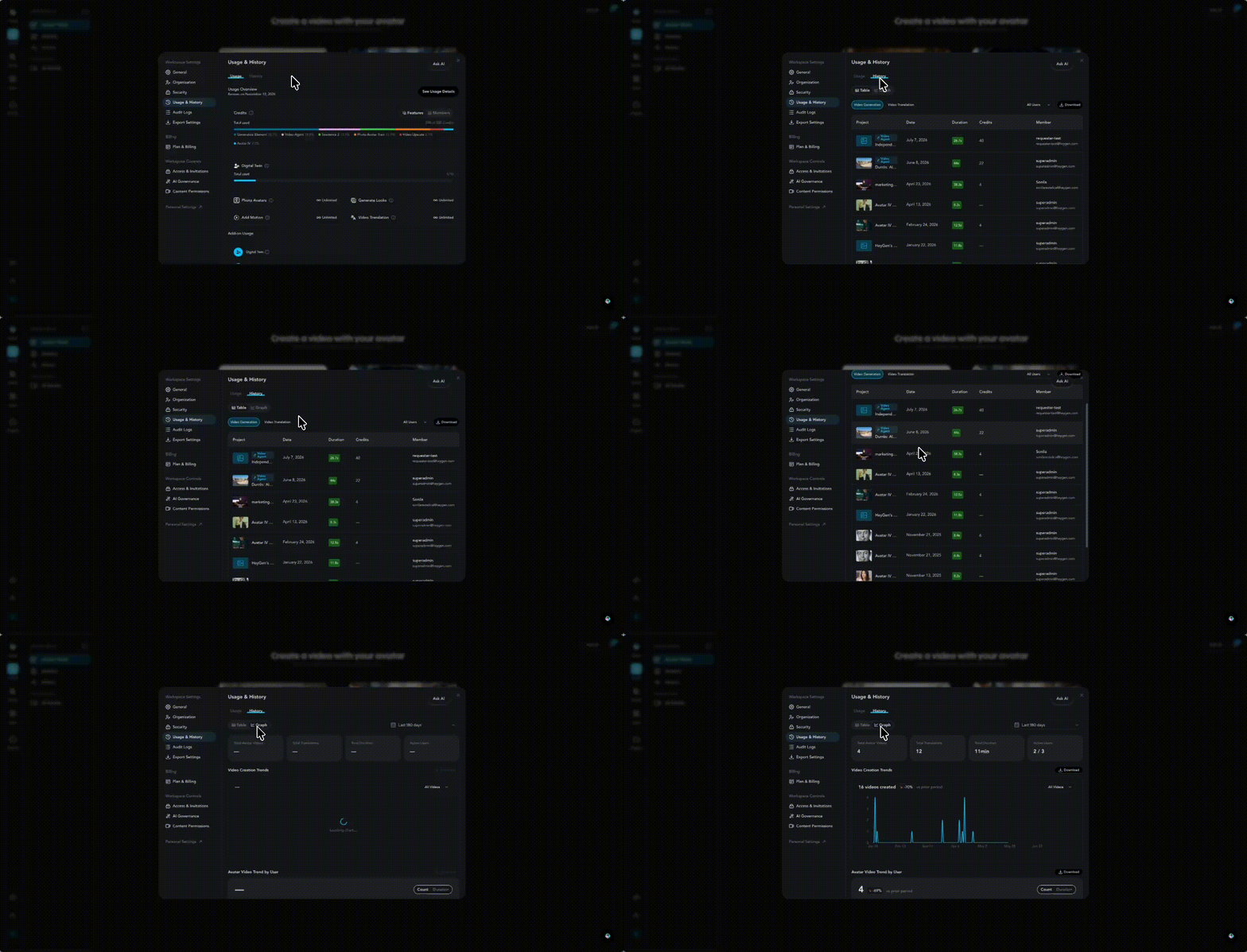
Below that, you'll find visual trend breakdowns to help you monitor activity across your workspace. The avatar video trend shows you how video creation is tracking over time, with a further breakdown by individual user so you can see how many videos each team member has created month by month. You can switch the view between count and duration depending on what you want to measure.
The video translation trend works the same way, showing translation activity over time with a per-user breakdown.
You can also switch from the Graph view to the Table view for a more detailed history of activity across your workspace. The table shows each video's title, creation date, duration, the team member who created it, and the credits used. By clicking on it, you can view the video from the share page. You can filter the table by individual team member using the All Users dropdown, and download the full history as a file using the Download button.
The History tab is split into two categories: Video Generation and Video Translation, so you can quickly focus on the type of activity you want to review.
How to review your audit logs
Audit Logs has its own page under Workspace Settings, giving admins a clear, readable record of activity across the workspace.
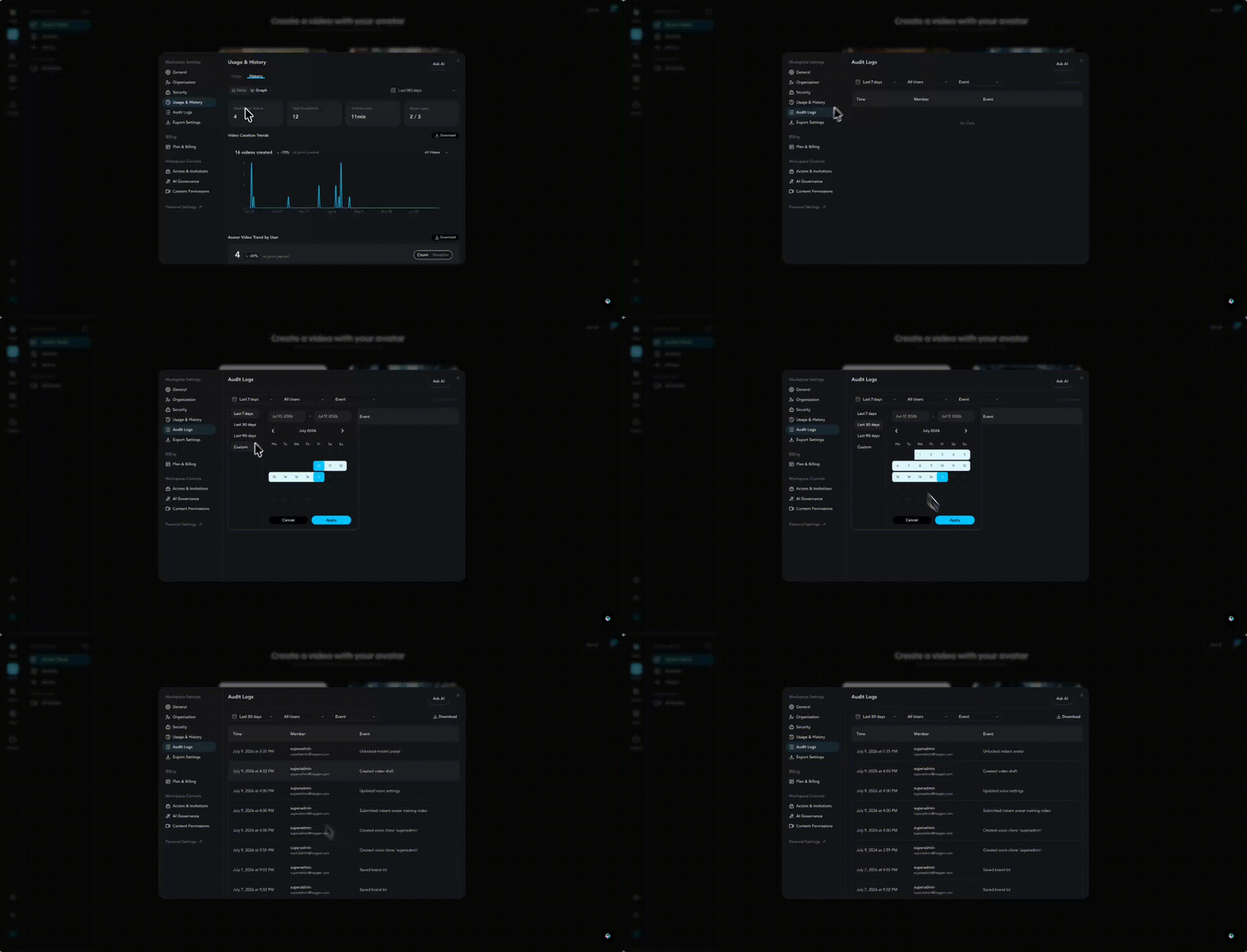
Actions appear as plain-language event names, like "submitted Seedance 2.0 video generation" or "changed role for [email]". Background noise is filtered out, so only meaningful actions show up.

Tracked activity spans several categories, including:
- Workspace settings: SSO configuration, MFA changes, watermark toggles, workspace renames
- Team management: invitations, removals, role changes, quota updates, ownership transfers
- Videos: sharing, deletion
- Avatars: creation, modification, deletion, photo uploads
- Projects: creation, duplication, moves, restores, deletion
- Approvals: requests, decisions, withdrawals, admin overrides
- Billing: plan switches, pauses, cancellations, resumptions
- Security: login activity, API key creation, email changes
Each entry shows the time, the team member responsible, and the event itself, so you can quickly scan what happened and who did it.
You can narrow the log down using a few filters at the top of the page. By default, the log shows the last 7 days, but you can adjust the date range to scope it to a specific window.
You can filter by team member to see activity from everyone or from one or more specific people, and by event to isolate specific actions, like role changes, SSO updates, video deletions, or approval decisions.
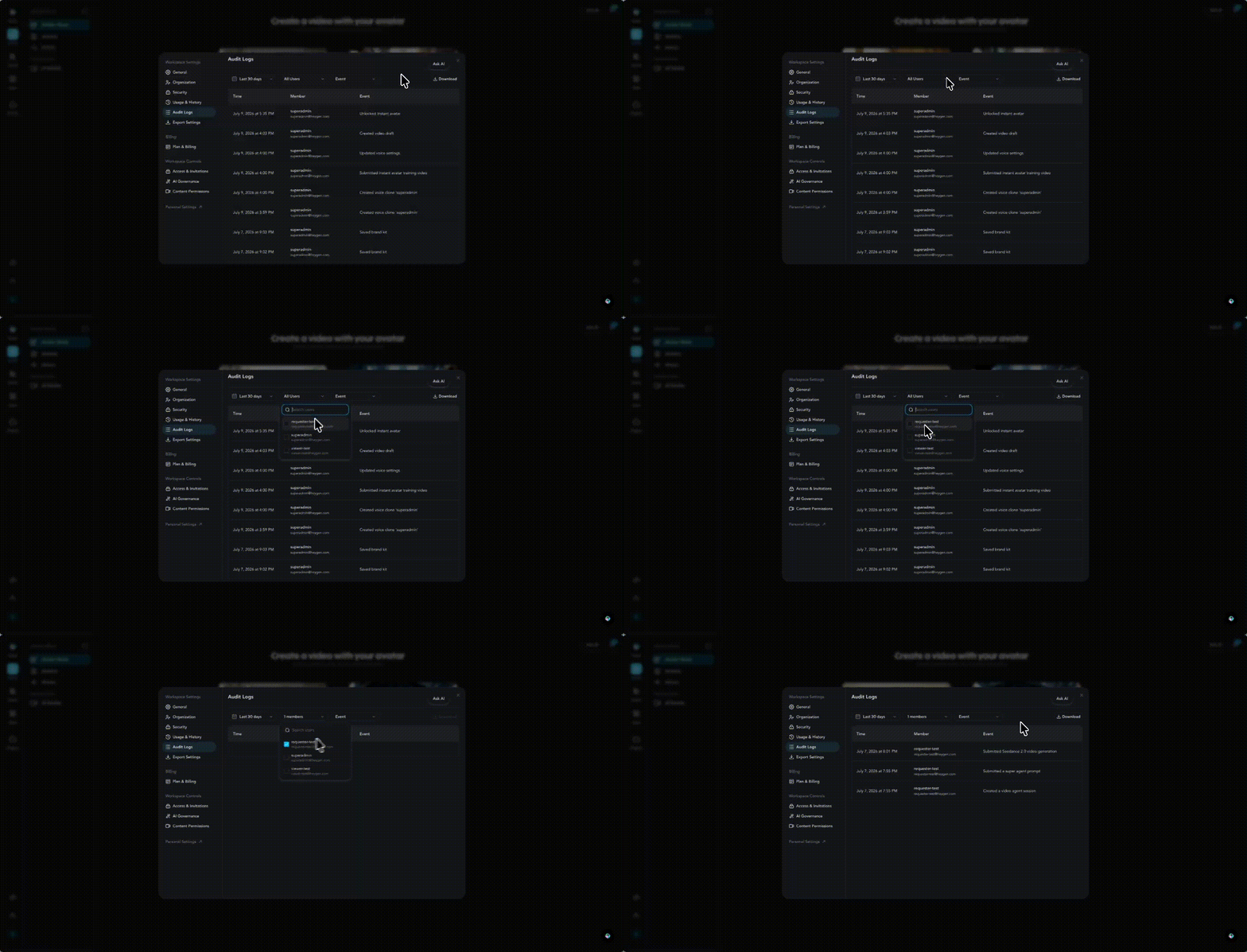
For organizations with sub-workspaces, parent workspace admins automatically see rolled-up activity from all sub-workspaces in one view, no extra setup needed.
When you need a record for compliance, use the Download button to export a CSV snapshot of the audit log.
Recap
And that's it! With the Usage, History, and Audit Logs tabs, you have full visibility into how your team is using HeyGen, from credit consumption and feature limits to individual video creation trends.
In this guide, you learned:
- How to track credit usage
- How to monitor account activity and trends
- How to review your audit logs
We hope this helps you stay on top of your team's HeyGen usage. If you have any questions, don't hesitate to reach out to our support team!
Comments (0)
Popular

Dive in
Related
Guide
How to get started with HeyGen: from account setup to video creation
Oct 22nd, 2024 • Views 5.1K
Guide
How to get started with HeyGen: from account setup to video creation
Oct 22nd, 2024 • Views 5.1K