

Agency
November 26, 2025 · Last updated on November 28, 2025
Article 2 — Brand Kit

# Agency
# Certification
# Brand Kit
This article is covering the Brand Kit feature of HeyGen.
Why this matters
A Brand Kit keeps every video on-brand without spending time hunting for assets. Centralizing logos, colors, fonts, and media means anyone on your team can produce consistent, professional results fast.
What you’ll do
- Create a New Brand Kit for any real or sample brand.
- Import core assets (logo, colors, fonts) and add optional media (images, audio, intros/outros).
Steps
1. Open Brand Kit in HeyGen and click Create New.
2. Import via URL (recommended) or add items manually.
3. Add logos, primary/secondary colors, and fonts.
4. Add optional assets: images, music, intro/outro, logos etc.
Quick checklist
- ✅ Logo + clear-space
- ✅ Brand colors (HEX) and typography set
- ✅ Lower-third style matches brand
- ✅ CTA/end card assets saved
- ✅ File naming is clean (brand_project_date)
Submission
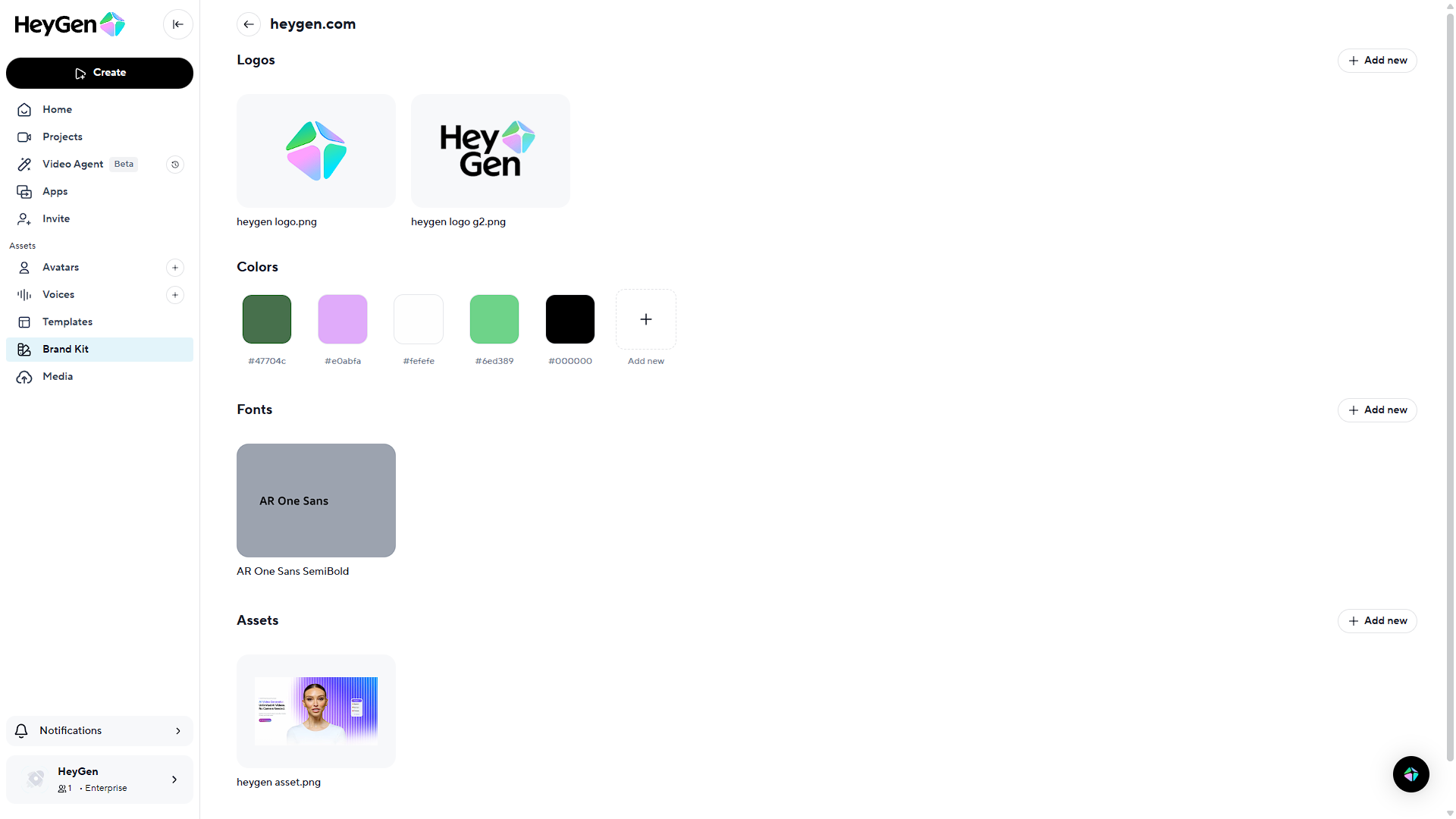
- Upload a screenshot of your Brand Kit summary page (logos/colors/fonts visible).
- Paste the Brand Kit name you created.
Assessment
- Completeness — logos, colors, fonts present
- Accuracy — assets match the brand source
- Usability — intro/outro/CTA assets (if provided) are ready to drop into videos
*Example Brand kit Image for submission
Comment (1)
Popular

Dive in