

Editing
August 1, 2025 · Last updated on May 4, 2026
How to create editable video scenes using Screen Recorder in HeyGen

# Editing
# Screen Recorder
Record once. Edit freely. Scale without starting over.
With HeyGen’s Screen Recording feature, you can capture your screen and voice directly inside AI Studio with no need for third-party tools or uploads. Whether you're walking through a product, scaling your internal communications, or creating a training, it’s a fast and seamless way to bring real-world context into your videos with perfectly synced voiceover from your recording or a HeyGen avatar.
Your voice is automatically transcribed, filler words are removed, and your recording is split into short, editable scenes that are ready to polish, scale, and share.
What’s covered in this guide
- What is Screen Recording
- How to record your screen
- How to add and edit recordings in AI Studio
- How to change the voice in a Screen Recording
- How to change the script in a Screen Recording
- Recap
What is Screen Recording
Screen recording is the process of capturing what’s happening on your screen as a video. It’s commonly used for tutorials, walkthroughs, onboarding, training, and product demos.
HeyGen takes this a step further.
When you record your screen in HeyGen, you’re not just creating a flat video file. You’re creating structured, editable video scenes inside AI Studio.
As you record:
- Your screen is captured in real time
- Your voice is transcribed automatically
- Filler words like “um,” “uh,” and long pauses are removed
- Your recording is split into short, manageable scenes
- Each scene is paired with an avatar-ready script
This means you can speak naturally, focus on your content, and refine everything later without re-recording.
Use Screen Recording when you want the authenticity of a live walkthrough with the flexibility of AI-powered editing.
How to record your screen
Click the Screen Record button inside AI Studio to begin.
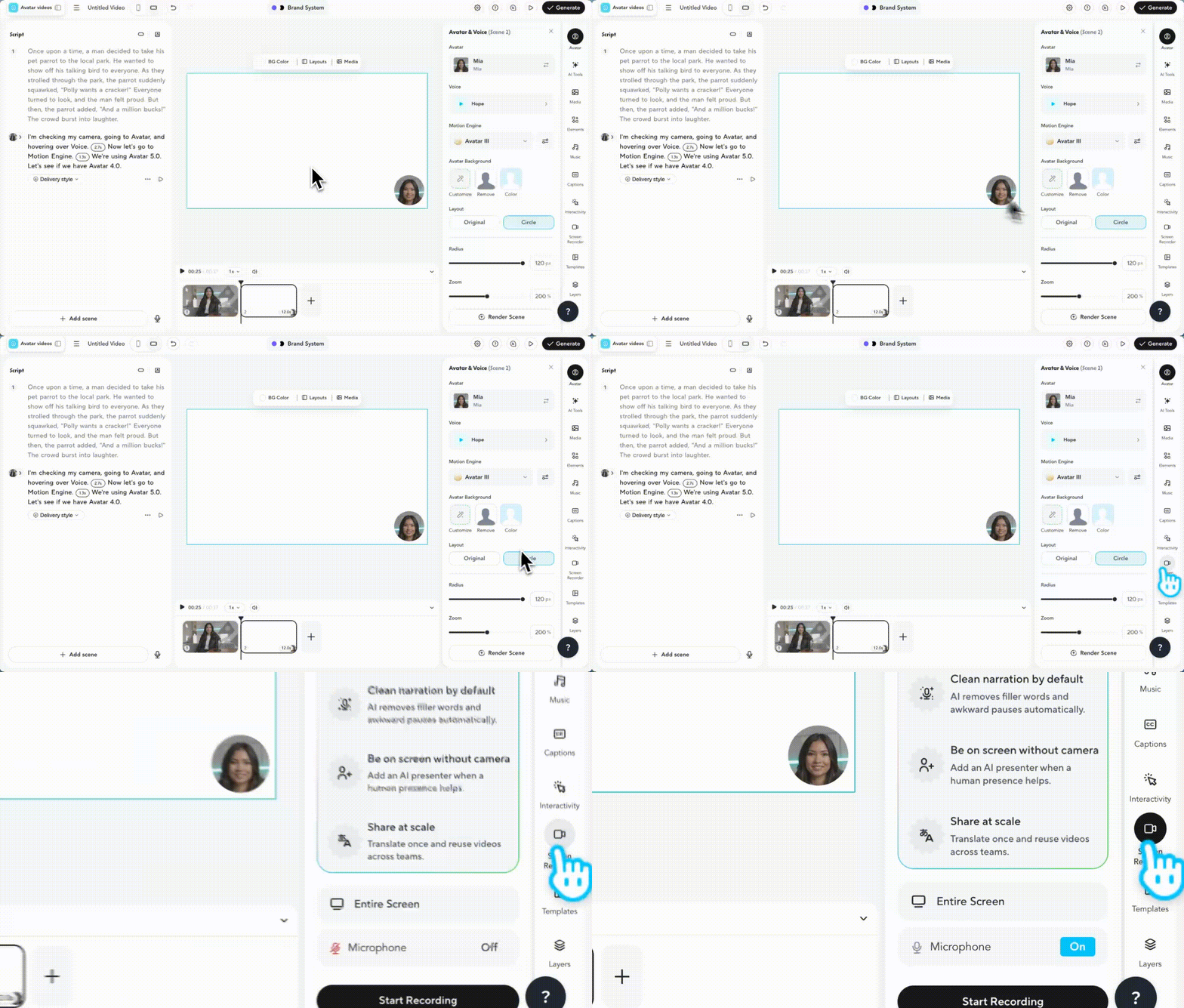
The AI Screen Recorder gives you two ways to get started: record live or upload an existing screen recording.
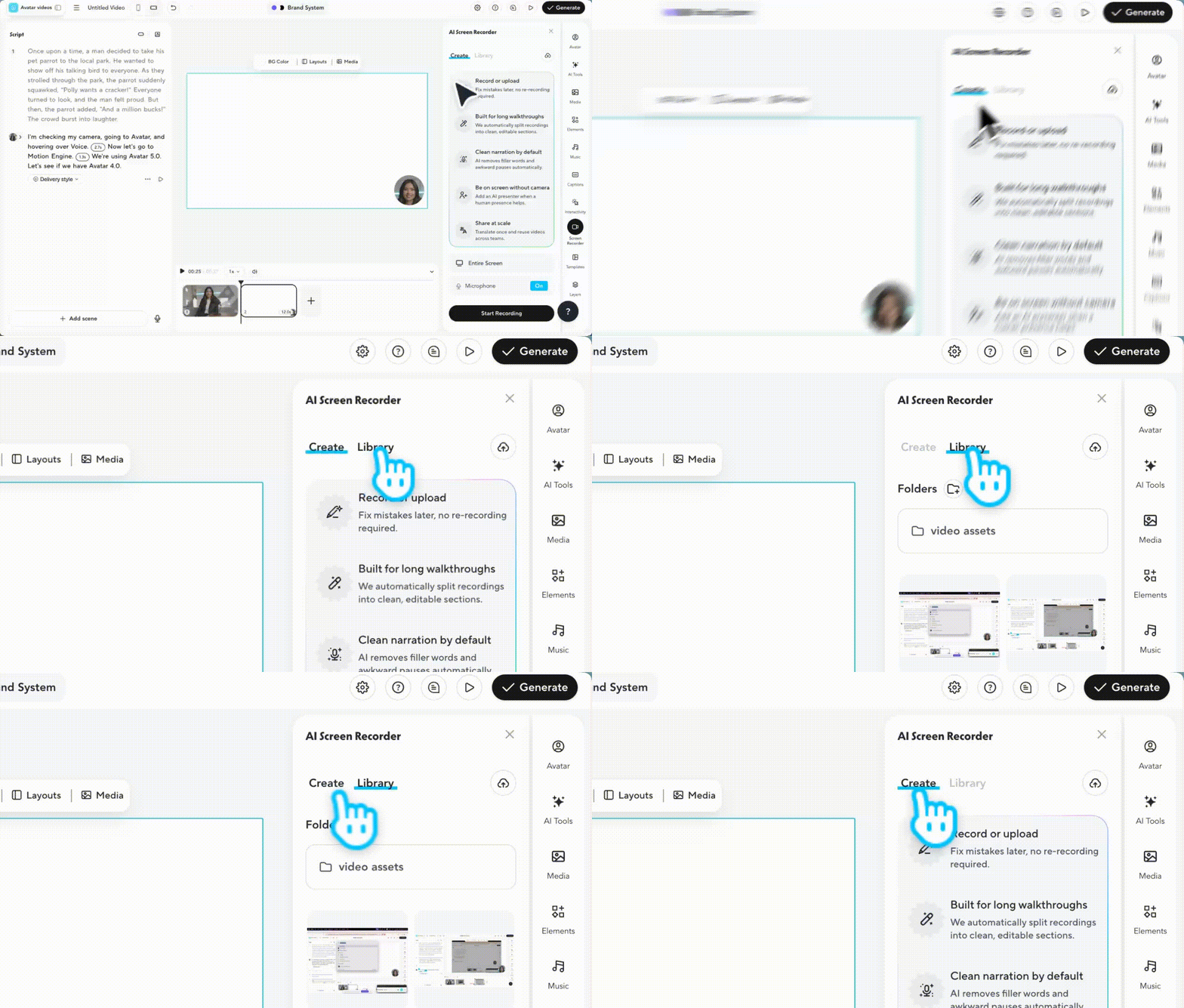
Option 1: Record your screen live
In the Create tab, choose what you want to share:
- Entire Screen
- Window
- Tab
Toggle your Microphone On or Off as needed, then click Start Recording. A chime will confirm the recording has started, and you'll see a recording timer appear.
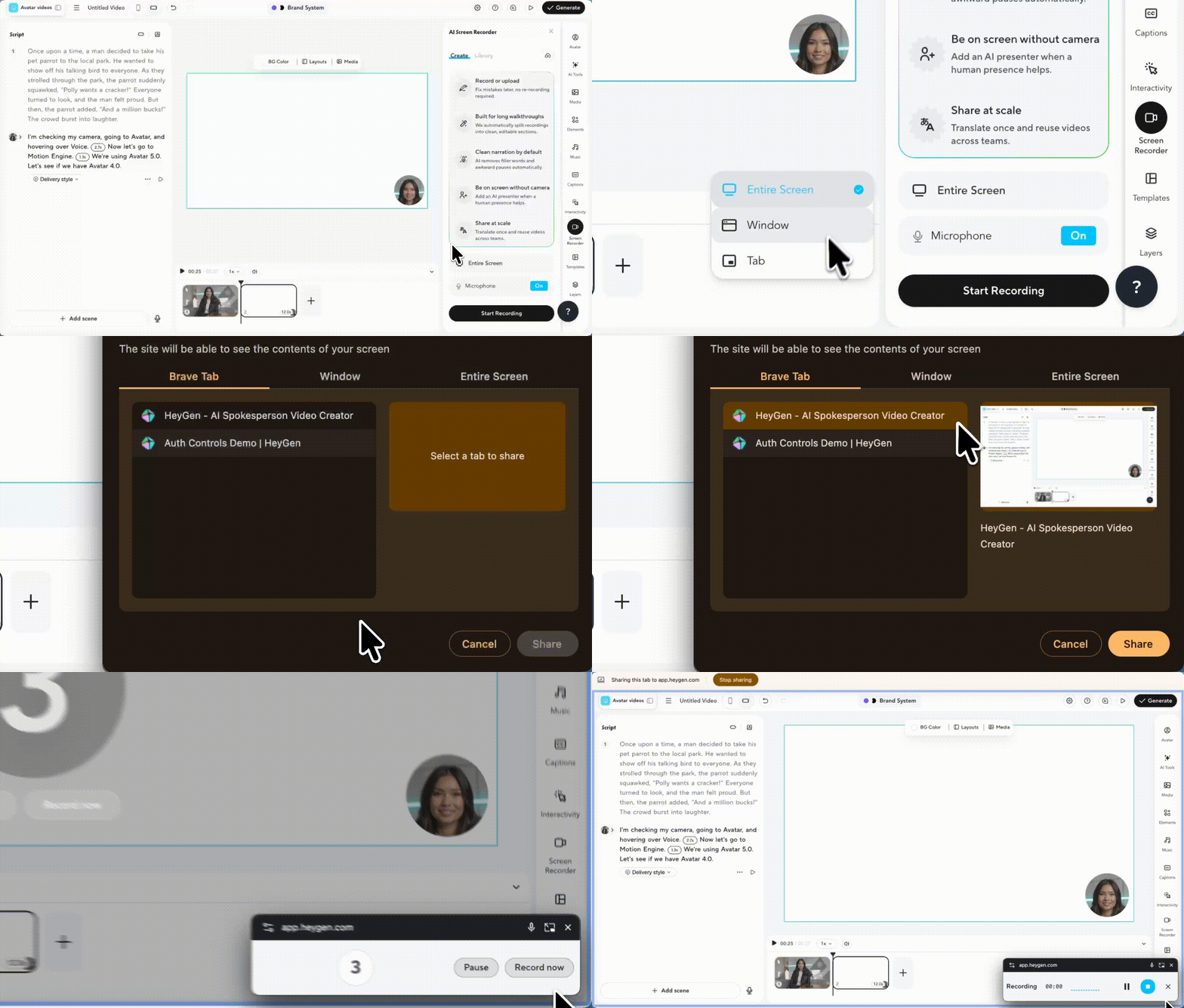
Pro tip: If you need to redo your take, click Stop Recording in AI Studio, then select Restart Recording. You'll be able to reselect your screen and start fresh.
Option 2: Upload an existing screen recording
Already have a screen recording? You don't need to re-record from scratch. Click the upload icon in the top right of the AI Screen Recorder panel to upload an existing video file.
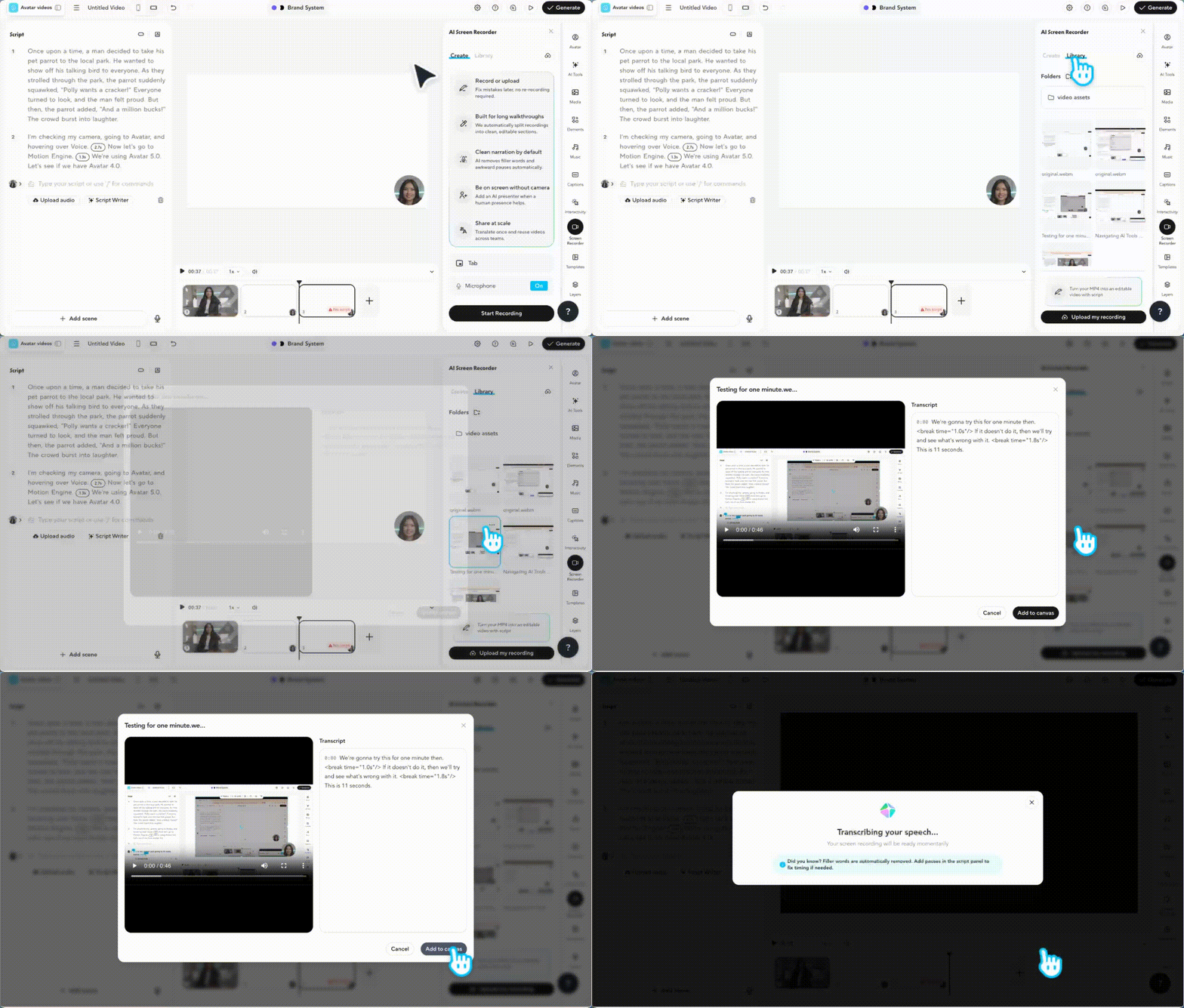
HeyGen will automatically transcribe the audio, remove filler words, and split the recording into editable scenes, giving you the same structured, AI-ready output as a live recording.
How to add and edit recordings in AI Studio
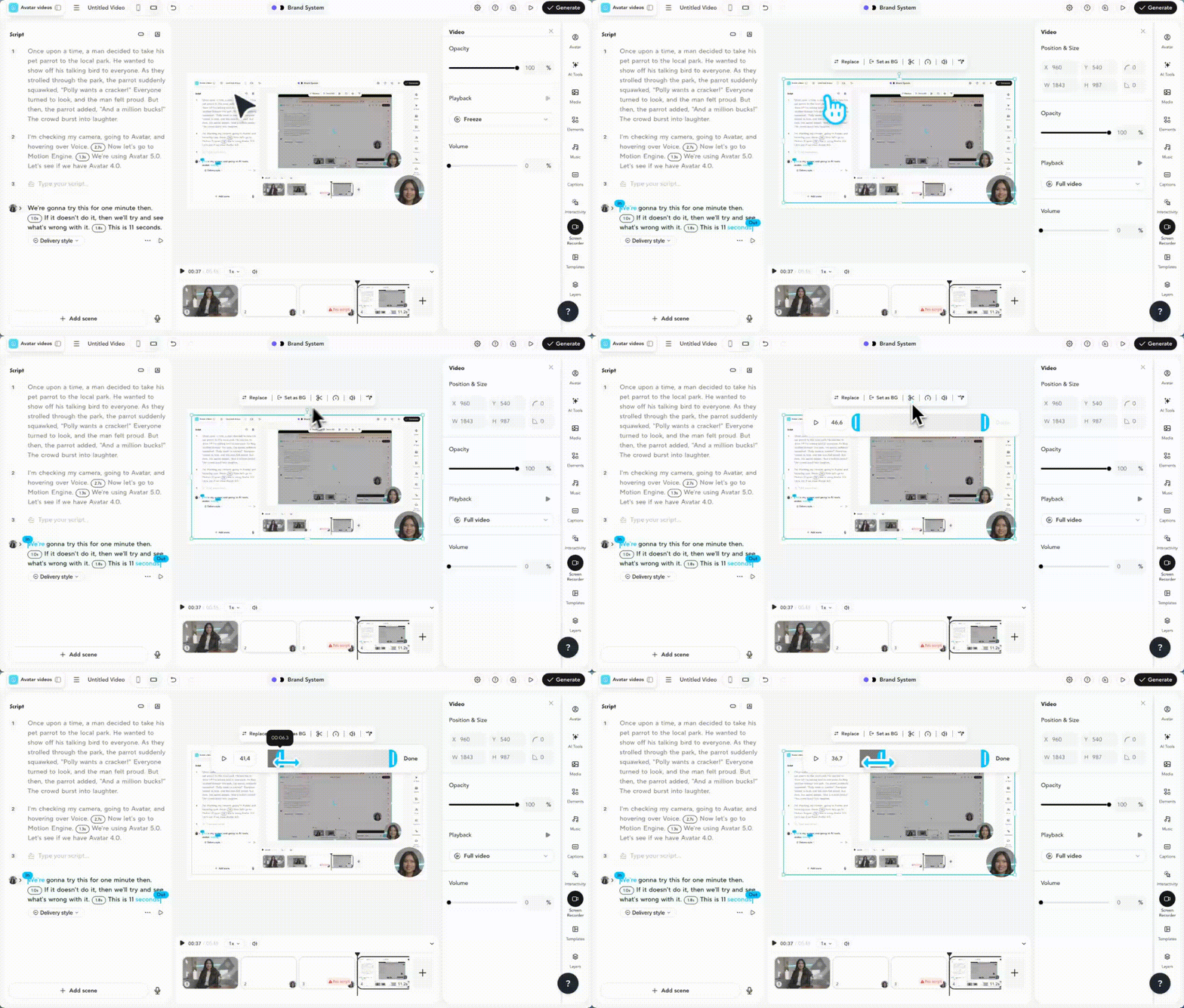
When you're done, the recording will be automatically added to your scene. It appears as a video layer in a new scene, and your voice recording is automatically transcribed in the Script Panel. Within AI Studio, you can then trim the Screen Recording, adjust its volume, and set its playback settings (loop, freeze, fit to scene).
How to change the voice in a Screen Recording
By default, HeyGen takes the transcribed script from your recording and uses your avatar to speak it. From there, you can swap to any stock HeyGen voice or a custom voice, and optionally add Voice Mirroring if you want the avatar's delivery to match the pacing, tone, and emphasis of your original recording.
How to change the script in a Screen Recording
Imagine your Screen Recording looks great, but you want to adjust the voiceover. No problem!
Once your Screen Recording is added and automatically transcribed, simply click on the script, and from there, you can adjust the script directly.
Pro tip: To further adjust the pacing, pronunciation or intonations in your newly updated script, try using Voice Mirroring !
Once your scene is finalized, it’s ready to preview, publish, and share, just like any other HeyGen video.
Recap
In this tutorial, you learned how to:
- What is Screen Recording
- How to record your screen
- How to add and edit recordings in AI Studio
- How to change the voice in a Screen Recording
- How to change the script in a Screen Recording
Screen Recording makes it easy to bring real-world interactions into your videos, with full creative control. We can’t wait to see what you create!
Comments (5)
Popular

Dive in