

Voices
October 4, 2024 · Last updated on January 16, 2026
Creating and generating custom Voices for lifelike video narration
# Voices
-
Looking for a fast and easy way to create professional voiceovers for your videos?
Meet HeyGen AI Voice, your go-to tool for high-quality video narration. Let’s walk through the simple steps to bring your videos to life with HeyGen’s AI-powered voice engine.
What’s covered in this guide
In this guide, we’ll cover:
- What is HeyGen AI Voice?
- Voice library
- How to create your own voice
- Instant voice cloning
- Generate AI Voices
- How to add a new voice to a video
- Prompting guide
- Common issues and solutions
What is HeyGen AI Voice?
HeyGen Voice offers a vast library of AI-generated voices that cover a whopping 175+ languages and accents, and capture a variety of emotions that range from friendly, to serious and everything in between. Plus, there are numerous tone, accent, and style options to work with.
Whether you're narrating a corporate presentation, a YouTube video, or an educational course, there's a voice that fits perfectly.
Voice library
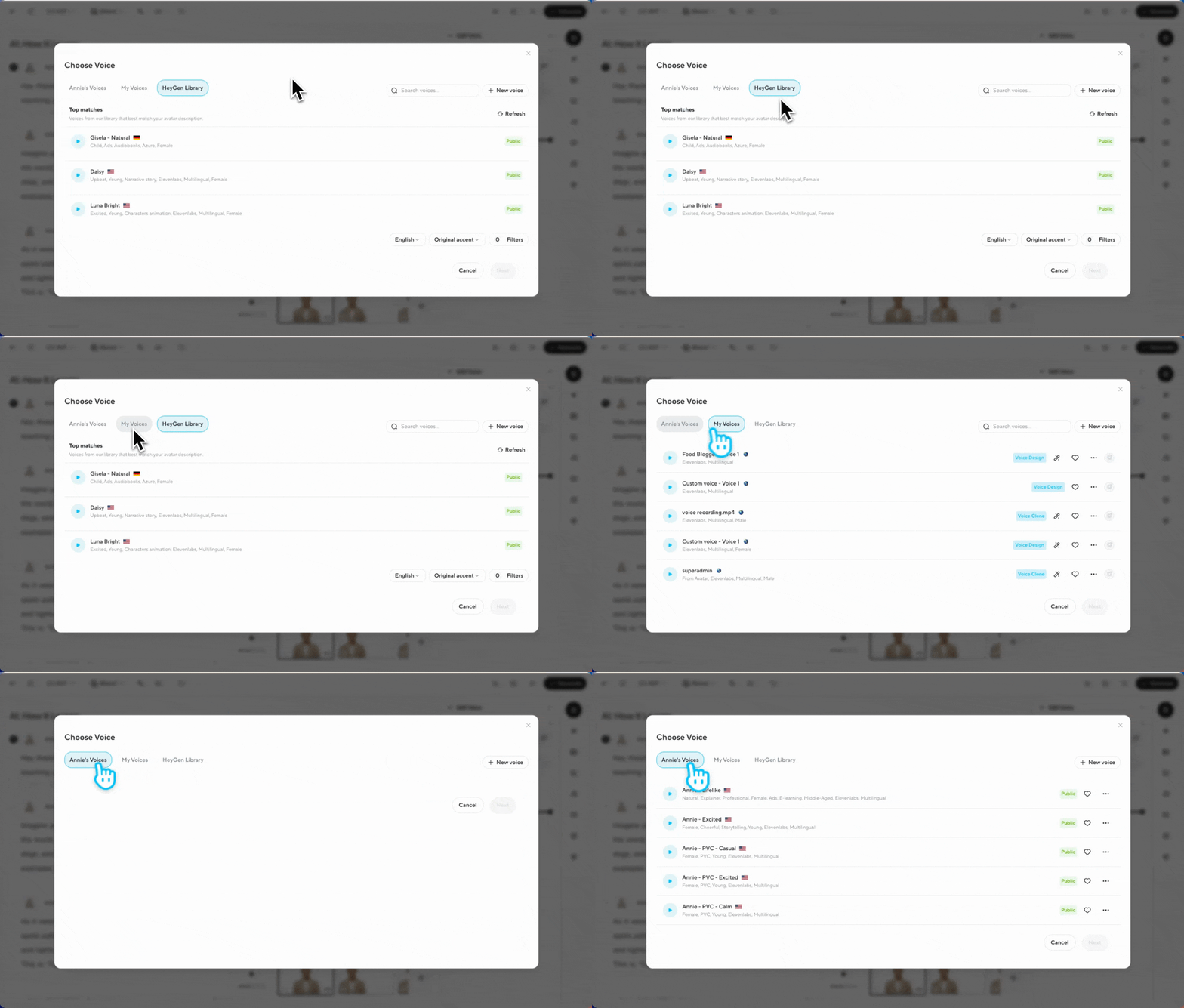
Your voice library is where all your voices live in one organized place. Here, you can browse your own voice clones, explore public AI voices, and listen to previews to help you choose the best fit for your video.
When you’re selecting a voice inside the AI Studio, you can simply open the Voice Library, scroll through available options, and instantly apply the one that matches your content. It’s designed to make selecting or switching voices fast and seamless.
How to create your own voice
Start by reviewing our ultimate guide to hyper-realistic Custom Voice Cloning .
You can also create a custom voice directly in the AI Studio—even if you’re not making an avatar.
To get started, head to the Voice section and select + New Voice. From here, you can choose:
- Instant voice cloning if you want to upload your own audio
- Generate a new voice if you prefer to build a brand-new voice with prompts
Both options let you create a personal and expressive voice that fits your style and storytelling needs.
For best results, upload a file that’s 2 minutes long. You can also create an avatar and voice through the Hyper Realistic Avatar creation process .
Finally, click on ‘Create new voice’.
Instant voice cloning
If you want to use your own voice in your videos, Instant Voice Cloning makes it quick and easy to create a personal voice clone.
You’ll see a short agreement confirming that recordings of your voice will be used by HeyGen to create and use a synthetic version of your voice. Once you’ve checked the box, you’re ready to upload your audio.
Click upload file and add the voice recording you’d like HeyGen to use.
After the upload finishes, HeyGen will process your audio and create your custom voice clone.
If the first version of your clone isn’t quite what you had in mind, don’t worry—you can refine it.
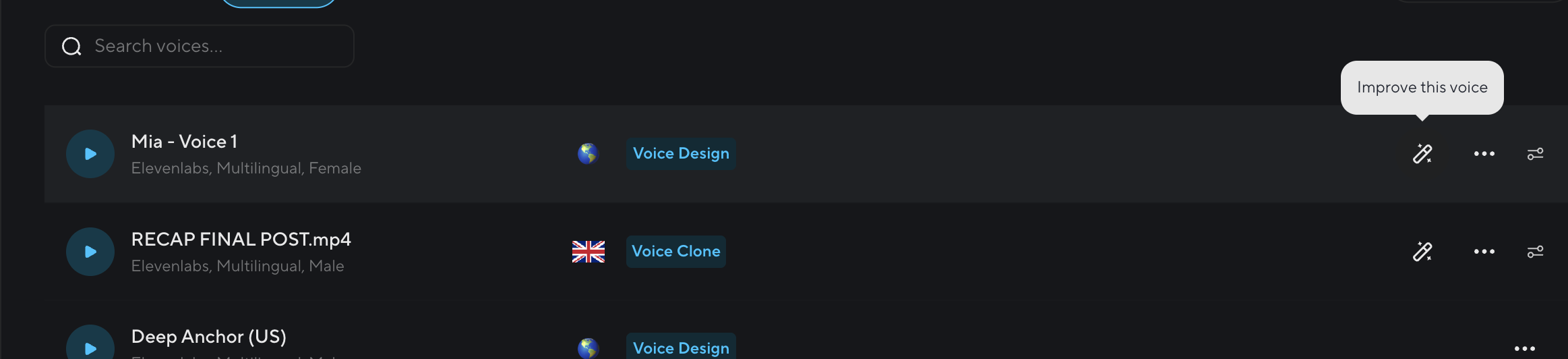
Select 'improve this voice' to adjust the accent, voice engine, similarity, style, and stability. These tools help you shape your voice clone so it sounds exactly the way you want.
How to generate AI Voices
You can name your voice, select the desired age, gender, and ethnicity. These details help shape the overall tone and character of the voice.
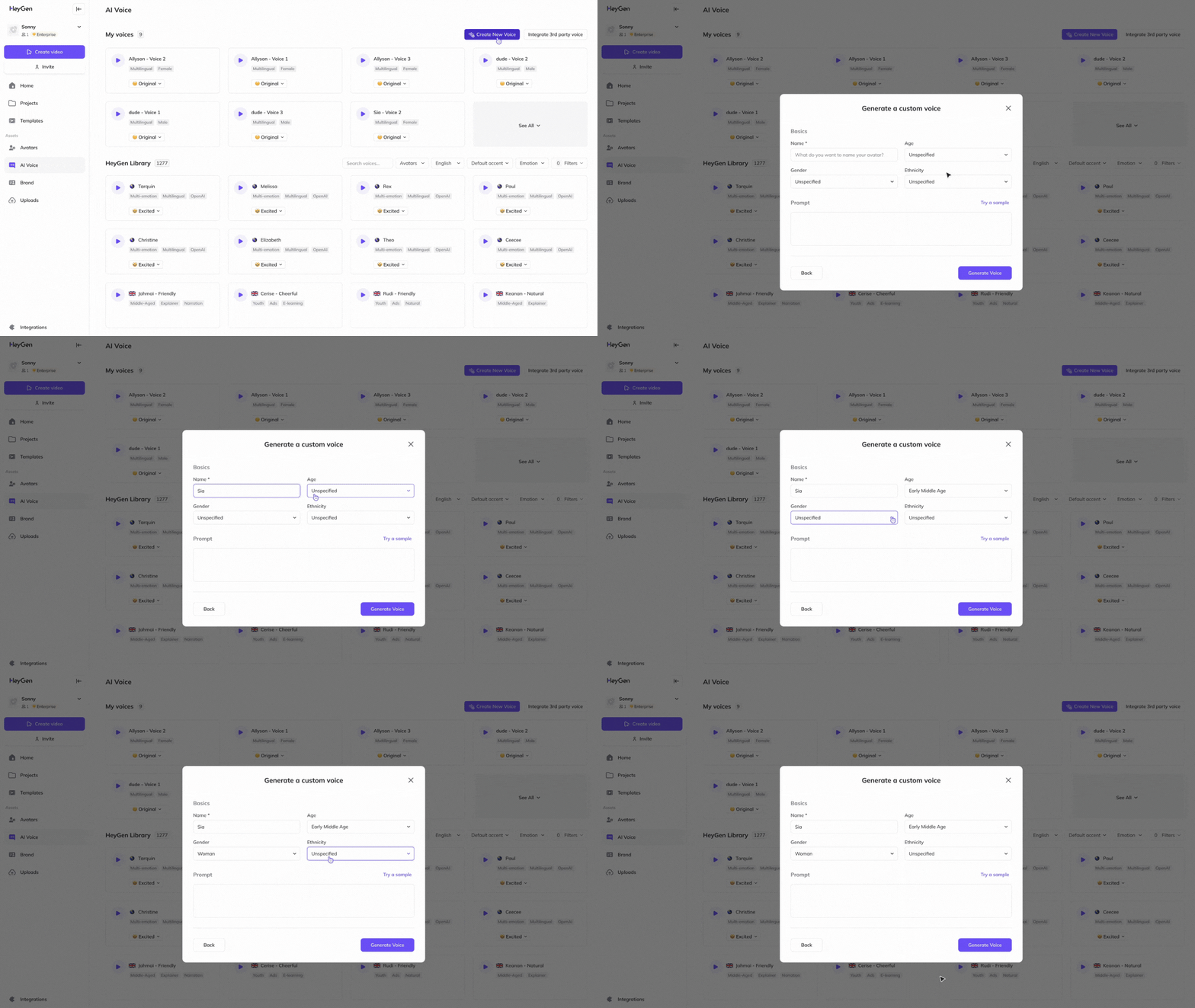
Write a short description explaining how you want the voice to sound, whether it's professional, friendly, calm, or energetic. If you’re unsure, you can click on "Try a Sample" to hear example voices for inspiration.
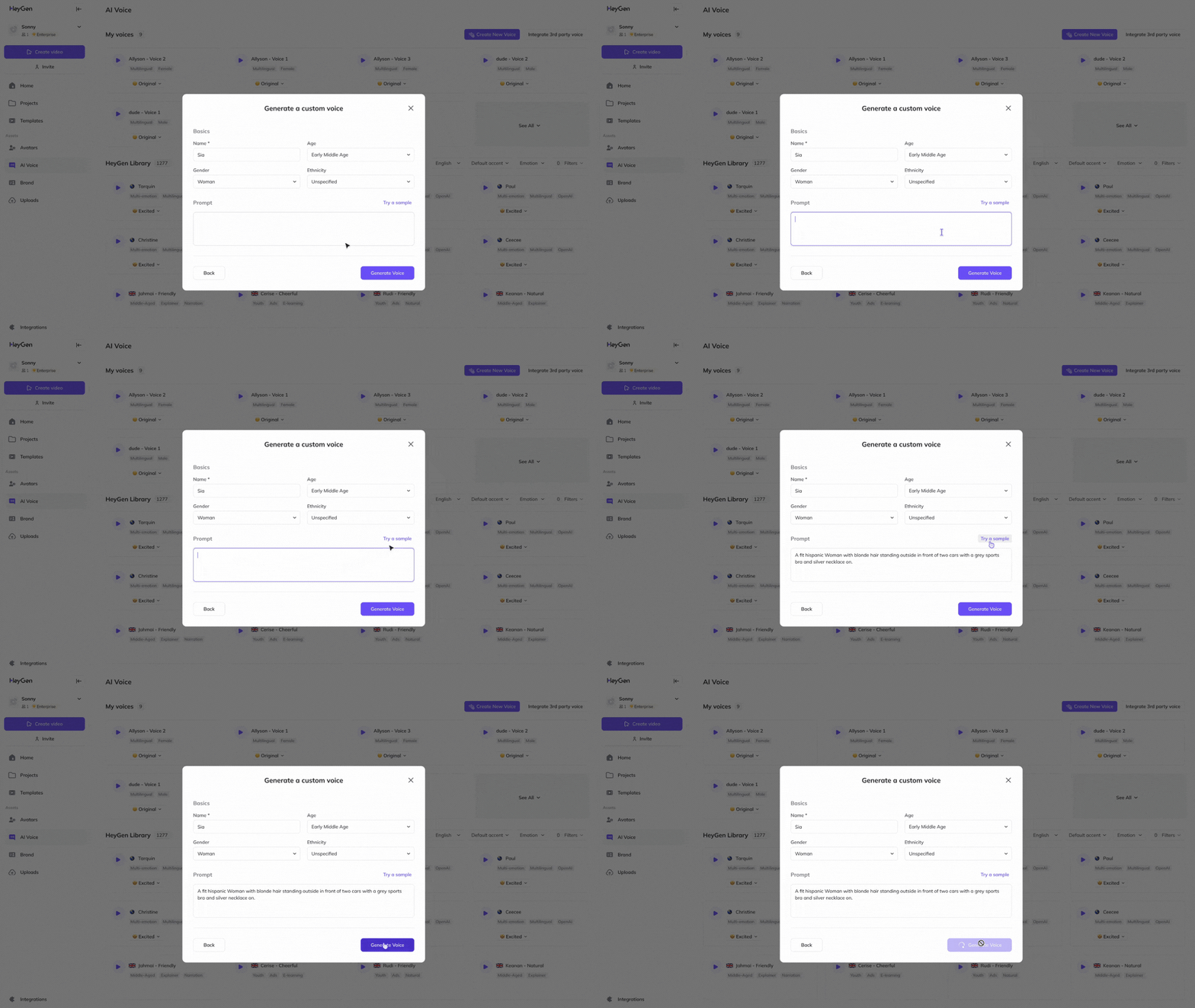
Once you’re satisfied with your customizations, click "Generate Voice." HeyGen will provide you with three voice options to choose from. Listen to each and select the one that best matches your needs.
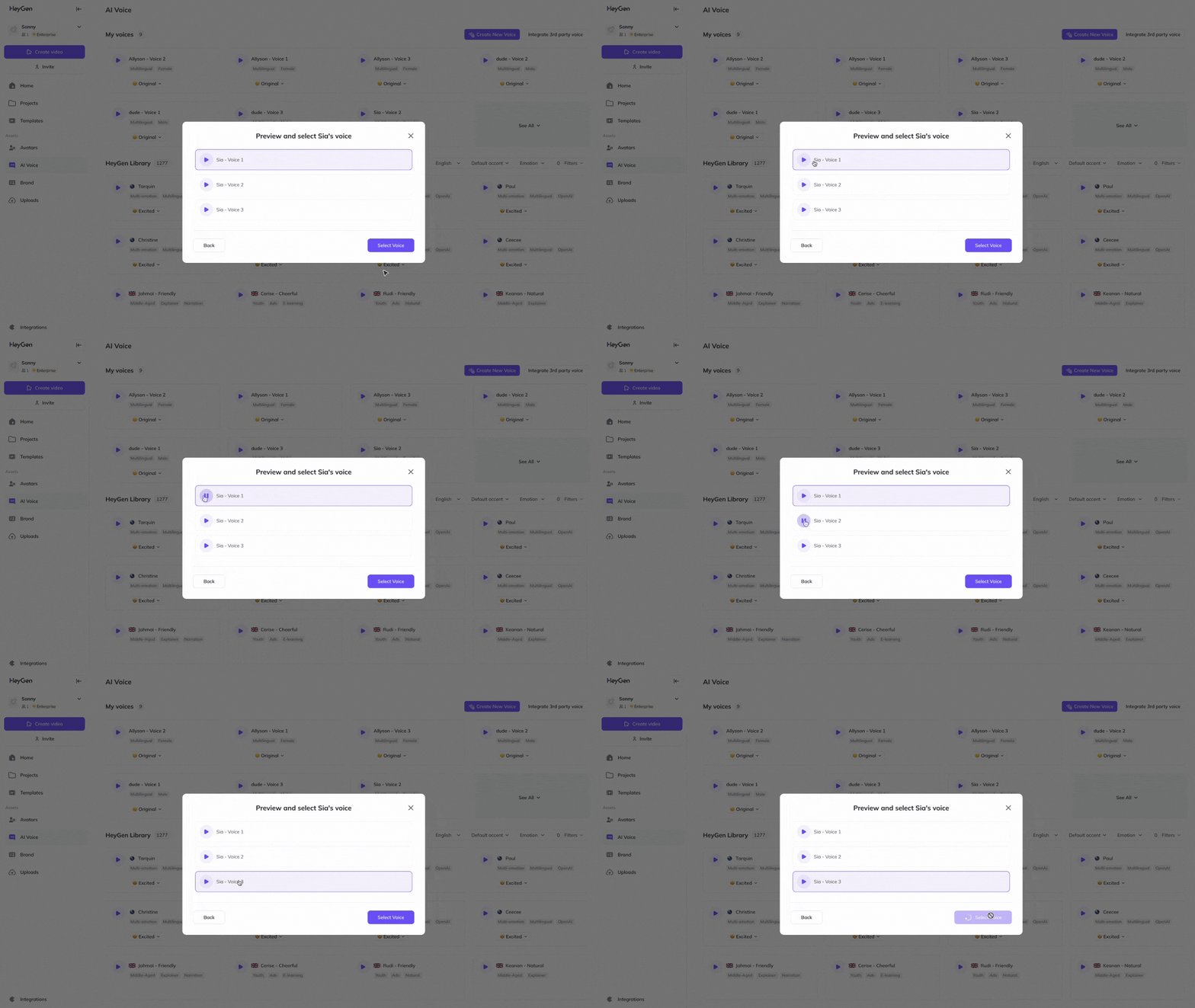
By generating an AI voice, you add a new layer of personalization to your videos, enhancing how your message is delivered!
Improving your voice with Voice Doctor
If the voice you created doesn’t fully match the tone or delivery you had in mind, Voice Doctor lets you enhance it without rewriting prompts or starting over. This tool helps improve clarity, reduce robotic-sounding artifacts, and make your avatar’s voice feel more natural and aligned with your intended style.
You can access Voice Doctor in two ways.
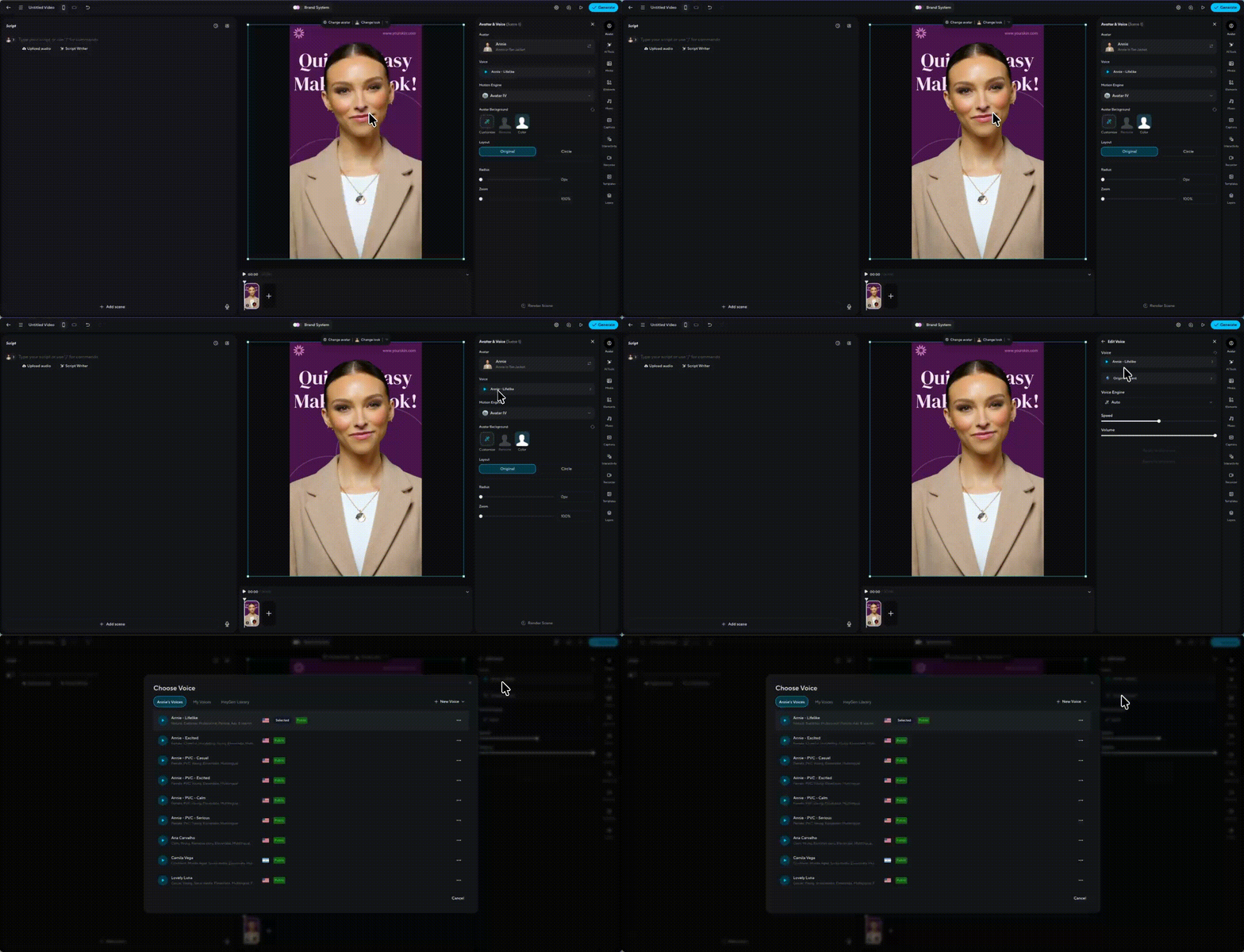
1. From the AI Studio, select your avatar and click on the Voice tab
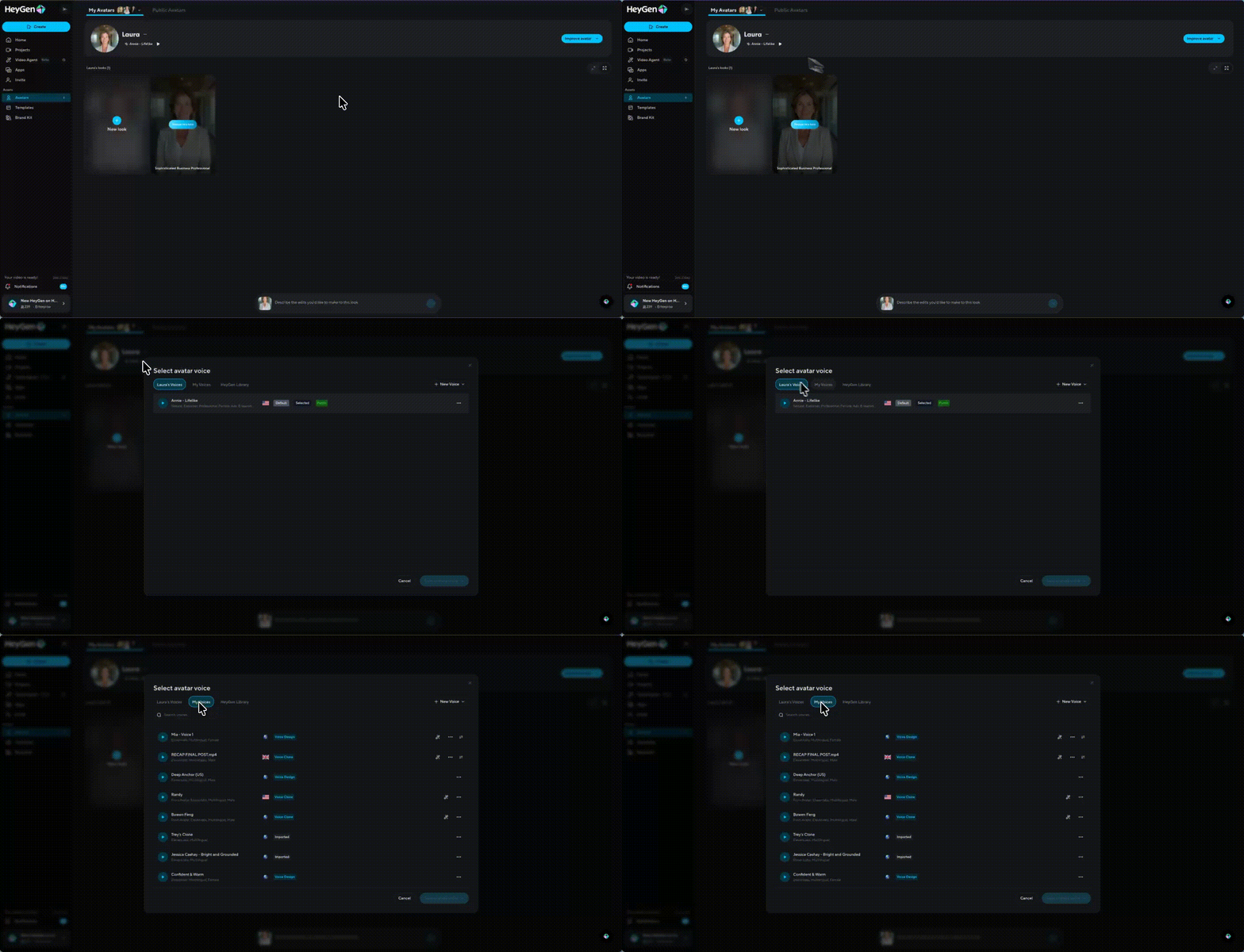
2. From the Avatars tab, click the Voice button to edit an existing voice
From there, choose the voice you want to edit. Only uploaded or generated voices can be enhanced, which you can identify by the Enhance Voice icon displayed on the right side of the voice.
After clicking Enhance Voice, describe how you’d like the voice improved, for example, clearer pronunciation, a smoother tone, or more natural pacing. HeyGen will generate enhanced voice options based on your description.
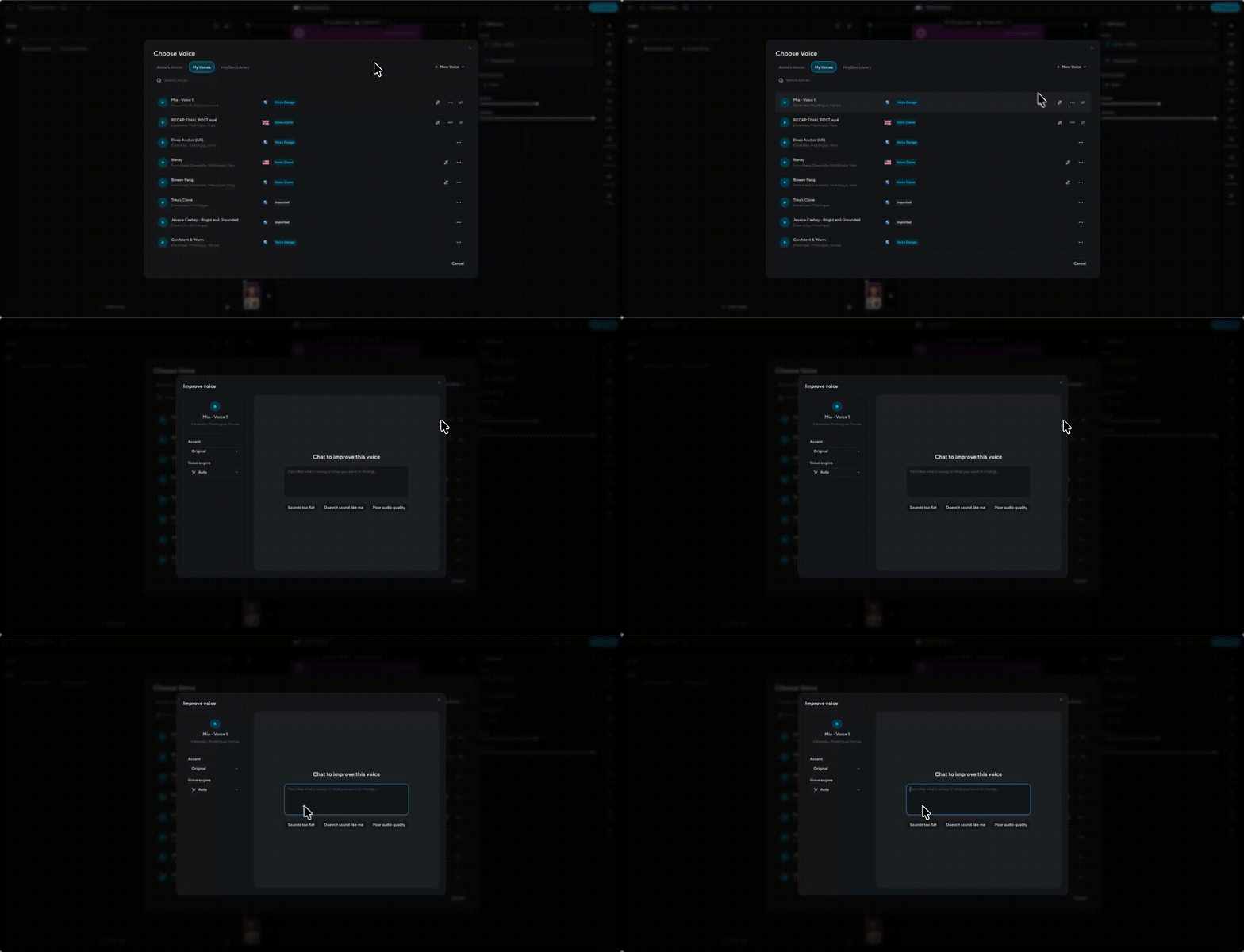
You can also adjust the accent or switch voice engines if you’re looking for a different vocal performance.
Prompting guide
Voice Design Types
Realistic Voice Design:
To create an original, realistic voice, you can specify attributes such as age, accent/nationality, gender, tone, pitch, intonation, speed, and emotion. Example prompts include:
- “A young Indian female with a soft, high voice. Conversational, slow, and calm.”
- “An old British male with a raspy, deep voice. Professional, relaxed, and assertive.”
- “A middle-aged Australian female with a warm, low voice. Corporate, fast, and happy.”
Character Voice Design:
For creative characters, simpler prompts work well to generate unique voices. Example prompts include:
- “A massive evil ogre, troll.”
- “A sassy little squeaky mouse.”
- “An angry old pirate, shouting.”
Other characters we’ve had success with include Goblin, Vampire, Elf, Troll, Werewolf, Ghost, Alien, Giant, Witch, Wizard, Zombie, Demon, Devil, Pirate, Genie, Ogre, Orc, Knight, Samurai, Banshee, Yeti, Druid, Robot, Elf, Monkey, Monster, and Dracula.
Voice Attributes
Each attribute varies in importance when designing your AI voice:
- Age (High Importance): Choose from options like Young, Teenage, Adult, Middle-Aged, Old, etc.
- Accent/Nationality (High Importance): Options include British, Indian, Polish, American, and more.
- Gender (High Importance): Select from Male, Female, or Gender Neutral.
- Tone (Optional): Examples include Gruff, Soft, Warm, and Raspy.
- Pitch (Optional): Options like Deep, Low, High, and Squeaky are available.
- Intonation (Optional): Options include Conversational, Professional, Corporate, Urban, and Posh.
- Speed (Optional): You can set the speed to Fast, Quick, Slow, or Relaxed.
- Emotion/Delivery (Optional): Choose emotions such as Angry, Calm, Scared, Happy, Assertive, Whispering, or Shouting.
Common issues and solutions
Doesn’t sound like me
Voice clones may not perfectly replicate the source voice due to issues in the training data or audio quality. To address this:
- Use Professional Voice Cloning (PVC) with high-quality, consistent audio.
- Record clean audio samples with no background noise.
- Enable the Remove Background Noise option when submitting your audio.
- If issues persist, re-record new samples or regenerate the clone with the same input.
Pronunciation
Pronunciation accuracy depends on the language of the training data. To improve this:
- Record training samples in the language you plan to use.
- Ensure natural inflection and clear articulation during recording.
Voice instability
Voice instability can result from inconsistent training data or audio quality. Improve stability by:
- Recording high-quality training samples with consistent tone and volume.
- Using sufficient training data to provide the AI with varied but stable input.
Incorrect tone
Achieving the desired tone requires tonal consistency in the input samples. To correct tone issues:
- Record training samples in the target tone.
- Ensure that all samples maintain a consistent emotional or tonal expression.
Too monotone
Monotone voice clones can lack natural expression. Enhance expressiveness by:
- Including training data with natural inflections and varied tones.
- Recording new samples with expressive delivery and adding them as a custom emotion to your voice.
- Adjusting settings like stability, clarity/similarity, and style exaggeration for a more dynamic result.
Emotions don’t sound like me
To capture emotional nuances, training samples must reflect the desired emotional expressions. Include diverse samples showcasing different emotions to enhance the clone's ability to replicate them.
Accent
For unique accents, consistent training data is essential. To address accent issues:
- Use Professional Voice Cloning and record samples in the desired accent.
- For non-English TTS, use the Multilingual v2 model. For English, use Turbo v2.
- If problems persist, regenerate the voice clone using the same or new samples.
- Adjust the accent in HeyGen Studio if necessary, keeping in mind this may slightly alter the voice’s authenticity.
Best practices for successful voice cloning
- Use high-quality audio: Ensure training samples are free from background noise and recorded in a quiet environment.
- Provide sufficient data: Include a diverse range of samples, covering various tones, emotions, and expressions.
- Maintain consistency: Ensure all samples are recorded with consistent tone, volume, and quality.
- Enable background noise removal: Use HeyGen’s Remove Background Noise option for cleaner input.
- Test and adjust: Experiment with settings such as stability, clarity, and style exaggeration to fine-tune the output.
Recap
In this guide, you learned:
- What is HeyGen AI Voice?
- How to create your own voice
- How to customize your voice with multiple Emotions
- How to add a new voice to a video
- Common issues and solutions
We’re looking forward to seeing what you’ll create with HeyGen!
Comments (0)
Popular

Dive in
Related
Video
Interactive Avatar Demo: Creating Live, Two-Way AI Video Experiences
By Chloe Yang • May 5th, 2025 • Views 1.5K
Video
Interactive Avatar Demo: Creating Live, Two-Way Video Experiences
By Chloe Yang • May 1st, 2025 • Views 251
Video
Interactive Avatar Demo: Creating Live, Two-Way AI Video Experiences
By Chloe Yang • May 14th, 2025 • Views 541
Video
Interactive Avatar Demo: Creating Live, Two-Way Video Experiences
By Chloe Yang • May 1st, 2025 • Views 251
Video
Interactive Avatar Demo: Creating Live, Two-Way AI Video Experiences
By Chloe Yang • May 14th, 2025 • Views 541
Video
Interactive Avatar Demo: Creating Live, Two-Way AI Video Experiences
By Chloe Yang • May 5th, 2025 • Views 1.5K