

API & Integrations
February 5, 2025 · Last updated on June 23, 2025
How to use HeyGen for HubSpot to create personalized AI videos at scale

# HubSpot
# Personalized Video
Connect HeyGen with HubSpot to automate personalized AI videos for every lead, deal, or contact!
The HeyGen app for HubSpot allows you to connect directly to your HubSpot contacts and send AI-powered personalized videos at scale. Personalized touches like calling recipients by name can transform traditional outreach into engaging, visually compelling content that enhances conversions and strengthens customer relationships.
In this guide, you'll learn how to set up the integration, create personalized AI videos, and use them in your HubSpot marketing and sales campaigns. Prefer to watch instead of read? Visit HubSpot's integration guide here .
What’s covered in this guide:
- Why use HeyGen for HubSpot?
- Setting up HeyGen with HubSpot
- Automating videos in HubSpot workflows
- Designing your email template
- Managing contact lists
- Tracking engagement & optimizing performance
- Recap
Why use HeyGen for HubSpot?
Generate hyper-personalized AI avatar videos that address contacts by name and speak directly to them—automatically! Seamlessly integrate these videos into HubSpot workflows, emails, and landing pages without ever leaving the platform. Ditch boring text-based outreach and grab attention with videos that feel personal, engaging, and impossible to ignore. Best of all, AI automation lets you scale effortlessly, generating thousands of unique videos in a snap—no manual effort required!
Setting up HeyGen with HubSpot
To get started, install HeyGen from the HubSpot App Marketplace by searching for 'HeyGen' or clicking this link and selecting 'Install.'
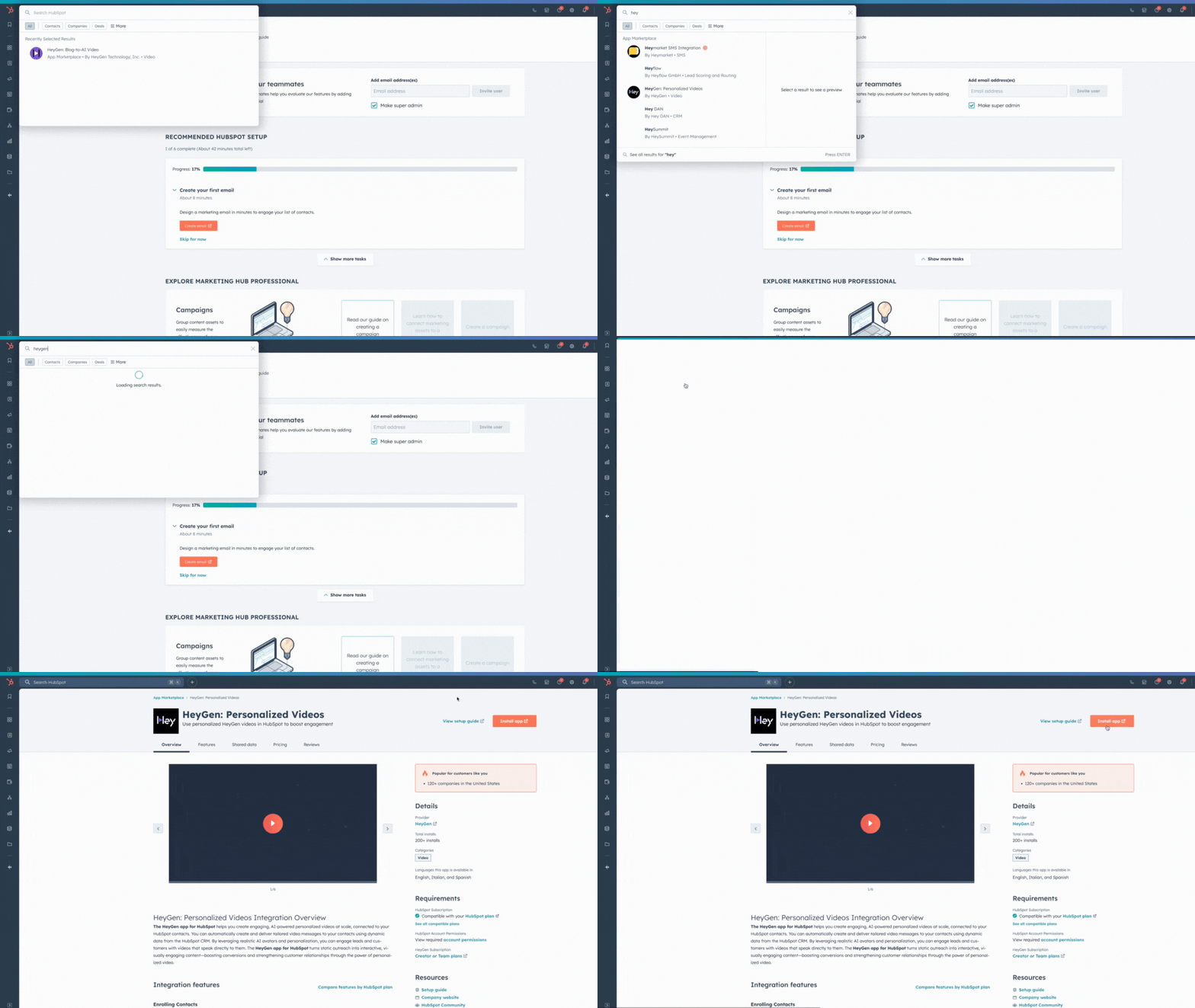
Once installed, sign in to your HeyGen account and authorize the connection to sync with HubSpot.
Next, go to 'My Workflows' in HubSpot, select 'Manage Workflows.' HeyGen has automatically created a workflow called "Generate HeyGen Video for a Contact." This workflow is pre-configured to generate personalized videos based on contact list changes, helping you streamline video automation right away.

To finalize the setup, navigate to the "Generate a Personalized HeyGen Video for a Contact" workflow action. Here, you’ll need to enter an API token and select a video template.
Automating videos in HubSpot workflows
With HeyGen now connected to HubSpot, the next step is to create a personalized video template.
Log in to HeyGen and go to the video creation dashboard. Click 'Create Template' and select an AI avatar from HeyGen’s lifelike options, or customize your own avatar. For a detailed step-by-step guide on optimizing your templates, refer to How to Use Templates in HeyGen to Streamline Video Creation .

Next, enter a personalized script using HubSpot tokens like {First Name} to dynamically insert contact details into each video.

Once your script is ready, save the template with a recognizable name (e.g., "HubSpotTemplate").

Next, copy your HeyGen API key by clicking your username, selecting 'Settings' and then 'API.'

Now, return to HubSpot and open the "Generate a Personalized HeyGen Video for a Contact" workflow action. Paste your HeyGen API key into the designated field in HubSpot, and select your newly created template.

Finally, ensure the workflow is set to pull the correct HubSpot data fields, such as 'First Name,' so each video is fully personalized. Once configured, HeyGen will automatically generate a unique video whenever a contact is added to the specified list and send it via email.

Designing your email template
Next, click on 'Email Preview' to create or edit an email template in HubSpot.

Compose your email using HubSpot’s tools and fill in the necessary fields to ensure your message is complete.

Then, insert a personalized video link by using HubSpot personalization tokens to dynamically generate a HeyGen video URL. To enhance engagement, add an animated GIF thumbnail as a preview of the video.
Finally, review your email, then send or schedule it to distribute your personalized video campaign to your contacts.
Managing contact lists
Navigate to the "List" section in HubSpot.

Next, set up a smart list by filtering contacts based on key criteria, such as "First Name is known."

Then, verify that the right contacts are added to the list before triggering workflows.
Finally, refresh your HeyGen dashboard to confirm that videos are being generated for the selected contacts.
Tracking engagement & optimizing performance
- Monitor Video Views – Track who watched their video in HubSpot contact timelines.
- Analyze Key Metrics – Measure watch time, click-through rates, and CTA performance.
- Automate Follow-Ups – Set notifications for sales when a lead watches their video, ensuring timely follow-ups.
Recap
In this guide, you learned how to:
- Set up HeyGen with HubSpot and configure automated workflows
- Create AI-powered video templates
- Design your email templates
- Manage contact lists
- Track engagement metrics and optimize performance
Now you’re ready to take your HubSpot marketing and sales efforts to the next level with AI-powered video personalization! If you’re sharing your HeyGen-powered videos on social media, don’t forget to tag @HeyGen_Official—we’d love to see what you create!
Comments (0)
Popular

Dive in
Related
Video
How Agencies Use HeyGen + Hubspot to Scale Personalized Marketing
By Cathal Canavan • Apr 23rd, 2025 • Views 497
Video
How Agencies Use HeyGen + Hubspot to Scale Personalized Marketing
By Cathal Canavan • Apr 23rd, 2025 • Views 497