

API & Integrations
March 19, 2026
How to use HeyGen with Claude and AI Agents to generate videos automatically
# Integrations
# Claude
# AI Agent
-

Kevin Raheja
If you use Claude, Cursor, Manus, or another AI agent in your daily work, you can now add HeyGen as a connected tool and generate avatar videos directly from a conversation. There is no switching tabs, no copy-pasting, no production setup.
In this guide, you’ll learn how it works, and how to get started.
What's covered in this guide
- What are AI agent platforms, and how do they work with HeyGen?
- How to connect HeyGen to Claude
- Generating your first video with a single prompt
- Combining HeyGen with other tools for automated workflows
- Three workflow examples: sales, content, and internal comms
- Recap
What is an AI agent platform?
AI agent platforms like Claude are tools that can connect to external services and take action on your behalf. When you add HeyGen to Claude (MCP Connector), Claude can call HeyGen's Video Agent directly to generate finished avatar videos, without you ever opening HeyGen.
Think of it this way: Claude is your creative director, and HeyGen is your production studio. You describe what you want, Claude figures out the script and structure, and HeyGen renders the finished video.
What makes this especially powerful is that Claude can pull context from other tools in the same workflow. Like a Gong call transcript, a Notion page, or a Slack thread, and use that context to generate a video that's actually relevant to your work.
How to connect HeyGen to Claude
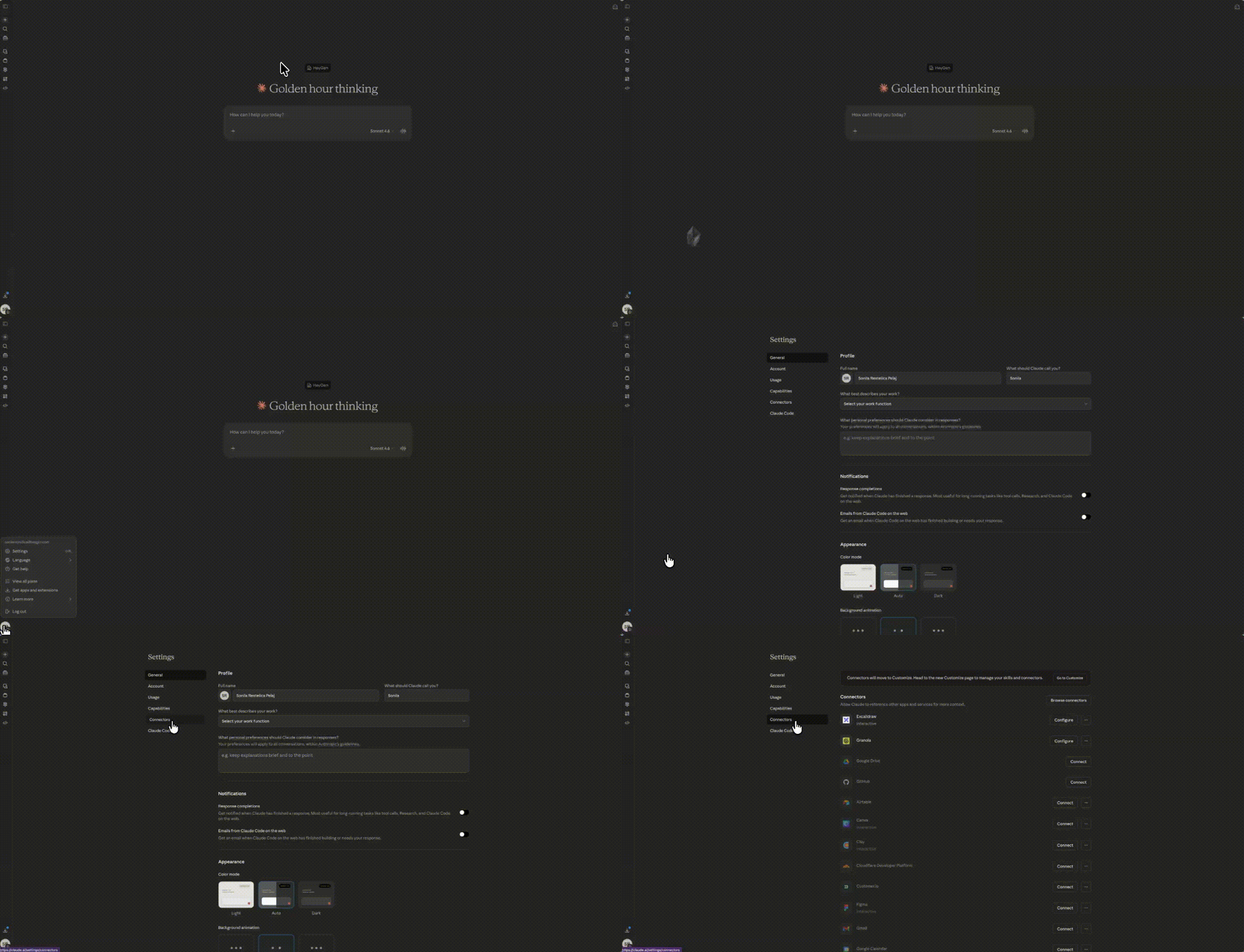
Open Claude.ai and go to Settings then Connectors.
Search for HeyGen and click Connect. Complete the OAuth flow, sign in with your HeyGen account and authorize the connection.
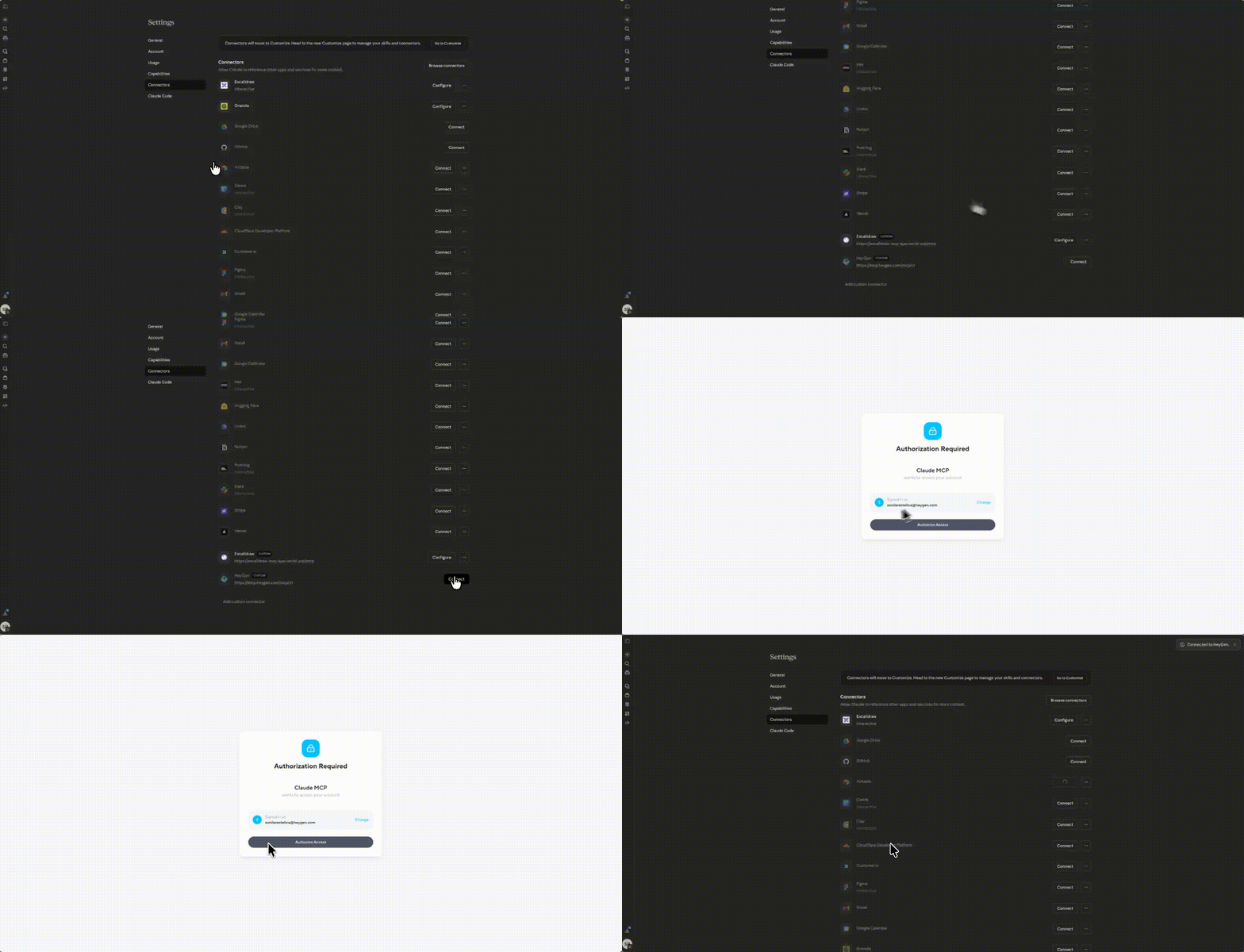
That's it. HeyGen is now available as a tool Claude can call in any conversation
Once connected, you can start generating videos directly from Claude's chat. You don't need to configure anything else.
Generating your first video
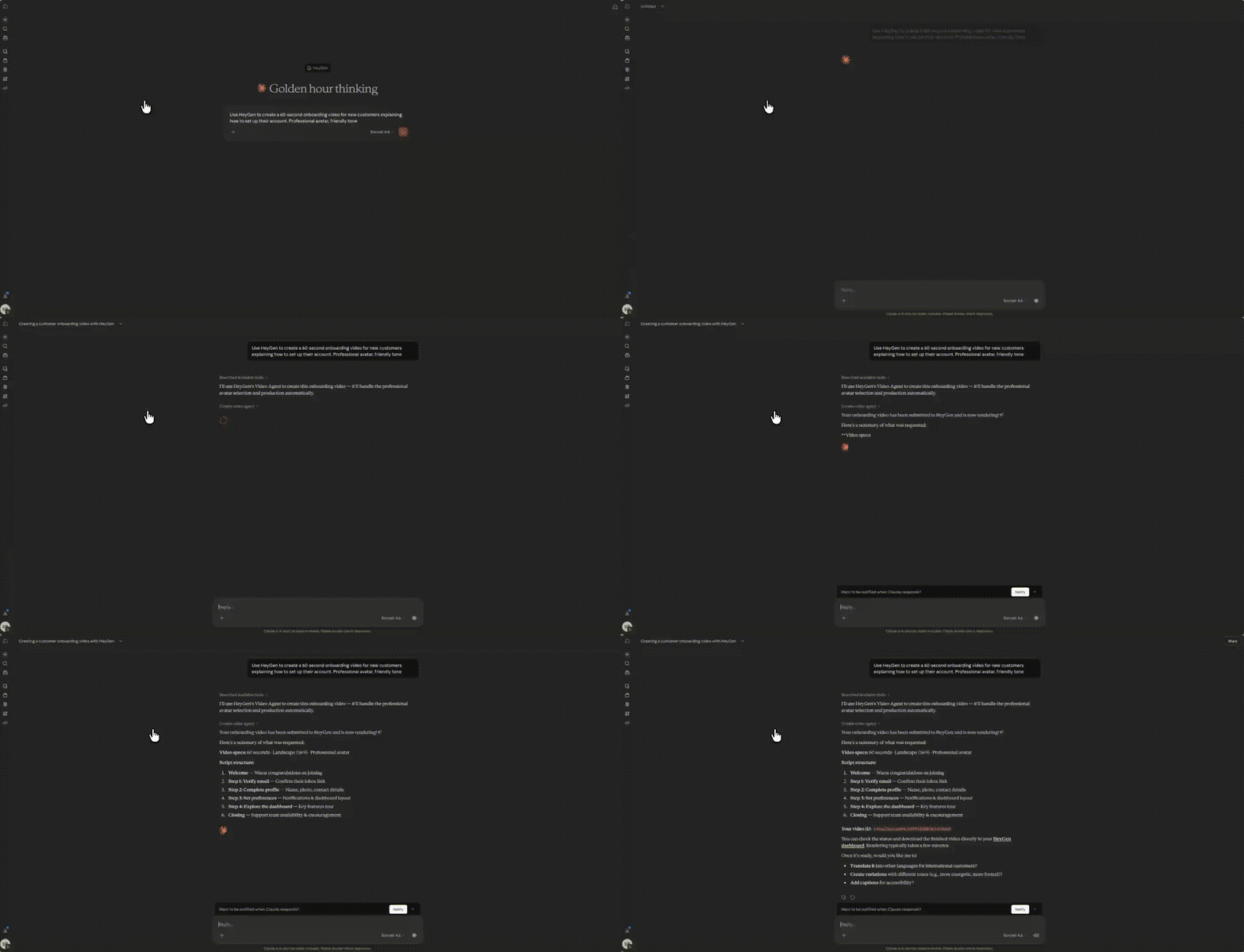
Open a new Claude conversation and describe the video you want to make. Claude will pass your request to HeyGen's Video Agent, which handles the script, avatar selection, and production automatically.
Here are a few prompts to try:
Use HeyGen to create a 60-second onboarding video for new customers explaining how to set up their account. Professional avatar, friendly tone.
Generate a short product update video announcing our Q1 feature releases. Keep it under 90 seconds.
Make a 45-second sales outreach video introducing HeyGen to marketing leaders. Confident tone, no jargon.
Claude will show you a production plan before generating, review the script and structure, request changes if needed, then confirm. Your finished video will be ready to preview and share directly from the conversation.
Combining HeyGen with other tools
Here's where things get really useful. Claude can allow you to have multiple connectors at once. That means you can load HeyGen alongside tools like HubSpot, Notion, or Slack, and the agent will pull context from those tools, then hand it directly to HeyGen to produce a video.
No manual work. No briefing documents. The data you already have becomes the video.
Workflow 1: HubSpot contact → personalized outreach video
Tools needed: HeyGen + HubSpot connected to Claude
Instead of writing a cold outreach email, try this prompt after a prospect fills out a form or gets added to a sequence:
Pull the contact record for [name] from HubSpot, their company, role, and any notes on file. Use that to generate a personalized 60-second HeyGen outreach video. Professional avatar, warm tone, reference their company by name.
Claude reads the contact data from HubSpot, structures a personalized script, and passes it to HeyGen's Video Agent. The result is a video that speaks directly to that prospect, their name, their company, their context, generated in under a minute without a single line of copy written by hand.
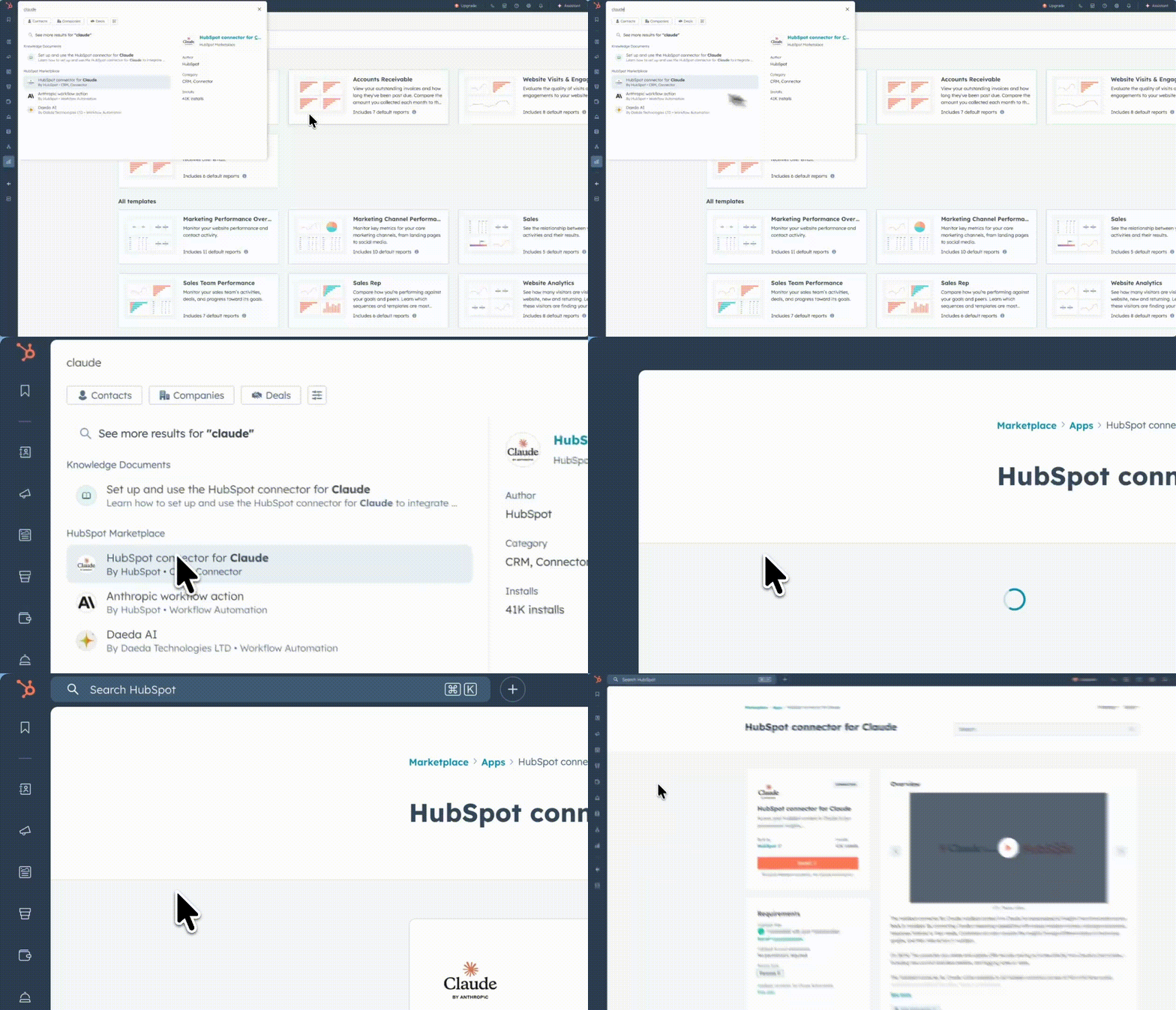
This workflow is particularly effective for sales teams already running HubSpot sequences, where a personalized video can replace the standard follow-up email entirely.
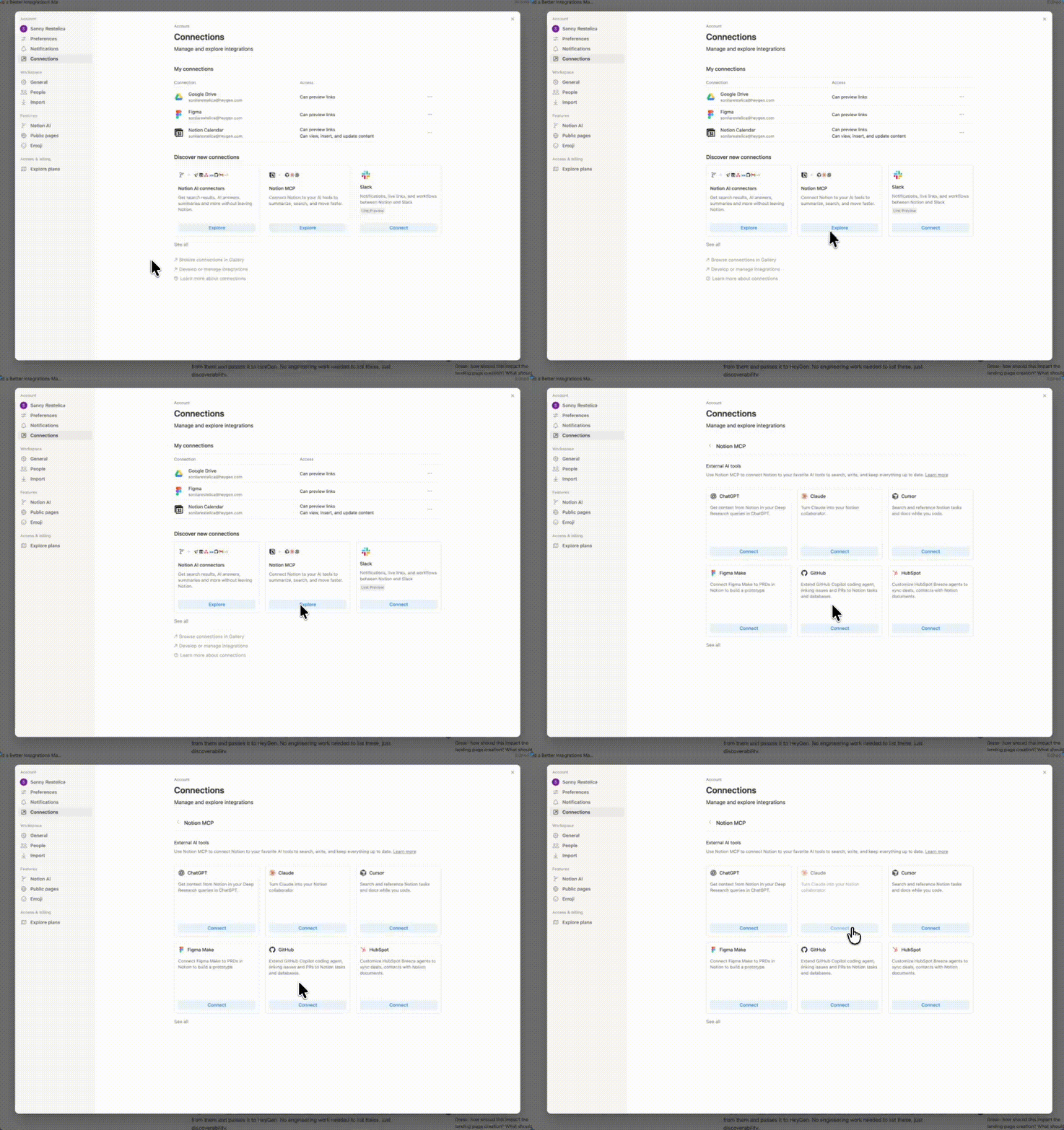
Workflow 2: Notion doc → stakeholder video update
Tools needed: HeyGen + Notion connected to Claude
If your team documents sprint summaries, product updates, or weekly reports in Notion, you can turn any page into a video in seconds:
Read the Q1 Product Update page from our Notion workspace. Use it to generate a two-minute stakeholder video in HeyGen — avatar presenter, clear structure, highlight the three biggest wins.
Claude pulls the Notion content, structures it into a video-ready format, and passes it to HeyGen. Your written update becomes a polished video your team will actually watch, no recording, no editing, no additional work.
Workflow 3: Notion doc → HeyGen video → post to Slack
Tools needed: HeyGen + Notion + Slack connected to Claude
This is the full automation: content in, video out, delivered to your team, all in one prompt.
Read the weekly engineering update from our Notion workspace. Turn it into a 90-second HeyGen video summary. Then post it to the #engineering-updates Slack channel with a short message that says the weekly video recap is ready.
Claude reads the doc, generates the video in HeyGen, and posts it to Slack without you touching any of the three tools manually. Ideal for recurring team updates, release notes, or any content that goes out on a regular schedule.
Recap
In this guide, you learned:
- What AI agent platforms are and how they connect to HeyGen
- How to connect HeyGen to Claude in a few clicks
- How to generate a video with a single natural language prompt
- How to combine HeyGen with Gong, Notion, and Slack for fully automated video workflows
The more context Claude has from your CRM, your docs, your conversations… the more personalized and relevant your HeyGen videos become. Start with one connector and build from there.
Ready to try it? Connect HeyGen to Claude at claude.ai → Settings → Connectors.
If you share your results on social media, tag @HeyGen_Official, we'd love to see what you build.
Comments (0)
Popular

Dive in