

Editing
February 10, 2026
Creating social-ready videos in one tap with Edit Styles

# Editing
# Edit Styles
Turn any portrait video into scroll-stopping content in one tap.
Your video is done. But is it post-ready?
HeyGen's new Edit Styles feature bridges the gap between "video created" and "video posted." Pick a template, and instantly add attention-grabbing hooks, word-synced captions, and dynamic effects. All without touching a timeline or learning another app.
Whether you're a coach sharing expertise, a consultant pitching ideas, or a creator building your brand, Edit Styles gets your content from your library to your feed in seconds.
What's covered in this guide:
- What is Edit Styles?
- What makes Edit Styles different
- How to create a styled video
- Tips for best results
What is Edit Styles?
Edit Styles is a one-tap styling tool built into HeyGen's mobile app that transforms your avatar videos into social-ready content. Choose from 12 templates (4 with visual hooks, 8 with caption styles) and HeyGen automatically applies word-synced captions, dynamic zoom effects, and attention-grabbing intros.
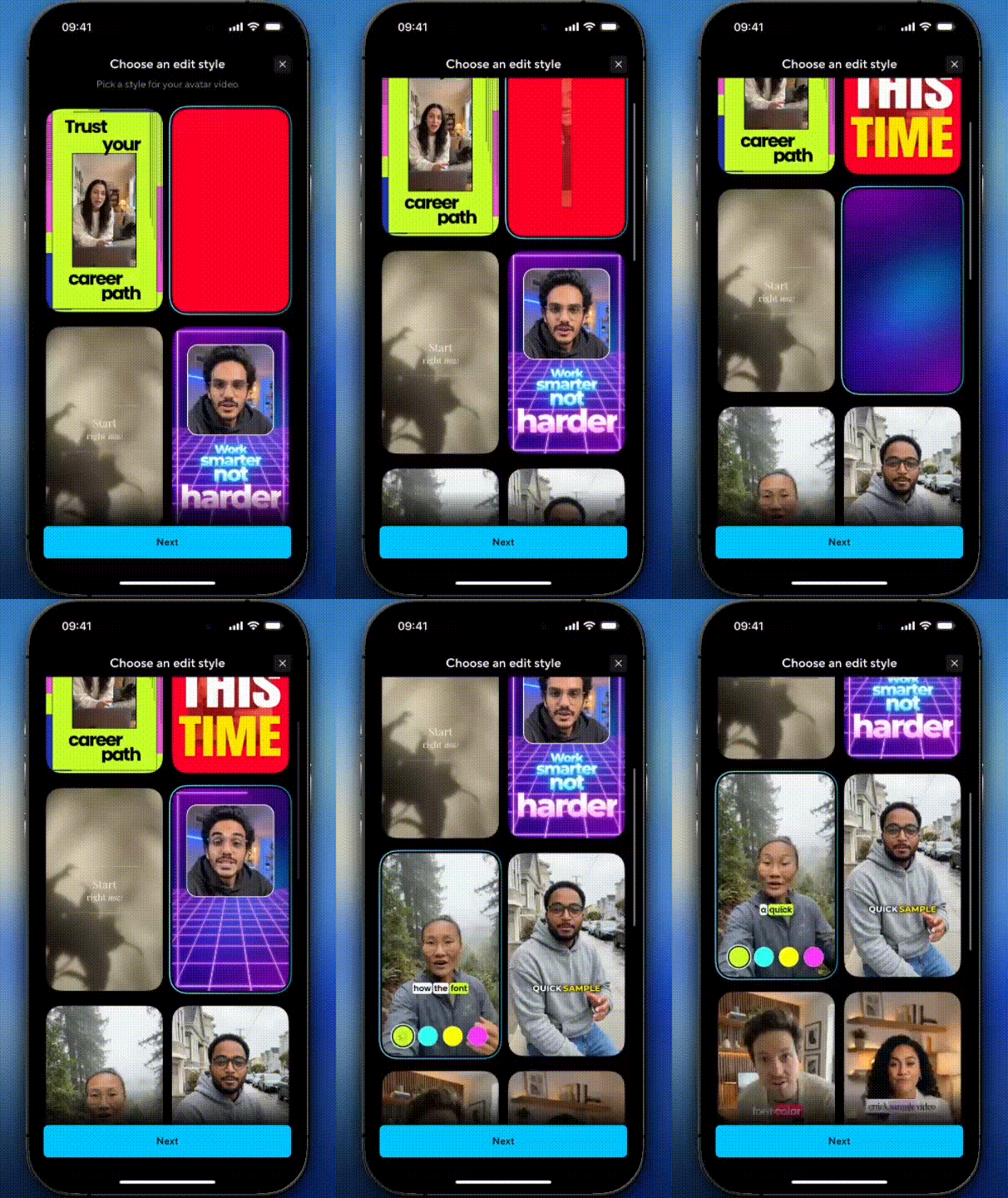
No exporting to other apps. No manual caption timing. No timeline editing.
Just pick a style and post.
What makes Edit Styles different?
Most apps force you to finish your video somewhere else. You create in one app, export, open another tool, add captions manually, time everything yourself, then finally post.
Edit Styles eliminates that entire workflow.
- True one-tap styling: Select a template and your video is styled. No additional steps.
- Visual hooks built-in: Auto-extracted hooks from your script that grab attention in the first 3 seconds.
- Word-synced captions: Professional pacing without timing anything yourself.
- Works on videos you already made: Apply styles to existing content in your library.
- Dynamic zoom effects: Energy and movement without manual keyframing.
This is the only app that combines avatar creation and social styling in one flow. No switching apps. No import/export. No learning curve.
How to create a styled video
Open the HeyGen mobile app and tap Edit Styles from your home screen.
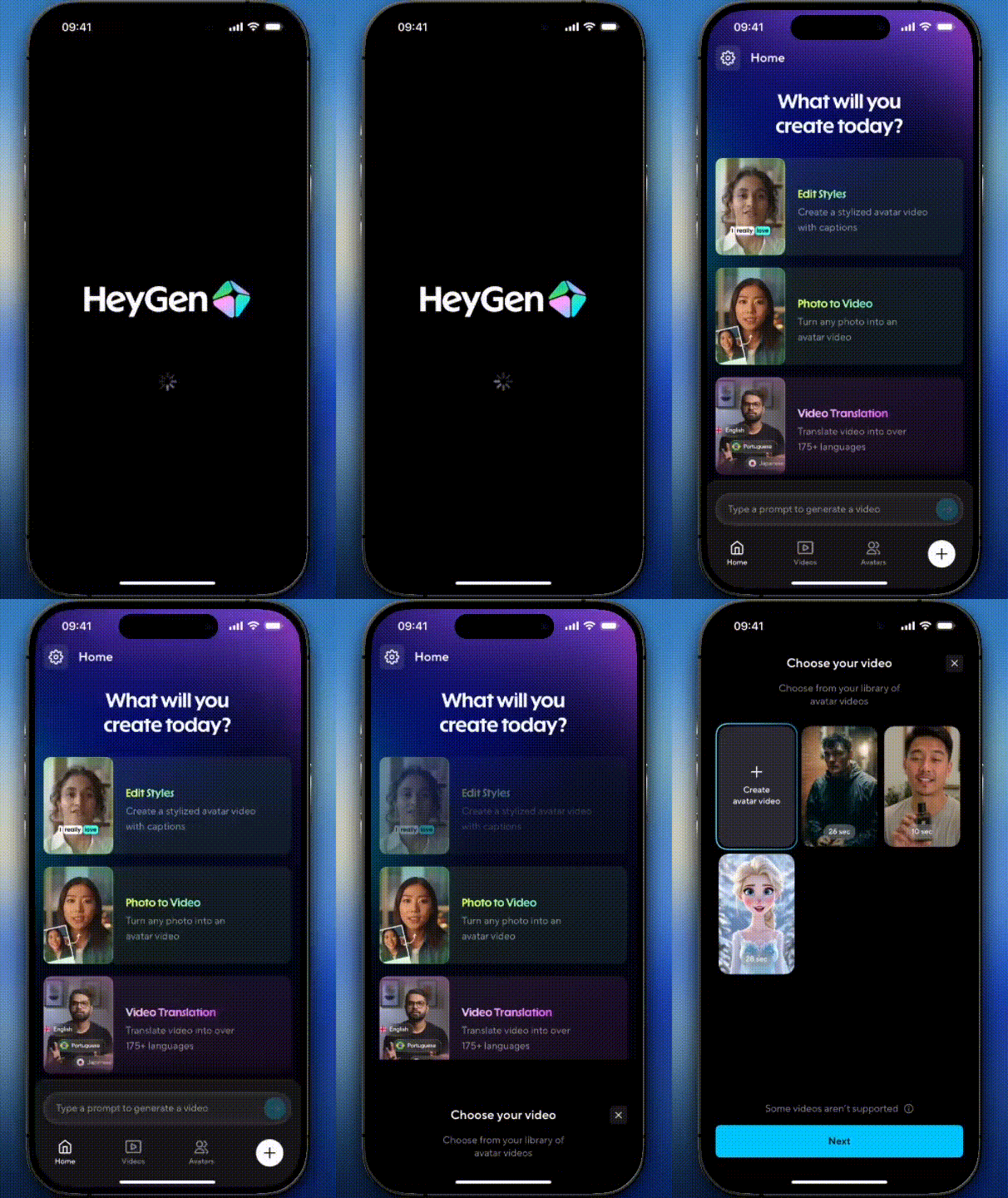
Choose a video from your library, or create a new one. Only portrait videos (9:16) are available for styling.
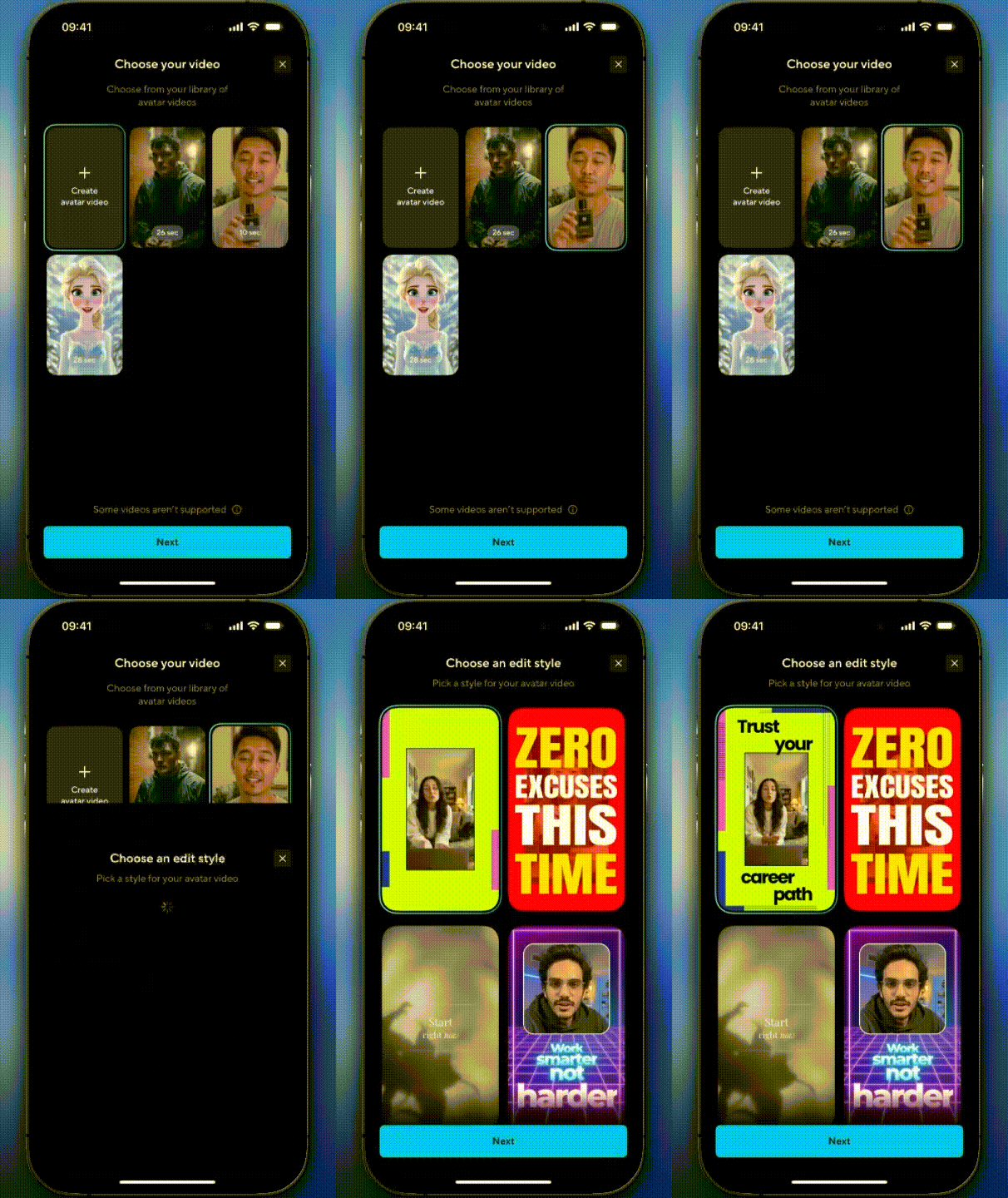
HeyGen shows you template options. Tap any template to preview how it looks with your video. Once you've made your choice, tap Next.
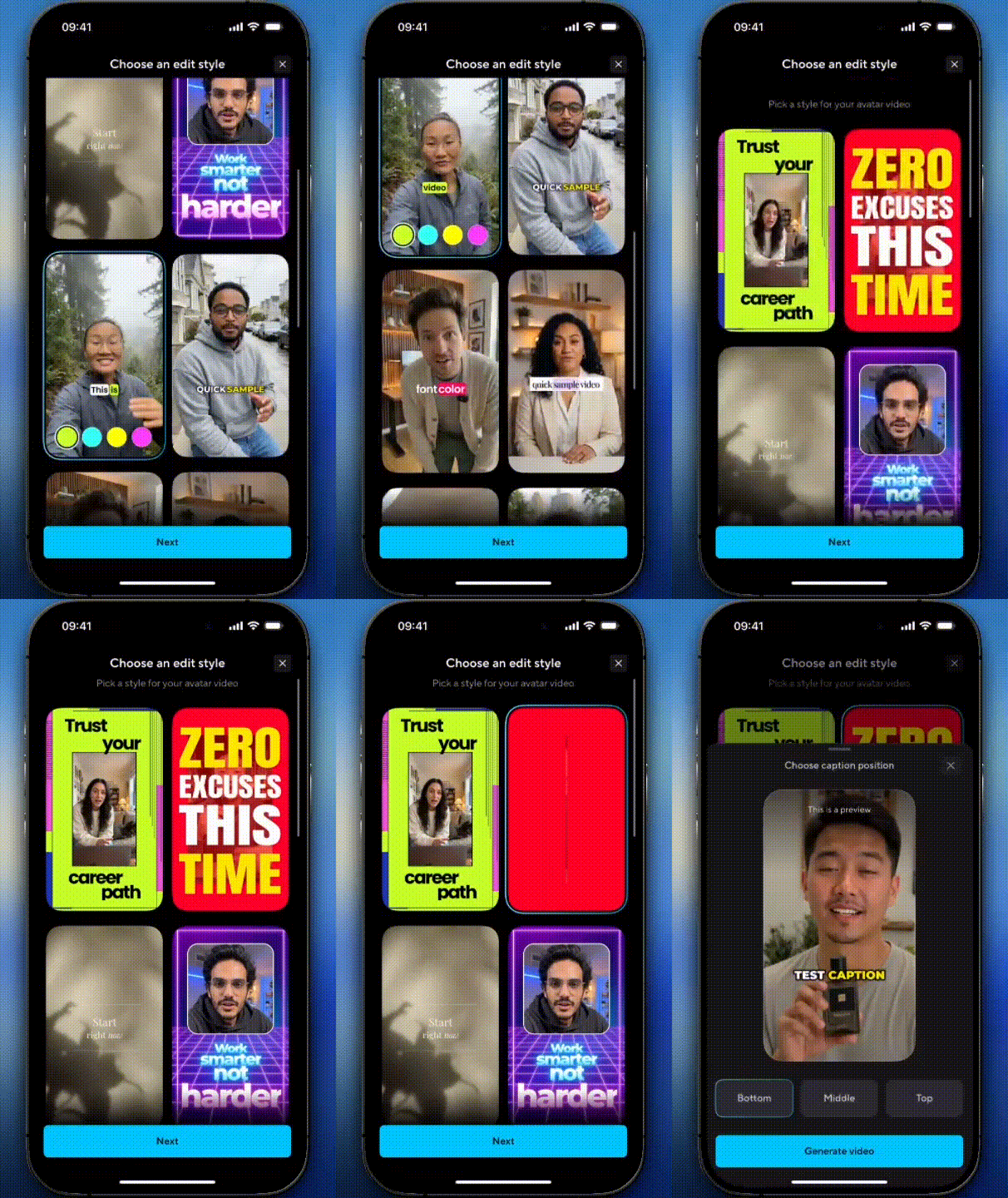
Choose your caption position (top, center, or bottom), and tap Generate Video. HeyGen applies your selected style, syncs captions to your script, and renders your final video.
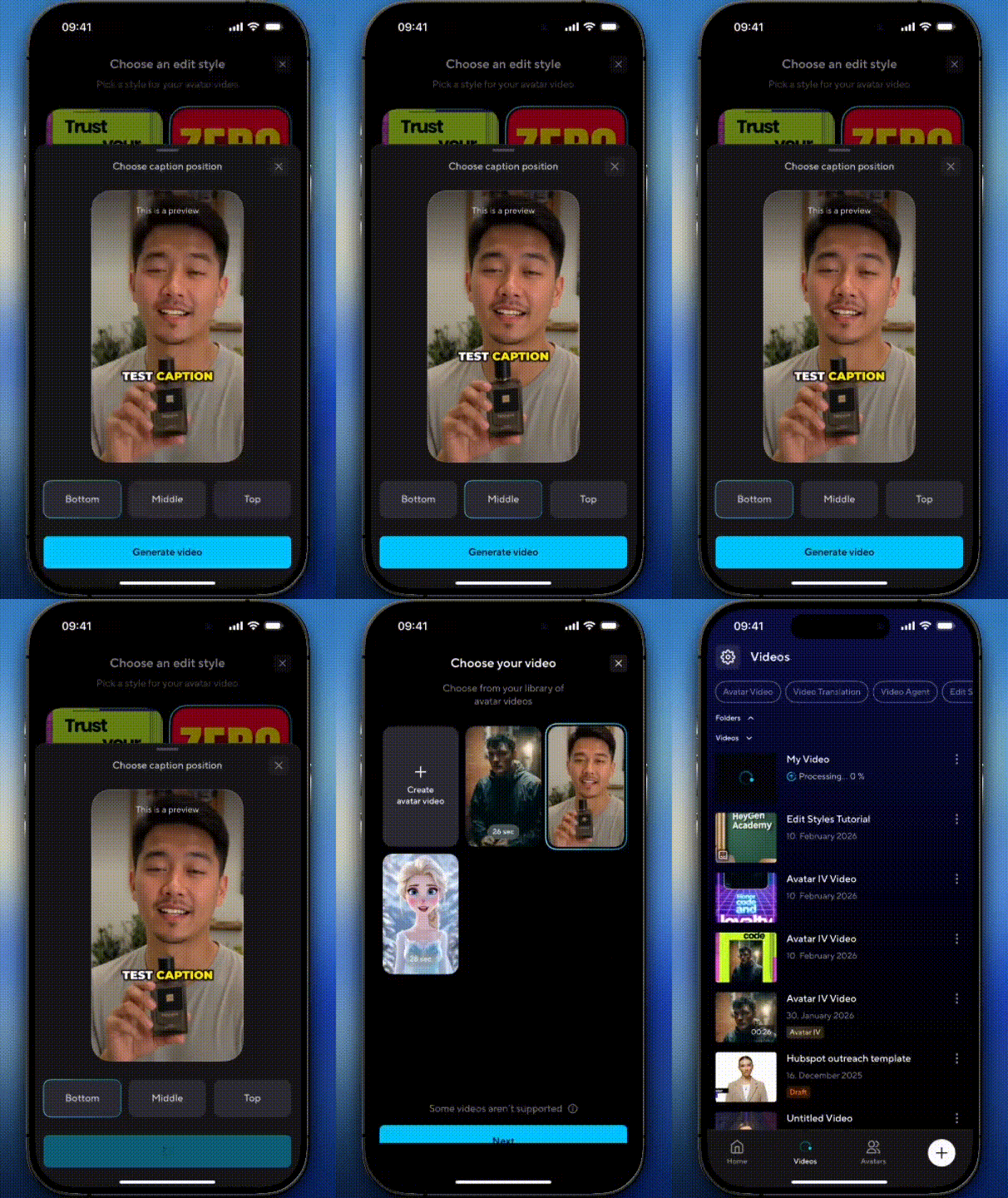
When it's ready, share directly to any platform. If you want to try a different style, tap Edit Style to go back and choose another template. No need to re-record.
Tips for best results
- Start with portrait videos: Edit Styles only supports 9:16 videos, so record or create in vertical format from the start.
- Preview before generating: Tap through a few templates to see how different hooks and caption styles feel with your content.
- Try multiple styles on the same video: Once your video is created, you can apply different templates without re-recording. Great for testing what works best with your audience.
- Match your vibe to your platform: Bold, high-energy templates with visual hooks work well on TikTok and Reels. Cleaner caption-only styles fit LinkedIn and YouTube Shorts.
Recap
In this tutorial, you learned:
- What is Edit Styles?
- What makes Edit Styles different?
- How to create a styled video
- Tips for best results
Your video is already done. Now make it scroll-stopping.
Comments (2)
Popular

Dive in