

Account Management
March 25, 2026 · Last updated on May 5, 2026
Admin controls: control workspace access and permissions with HeyGen Enterprise Settings
# Workspaces
Manage permissions, distribution, and workspace security at scale
In this guide, we'll walk you through the powerful new admin controls available exclusively on the Enterprise plan, so you can manage your workspace with greater flexibility, security, and confidence.
Whether you're controlling how videos are shared, managing avatar creation, or organizing sub-workspaces, these settings put you in full control of your team's experience.
What's covered in this guide
- General workspace settings
- Access & invitation controls
- Video distribution controls
- Feature settings
- Recap
General workspace settings
To get started, navigate to Settings from your workspace. Your workspace settings are now organized into clear categories, making it easier than ever to find and configure what you need.
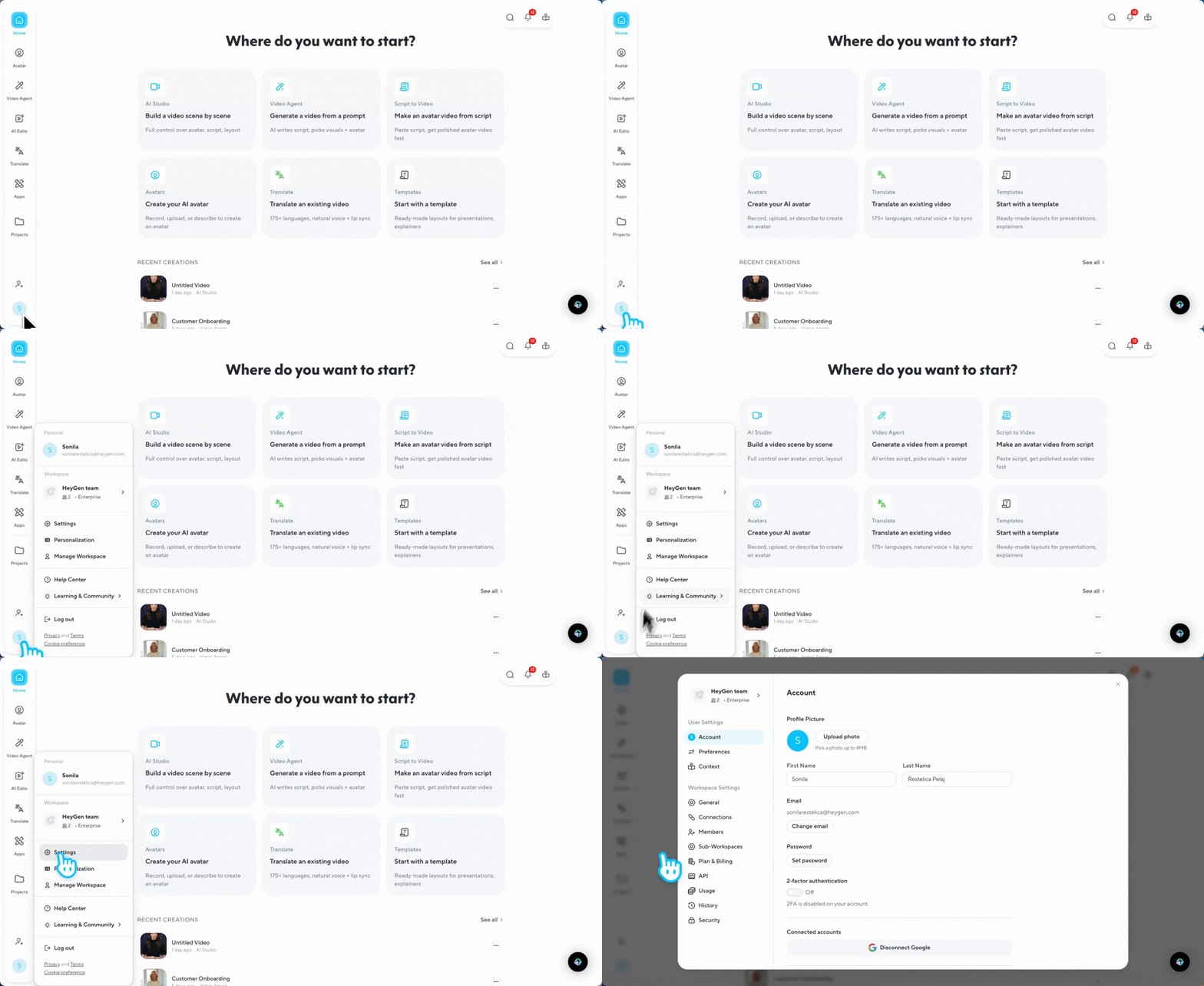
Note: All settings apply to actions going forward. Nothing will change retroactively, existing workspace access, invite links, downloads, or shares will not be affected.
Access & invitation controls
Who can join and who can invite
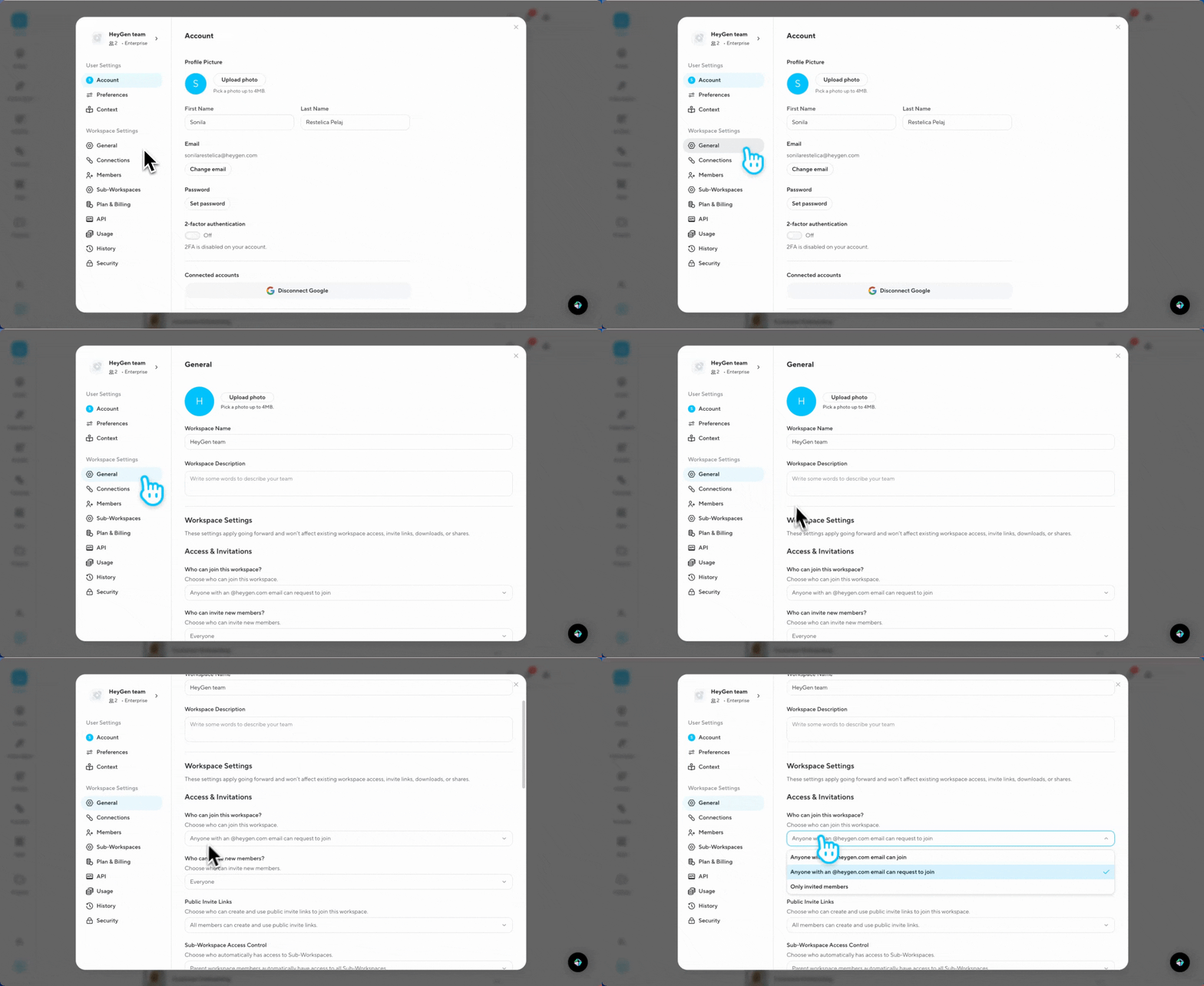
Navigate to General and choose from the following options:
Who can join:
- Anyone with your email domain can join
- Anyone can request to join
- Only invited members
Who can invite new members:
- Everyone (all members can send invites)
- Only admins
Public invite links
Control who can create and use public invite links to join your workspace.
Who can create and use public invite links:
- All members can create and use public invite links
- Only admins can create and use public invite links
- No one
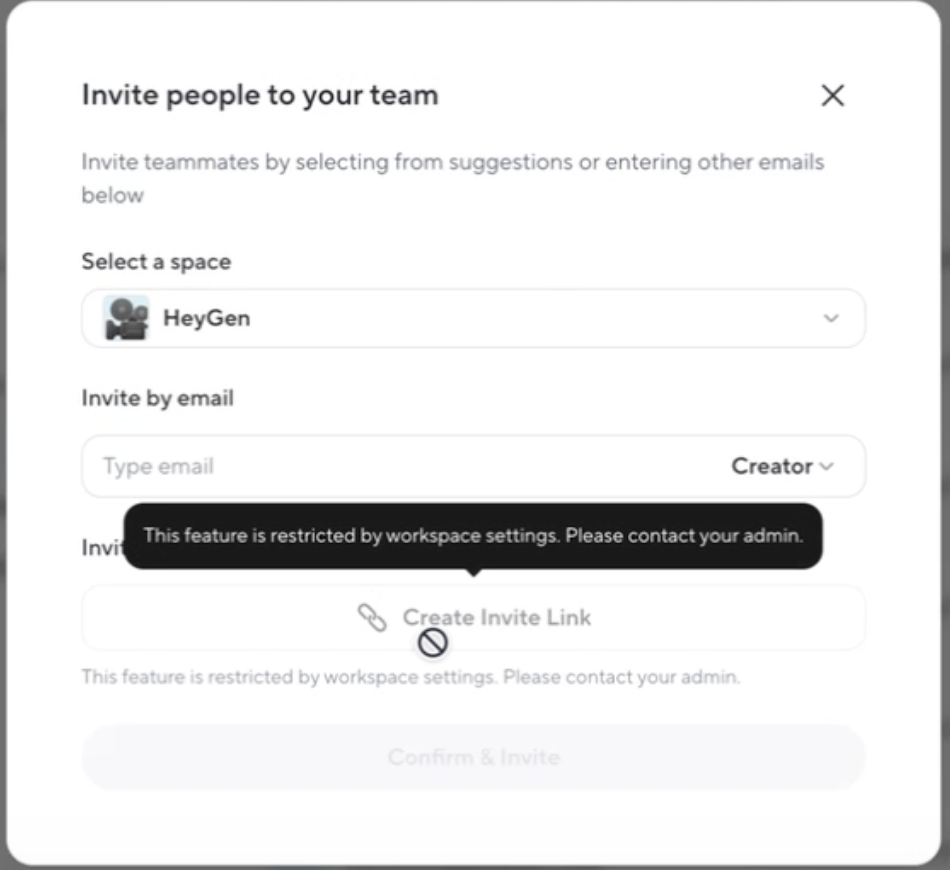
If set to No one, the 'Create Invite Link' button will be disabled for all members, and any attempt to create a link will show a message that the feature is restricted by workspace settings.
Sub-workspace access control
By default, all parent workspace members automatically have access to all sub-workspaces. With this new control, you can limit that access.
Who can access sub-workspaces:
- All parent workspace members
- Admins only
When set to admins only, sub-workspace membership will automatically filter down to Super Admins.
Default permissions for videos, assets, and projects
Choose whether new videos, assets, and projects are shared with everyone in the workspace by default, or kept private.
Default permissions for new content:
- Shared with everyone in the workspace
- Private (content must be manually shared)
Video distribution controls
Video Approval
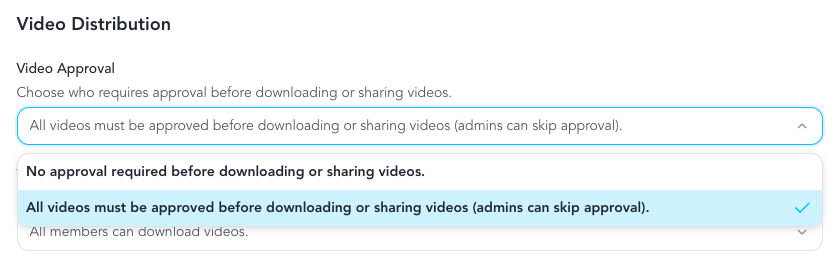
Workspace admins can require videos to be reviewed and approved before anyone can share or download them publicly. This gives teams a lightweight quality gate built directly into HeyGen.
Toggle between two options:
- No approval required before downloading or sharing videos (default)
- All videos must be approved before downloading or sharing
For the full workflow including step-by-step instructions for admins, creators, and reviewers, see Video approval workflow: request, review, and approve videos in HeyGen .
Video downloads
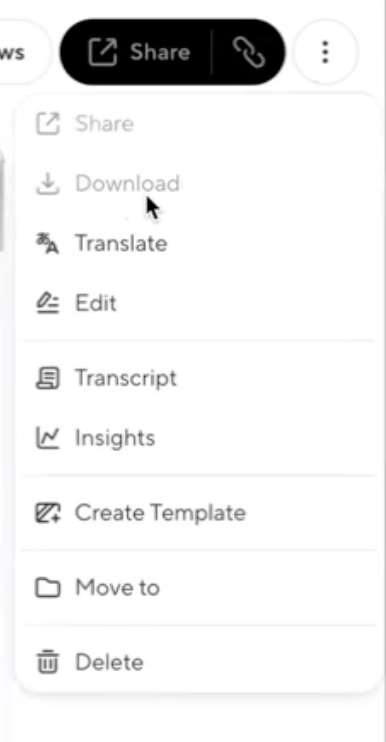
Choose who can download videos from your workspace.
Who can download videos:
- All members
- Admins only
- No one
When downloading is restricted, members will see a message letting them know the feature is restricted by workspace settings and to contact their admin.
Public publishing
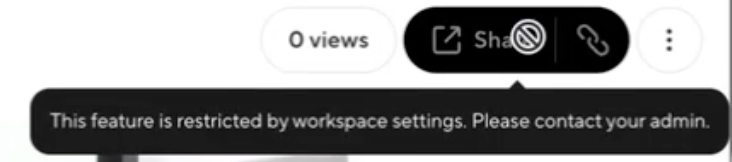
Choose who can publish videos for public access.
Who can publish videos publicly:
- All members
- Admins only
- No one
Note: Public publishing and social sharing are linked. If no one can publish publicly, social sharing is automatically unavailable for all members. If only admins can publish, only admins will see the share button.
Social sharing
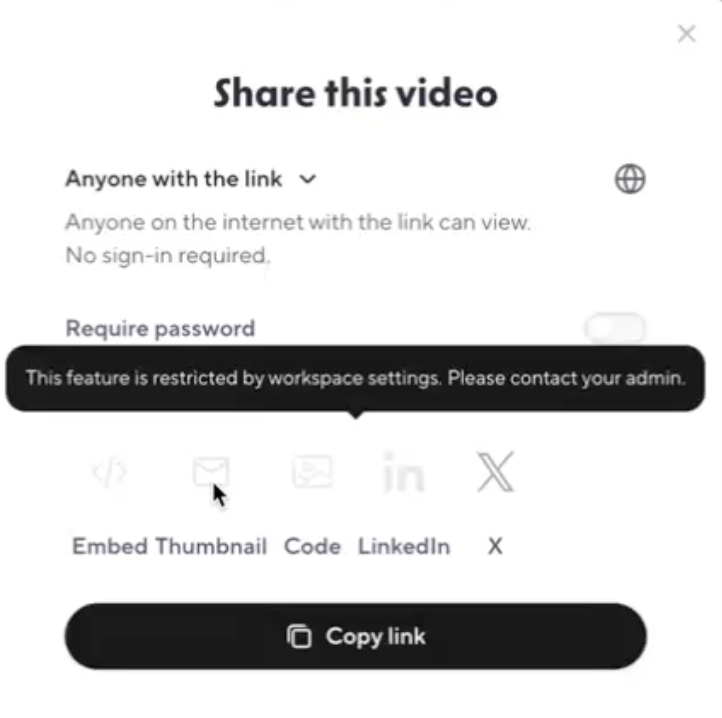
Control who can share videos to social platforms.
Who can share to social platforms:
- All members
- Admins only
- No one
When social sharing is disabled, members will still see the Share button (if publishing is enabled), but all social platform options will be grayed out.
AI-assisted watermark
Enforce a customizable AI-assisted watermark on all videos across the workspace, applied to every distribution.
Feature settings
Custom avatar creation
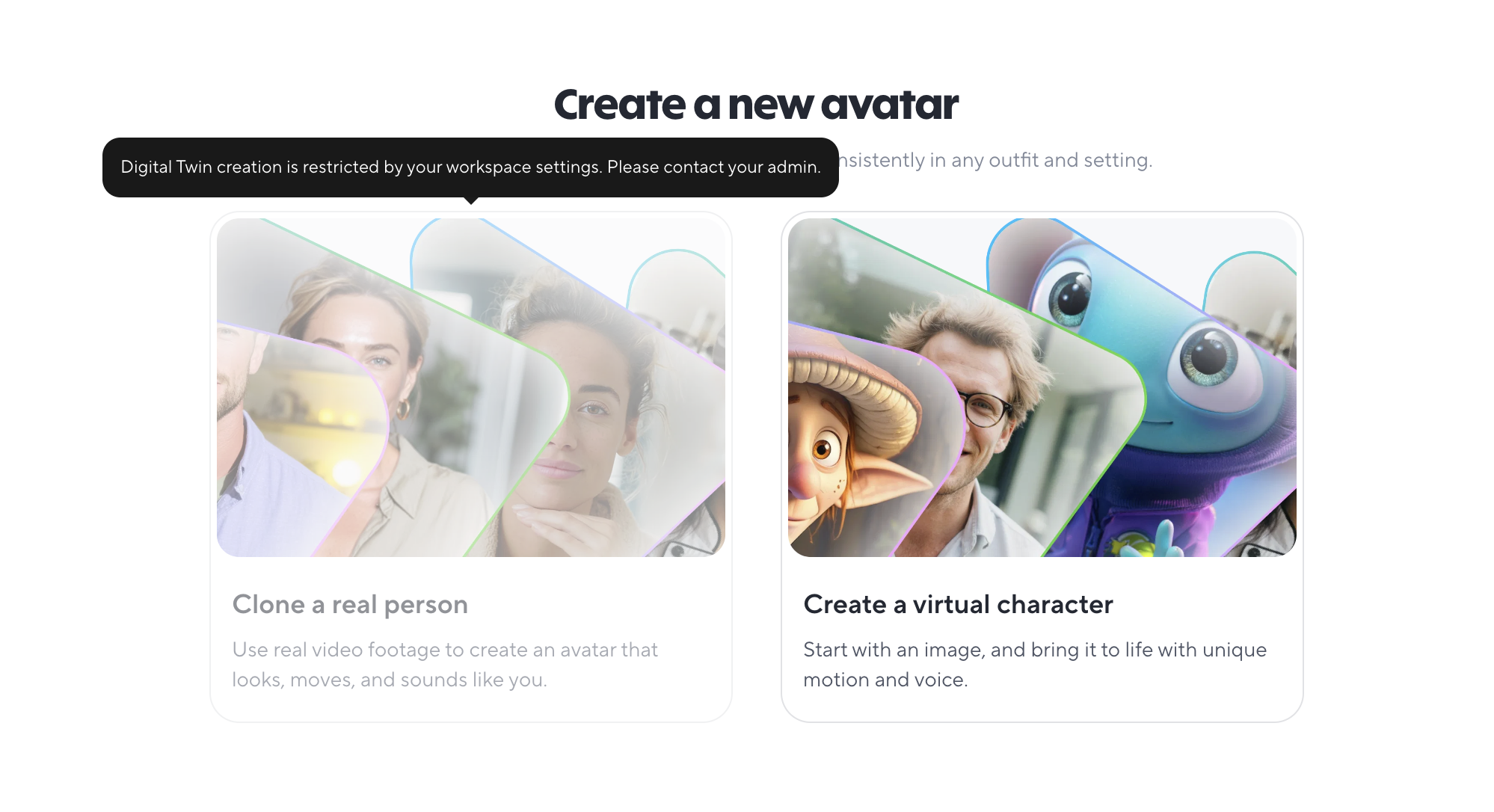
Control who can create custom avatars by uploading files or recording videos, helping protect your employees' likeness.
Who can create custom avatars:
- All members
- Admins only
- No one
AI-generated avatar creation
Separately control who can create AI-generated avatars.
Who can create AI-generated avatars:
- All members
- Admins only
- No one
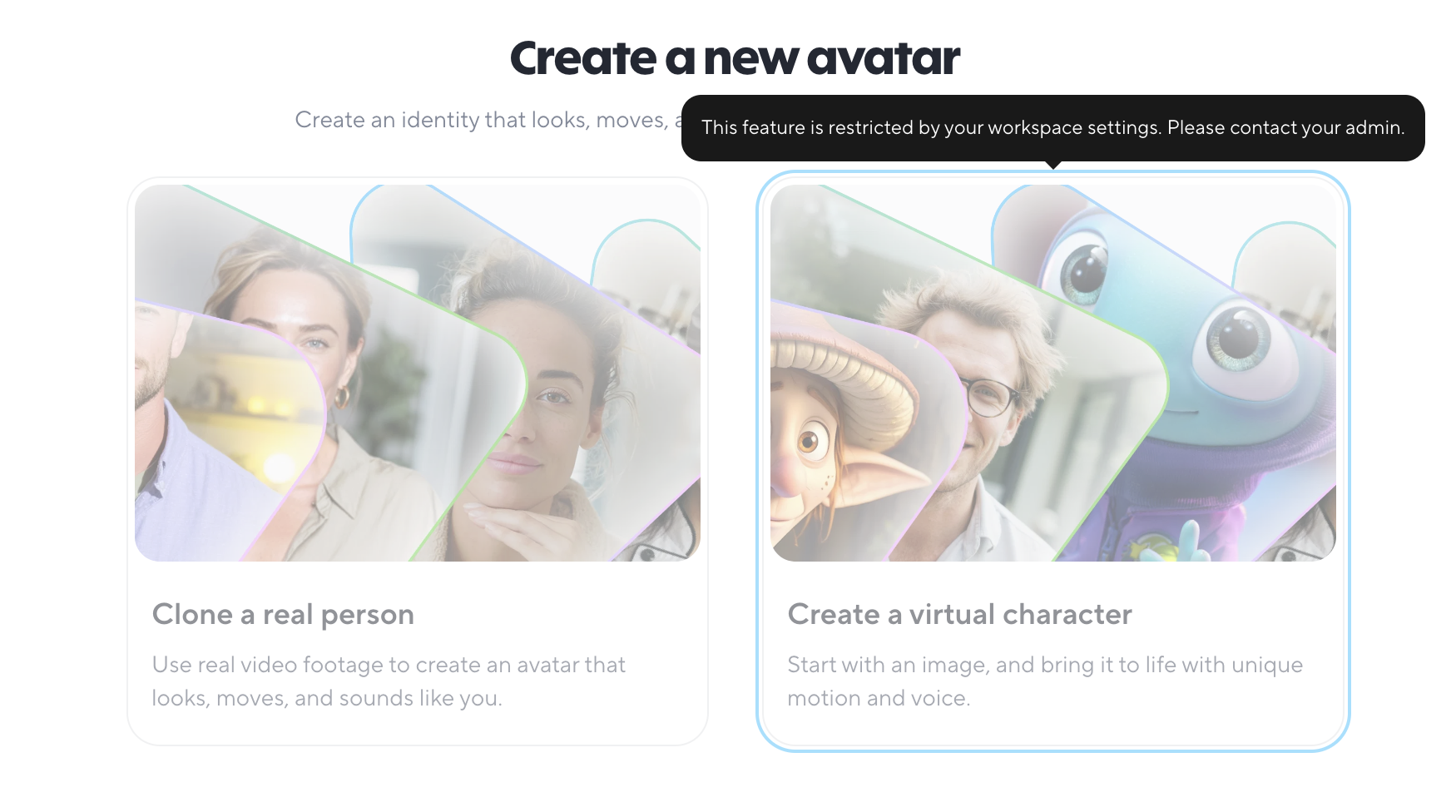
When either of these is restricted, members will see a message on the avatar page that the feature is restricted by workspace settings.
Public avatar availability
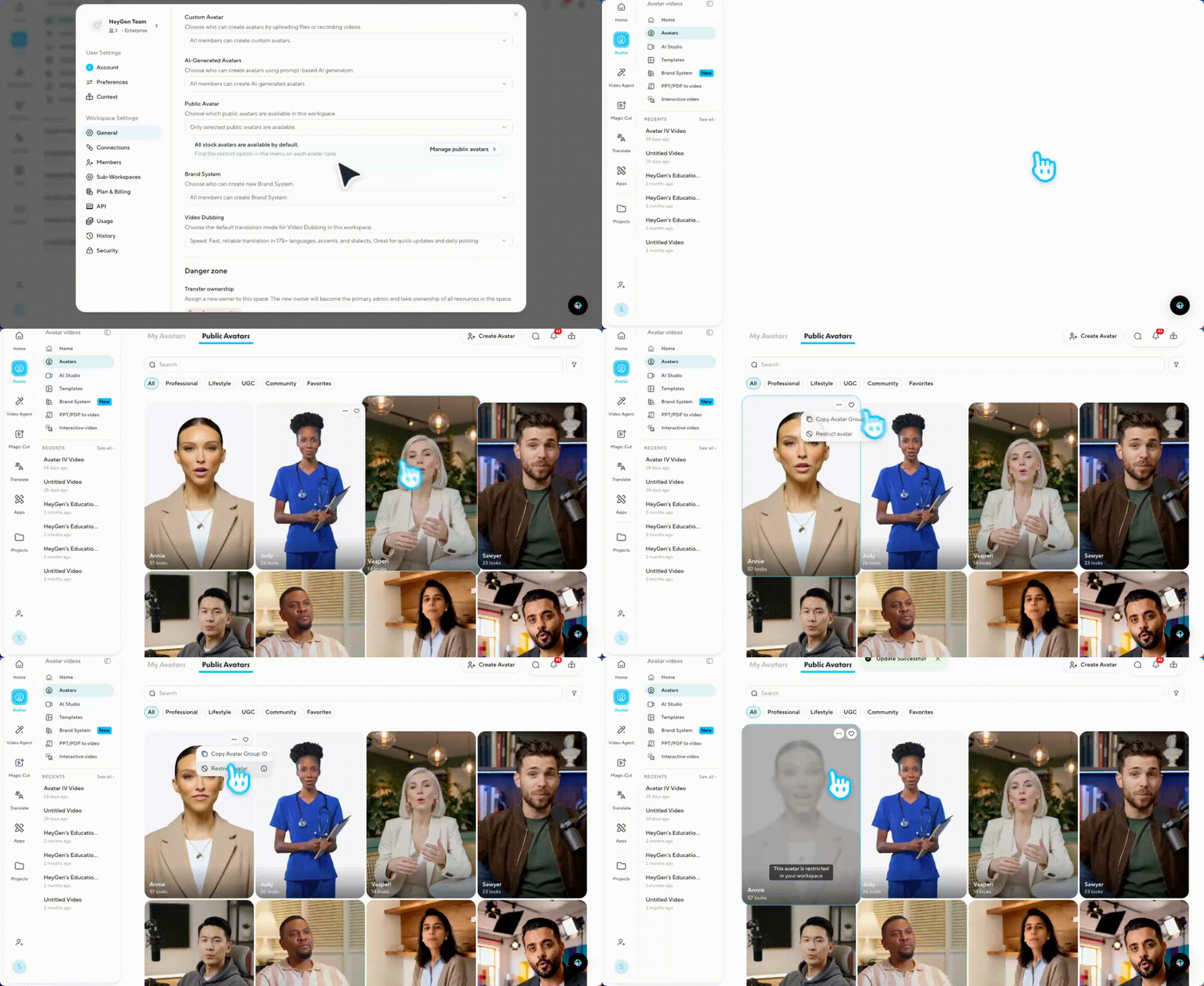
In addition to restricting avatar creation, Enterprise admins can now control which public avatars are available for use across the workspace.
Choose which avatars are available in this workspace:
- All public avatars are available.
- Only selected public avatars are available.
- No public avatars are available
If you choose only selected, click on Manage Public Avatars to select only the avatars you want your team to have access to. Simply hover over any avatar and restrict it as needed.
Brand Kits
Control who can create Brand Kits in your workspace.
Who can create Brand Kits:
- All members
- Admins only
If you choose admin only, the 'New Brand System' button will be disabled.
AI Governance
The AI Governance section gives Enterprise admins control over which AI providers and models can be used within the workspace. This is especially useful for organizations with compliance requirements or preferences around specific AI vendors.
AI Model Access
Choose which AI providers can be used in this workspace:
- Allow all providers (including new ones): All current and future AI providers are permitted. New providers added by HeyGen will automatically be available to the workspace.
- Block selected providers (new providers are allowed): Choose specific providers to block. Any new providers HeyGen adds in the future will be allowed by default unless explicitly blocked.
- Allow only selected providers (new providers are blocked): Restrict the workspace to only the AI providers you explicitly approve. Any new providers added by HeyGen in the future will be blocked by default until you grant access.
Note: This setting is ideal for organizations that need to comply with data governance policies or restrict the use of specific AI vendors across their team.
Recap
HeyGen's Enterprise Settings gives admins the tools to run a secure, organized, and efficient workspace. From controlling how content is shared and downloaded, to managing avatars and sub-workspaces, you're fully in charge.
In this guide, you learned:
- General workspace settings
- Access & invitation controls
- Video distribution controls
- Feature settings
Start exploring your Enterprise Settings today and build a workspace that works exactly the way your team needs it to!
We're looking forward to seeing what you'll create with HeyGen. If you're sharing your videos on social media, tag us at @HeyGen_Official so we can celebrate them with you!
Comments (0)
Popular

Dive in
Related
External Content
How to use Collaboration and Access Control with HeyGen Spaces
Oct 24th, 2024 • Views 230
Video
How Tomorrow.io revolutionizes marketing and content creation with HeyGen
Jan 4th, 2025 • Views 545
External Content
How to use Collaboration and Access Control with HeyGen Spaces
Oct 24th, 2024 • Views 230
Video
How Tomorrow.io revolutionizes marketing and content creation with HeyGen
Jan 4th, 2025 • Views 545