

Account Management
May 5, 2026 · Last updated on May 8, 2026
Video approval workflow: request, review, and approve videos in HeyGen

# Workspaces
# Account Management and Setup
Getting videos approved in HeyGen
HeyGen's Video Approval feature gives Enterprise workspace admins the ability to require videos to be reviewed and approved before they can be shared or downloaded publicly. This creates a lightweight quality gate built directly into HeyGen, no external tools required.
This guide walks through the full approval workflow from three perspectives: admins who configure the settings, creators who submit videos for review, and reviewers who approve or request changes.
What's covered in this guide
- How admins enable Video Approval
- How creators request approval
- How reviewers review and decide
- Once approved: publishing and unpublishing
- Status tracking on the Projects page
- Recap
For admins
Enabling video approval
To turn on Video Approval for your workspace, go to Admin Settings → Video Distribution → Video Approval. You'll see two options:
- No approval required before downloading or sharing videos (default)
- All videos must be approved before downloading or sharing (admins can skip approval)
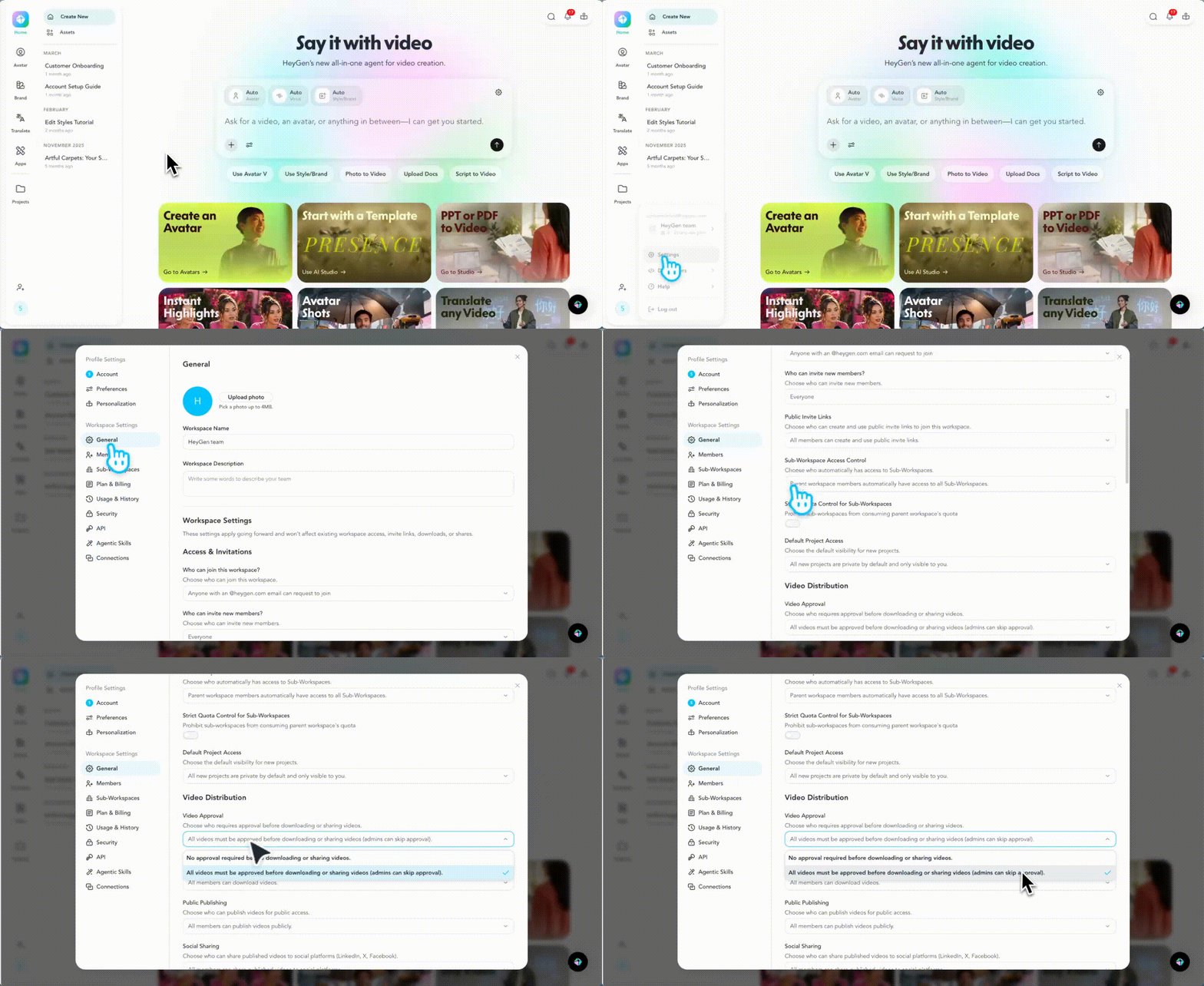
Select the second option to enable the approval workflow for all videos in your workspace. Once enabled, creators will no longer see the standard Share button, it will be replaced by the Request Approval flow.
Note: Only admins can publish or share a video without going through the approval process. Creators must request approval to download or share publicly.
For Creators
Requesting Approval
When Video Approval is enabled in your workspace, the video share page will show a Request Approval button. Click it to open the Request Approval modal.
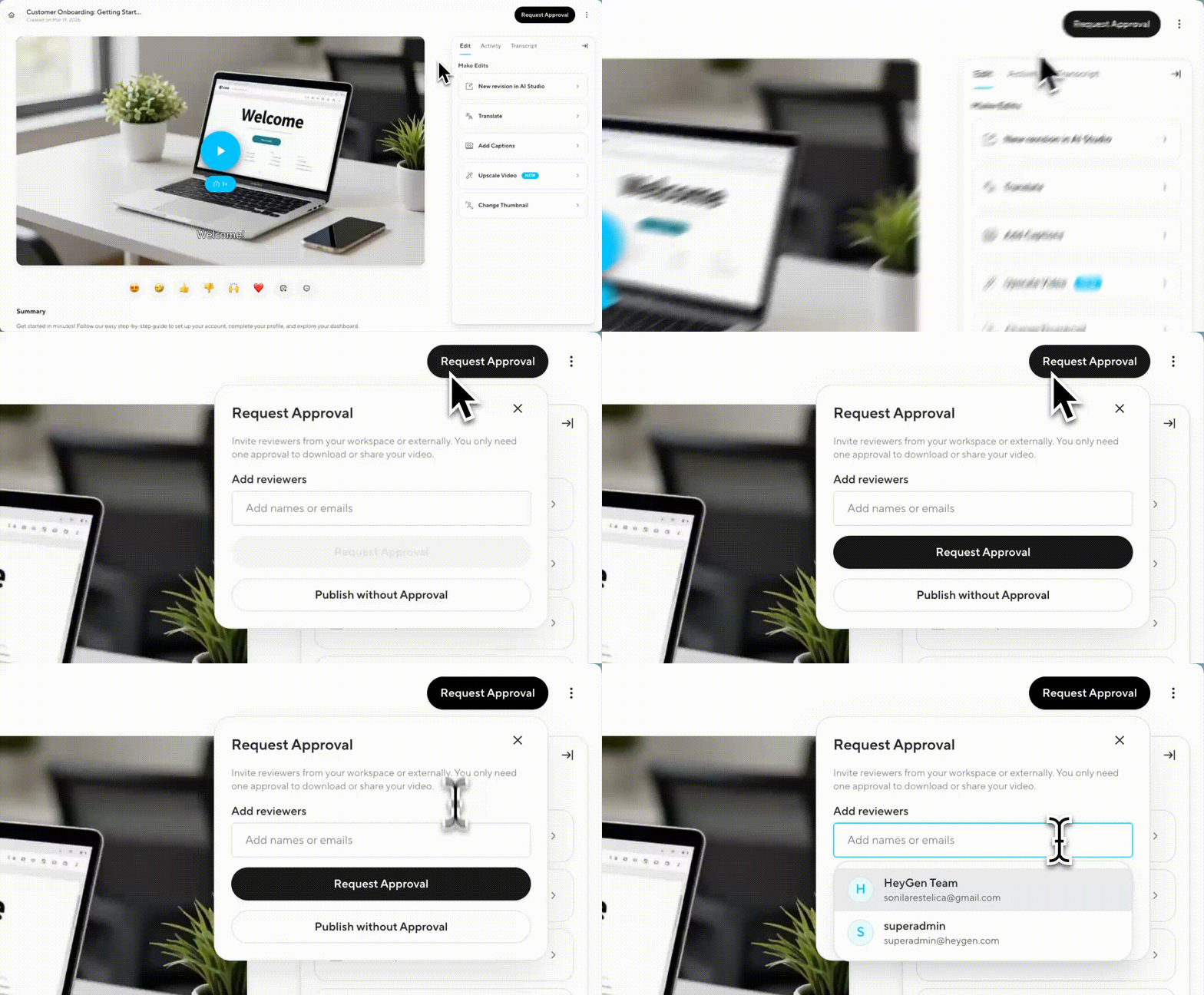
In the modal, add reviewers by name or email. You can invite internal teammates or external guests. You can add multiple reviewers, but you only need one approval to download or share your video.
Once submitted, the video status changes to Pending Approval and the modal switches to Awaiting Review, which shows each reviewer's current status.
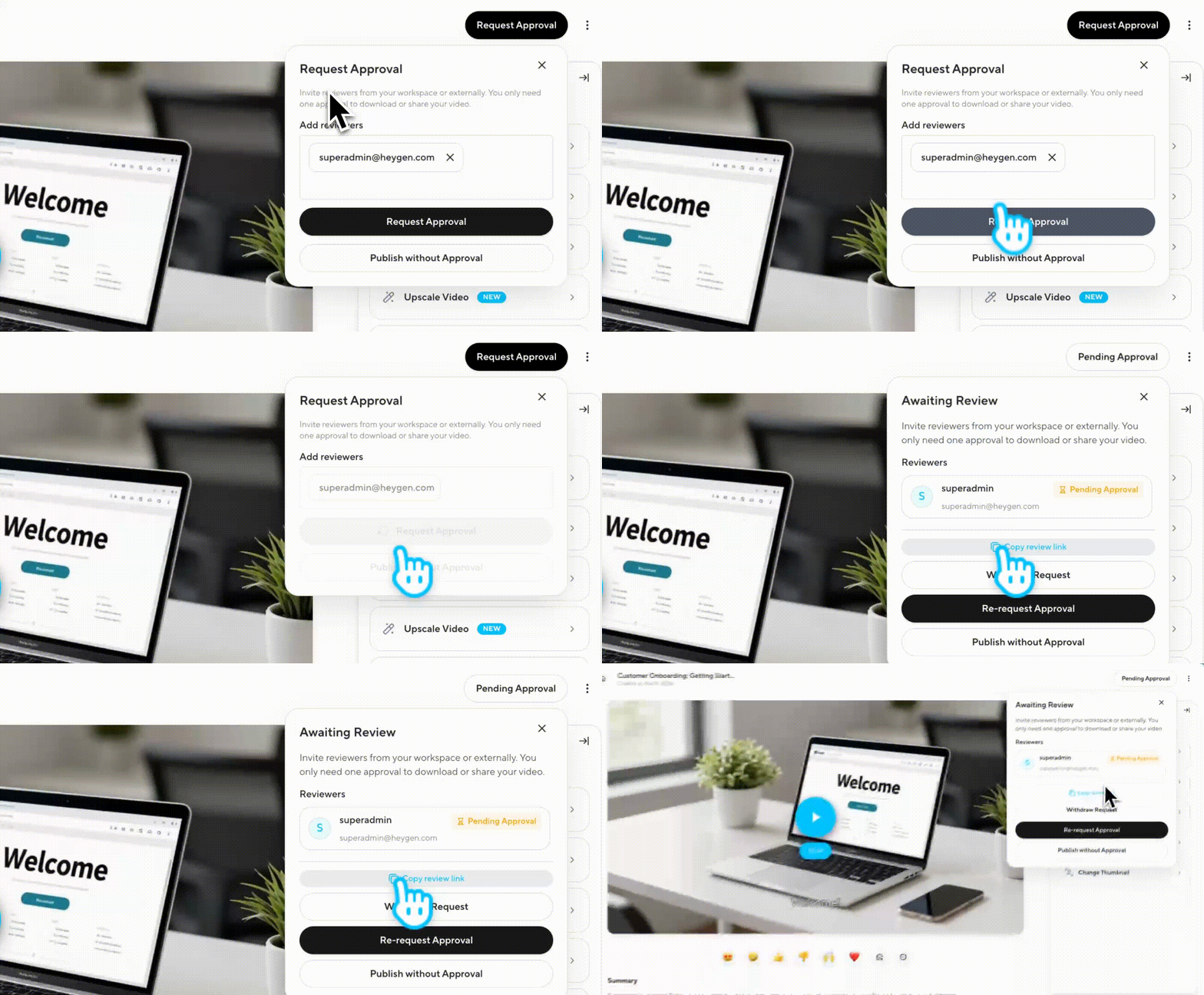
While your video is pending, you can:
- Copy review link
- Withdraw request - cancel the approval request and prevent your reviewer from accessing the video while you make further changes
- Re-request approval — send a follow-up request to your reviewers.
Note: As an admin, you can also bypass the approval process at any time by clicking Publish without Approval. This option is only available to admins and will not be visible to creators.
If changes are requested
If a reviewer requests changes, the video status updates to Changes Requested. You'll be notified by email. You can see the reviewer's feedback message directly in the Awaiting Review modal, displayed under their name.
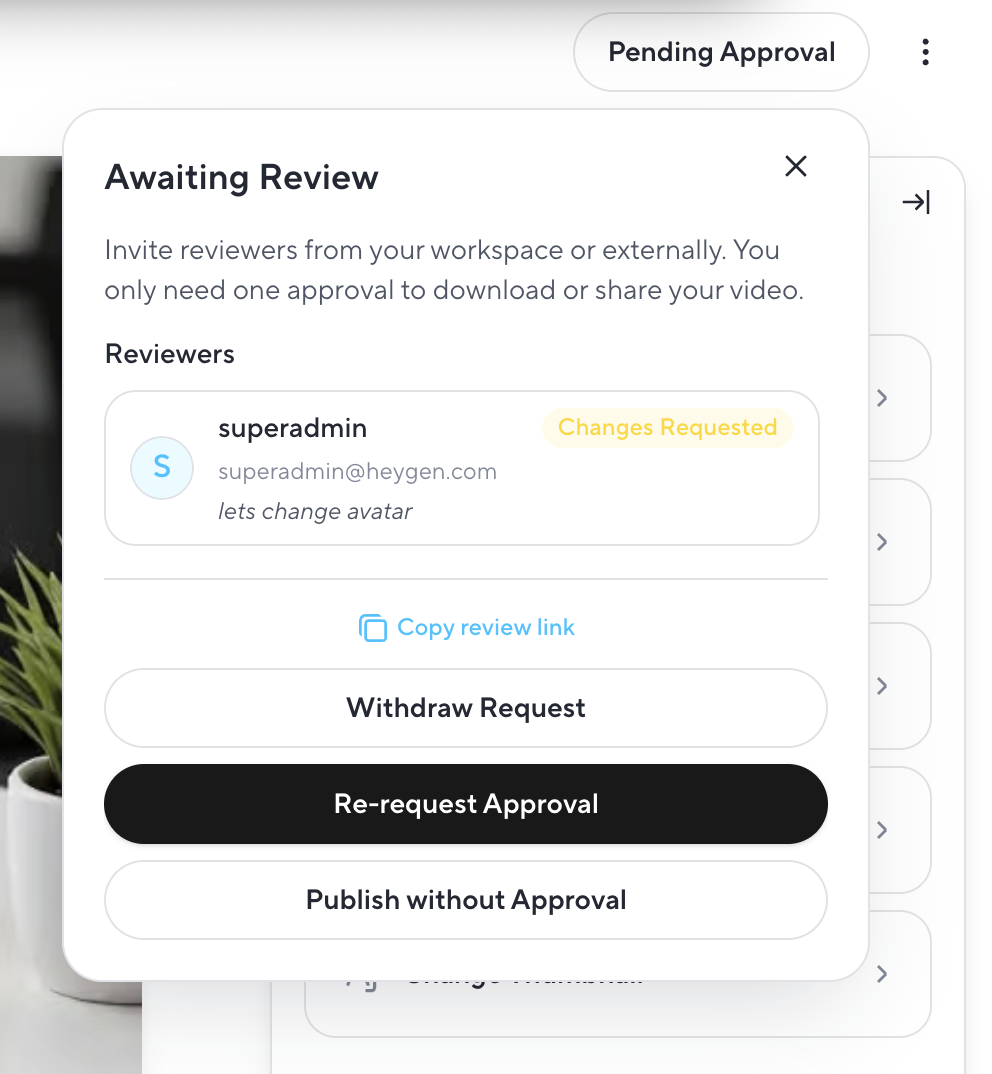
From the video page, you can make edits using any of the following options:
- New revision in AI Studio
- Translate
- Add Captions
- Upscale Video
- Change Thumbnail
Once your edits are made, click Re-request Approval to send the updated video back to your reviewers.
Once approved: publishing and unpublishing
When your video is approved, you can download or share it publicly. If you need to take it down after publishing, click on the three dots on the top right, and select unpublish.
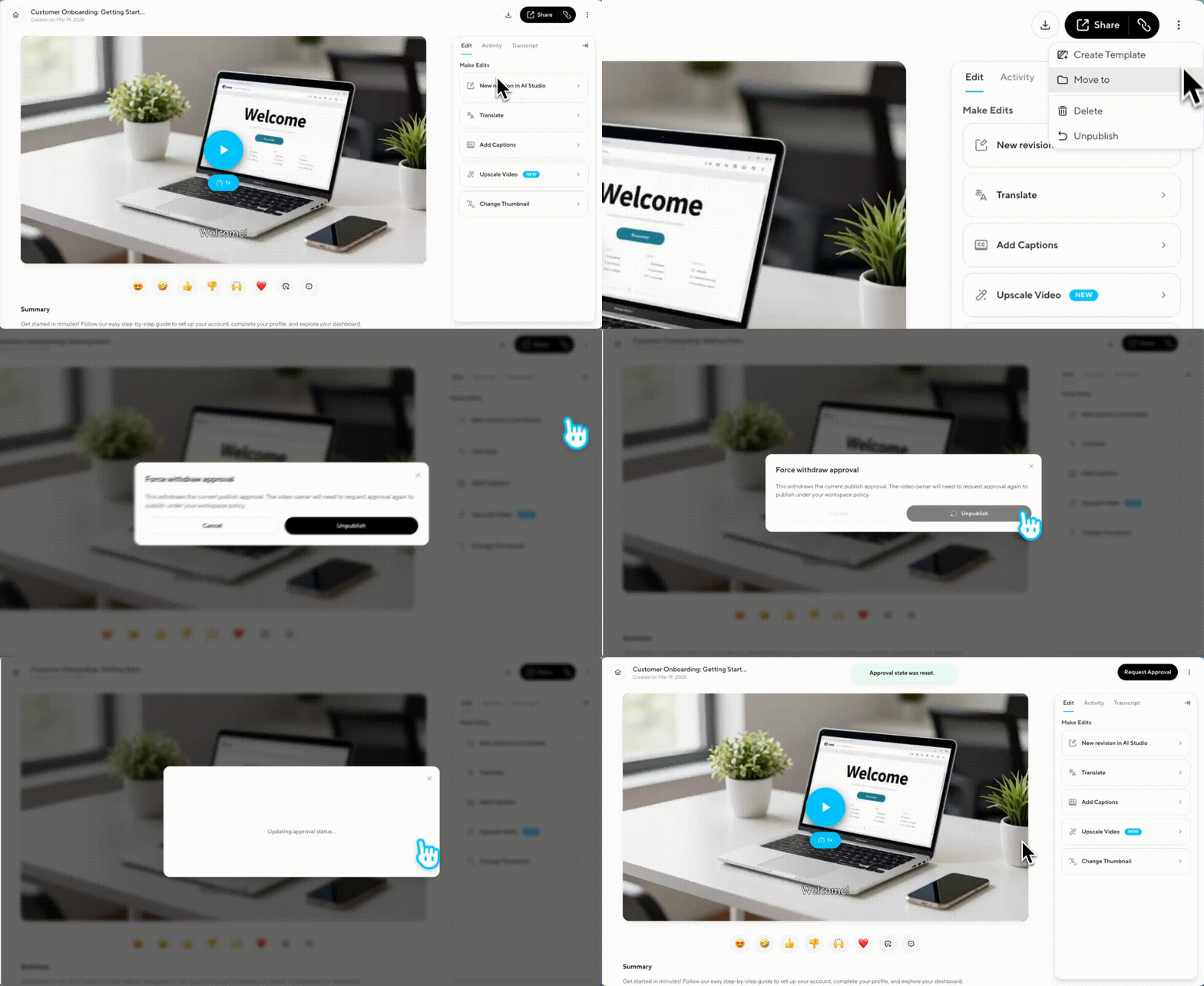
Note: unpublishing will withdraw the approval, and you will need to go through the approval process again before republishing.
For reviewers
Reviewing a Video
When a creator submits a video for review, you'll receive an email notification with a link to the video. You can also access it from your in-app notifications panel.
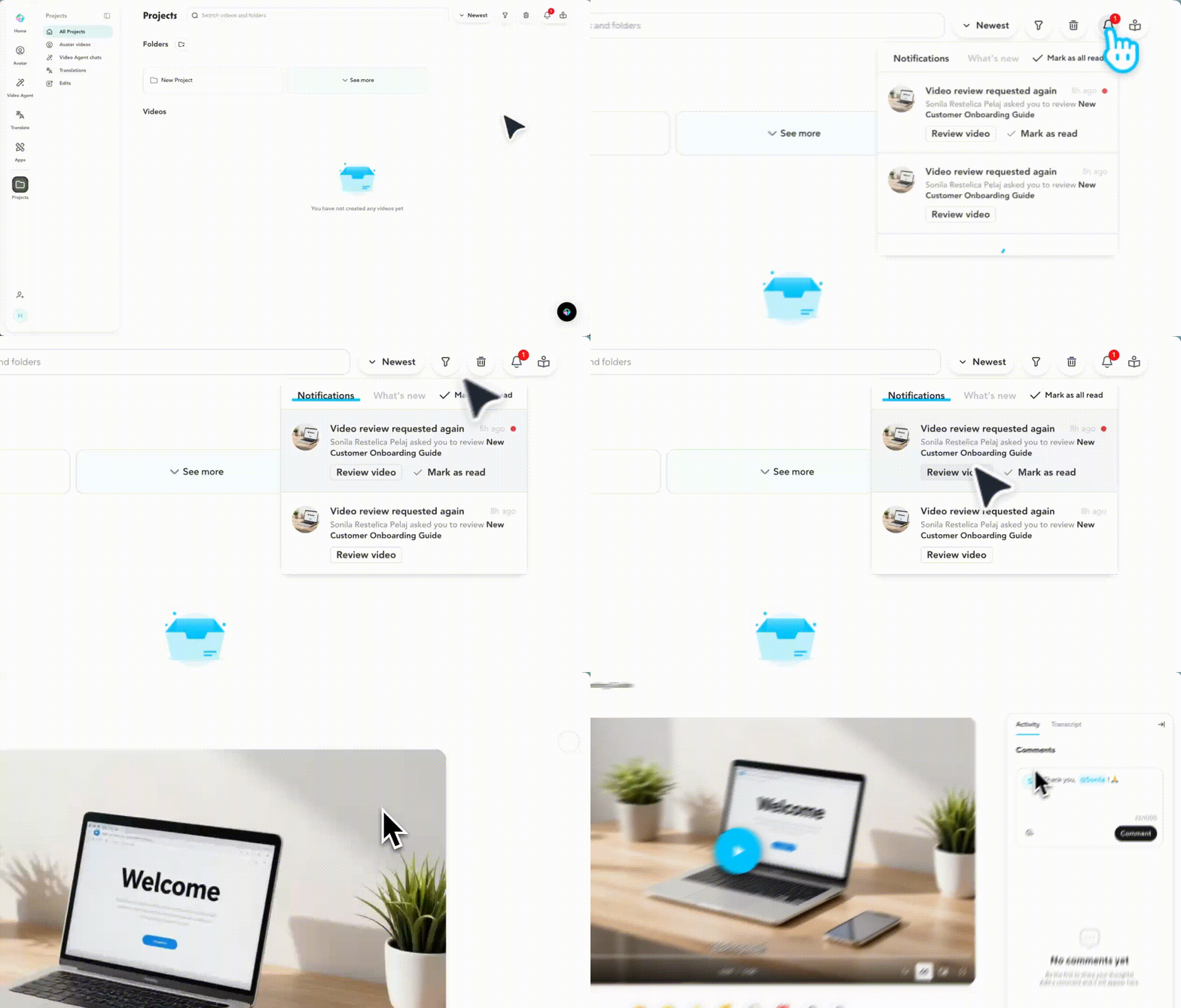
You do not need a HeyGen account to access the video as an external reviewer, simply click the link in your email to enter the review page.
On the review page, you can watch the video in full and leave comments in the Activity panel.
When you're ready to make a decision, you have two options at the top of the page:
- Approve — the creator is notified and can now download or share the video publicly
- Request changes — opens a modal where you can add a message to give the creator context before submitting
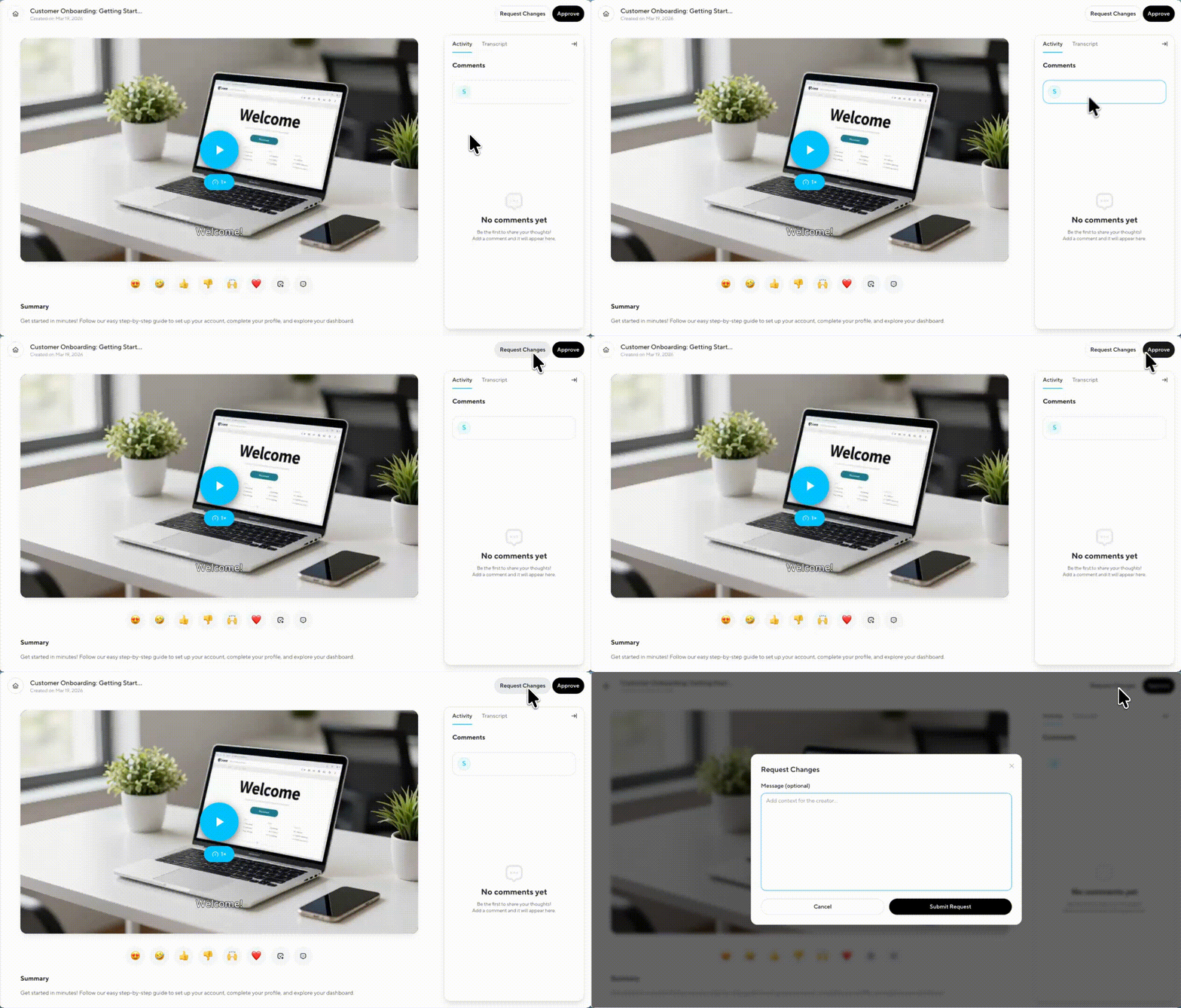
The creator will be notified by email once you've made your decision.
Note: You will only receive a review link and see the Approve button if the creator has actively requested approval. If the creator has shared the link without assigning you as a reviewer, you won’t have permission to approve the video.
Status tracking on the projects page
Videos on the projects page display one of the following status tags so teams can track progress at a glance:
Not requested - the video is complete but approval has not yet been submitted
Pending approval — the video has been submitted and is awaiting a reviewer decision
Published — the video has been approved and is publicly shared
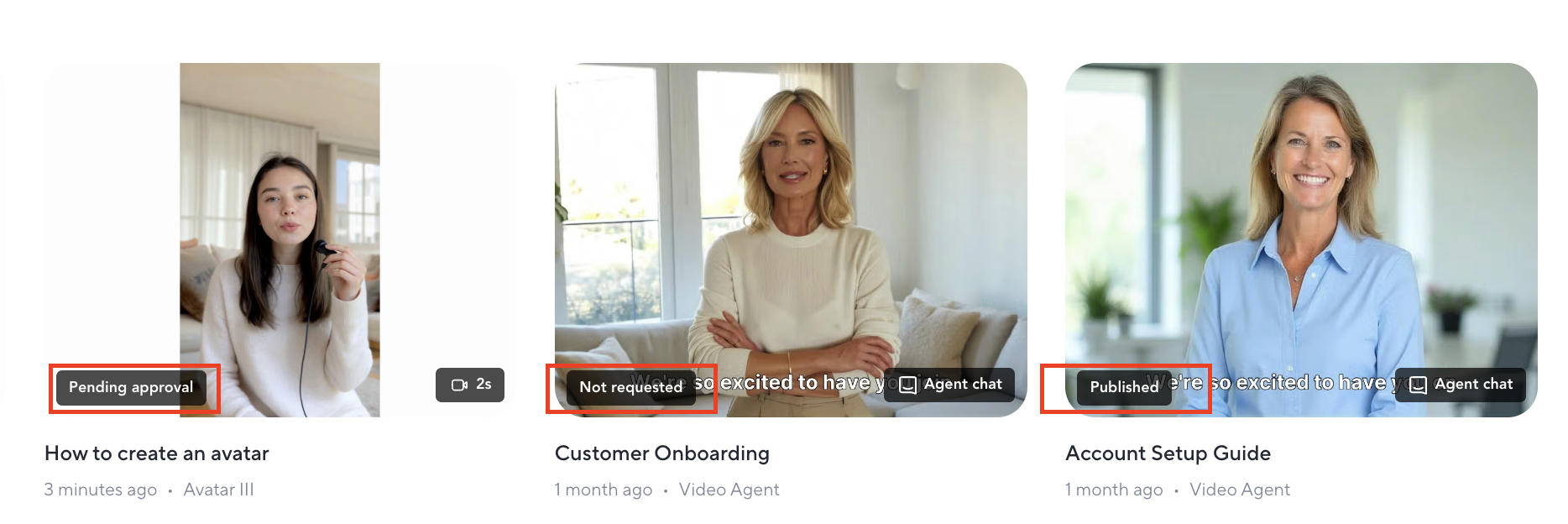
Note: In order for your team in your workspace to find the video, they will need to have access to the folder the project is in. To learn how to manage folder access, check out this guide .
Recap
In this guide, you learned how HeyGen's Video Approval workflow operates across three roles:
- How admins enable Video Approval
- How creators request approval
- How reviewers review and decide
- Once approved: publishing and unpublishing
- Status tracking on the Projects page
Video Approval gives your team a simple, built-in quality gate, so every video that goes public has had the right eyes on it first.
Comments (0)
Popular

Dive in
Related
Video
Video Podcast: January 2025 HeyGen Community Videos of the Month
By Community • Jan 22nd, 2025 • Views 486
Video
Video Podcast: January 2025 HeyGen Community Videos of the Month
By Community • Jan 22nd, 2025 • Views 486