

Editing
May 1, 2026
How to enhance any video to 4K with AI-powered upscaling using Upscale Video

# Editing
# Upscale Video
Boost your video resolution and frame rate with AI
In this guide, we'll show you how to use Upscale Video, HeyGen's AI-powered tool for enhancing your existing videos to 4K resolution. Whether you're polishing an AI-generated avatar video before publishing, breathing new life into older content, or restoring quality lost during video translation, Upscale Video handles the heavy lifting in just a few clicks.
What's covered in this guide
- What is Upscale Video?
- How to create an upscaled video step by step
- Choosing between the Precise and Standard engines
- Frame rate options
- Current limitations
- Recap
What is Upscale Video?
Upscale Video is an AI-powered app inside HeyGen that enhances the resolution and frame rate of your existing videos. Instead of stretching or blurring pixels like traditional upscaling tools, HeyGen uses a diffusion-based AI model to reconstruct fine detail frame by frame, producing output that looks as if it were originally shot at a higher resolution.
You can upscale any video from as low as 360p up to full 4K, choose between two processing engines depending on your quality needs, and optionally boost your frame rate up to 120fps for smoother playback. The whole process happens inside HeyGen with no external tools, plugins, or re-encoding required.
How to create an upscaled video step by step
From the HeyGen home screen, go to the Apps tab and select Upscale Video from the list. You can also go directly to app.heygen.com/apps/upscale-video .
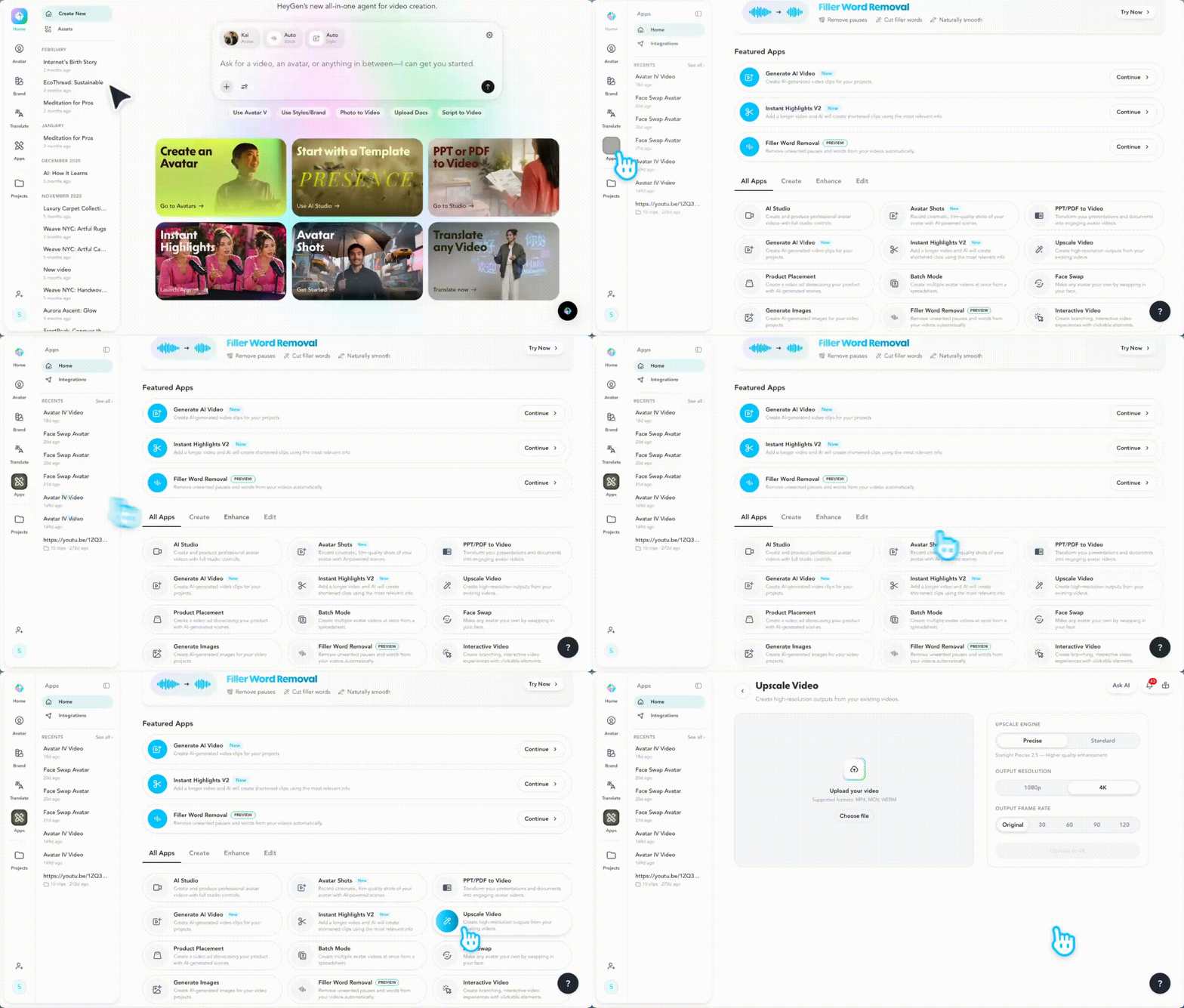
Upload your video by clicking Choose file or dragging and dropping your file into the left panel. Supported formats are MP4, MOV, and WEBM. The minimum input resolution is 360p.
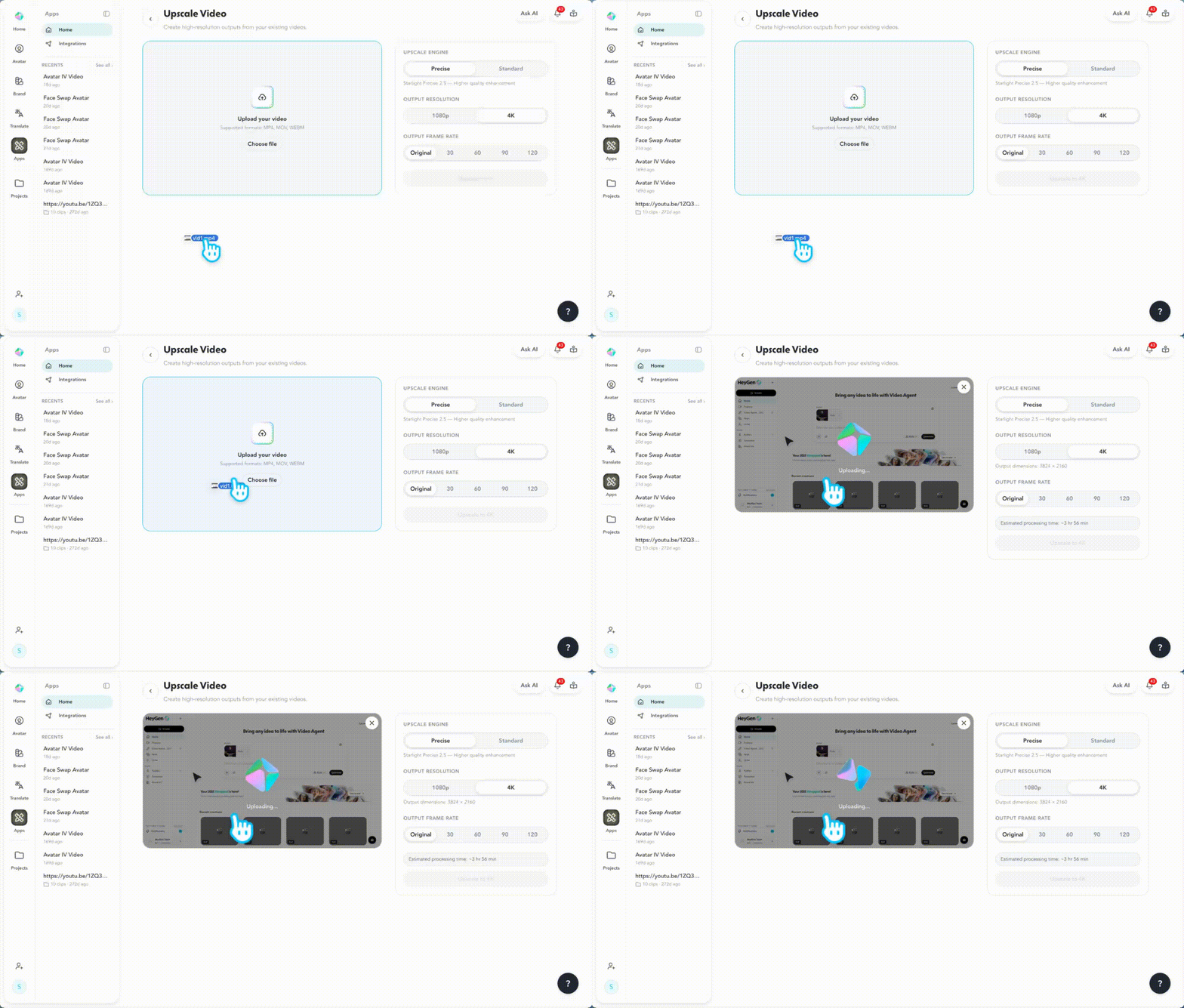
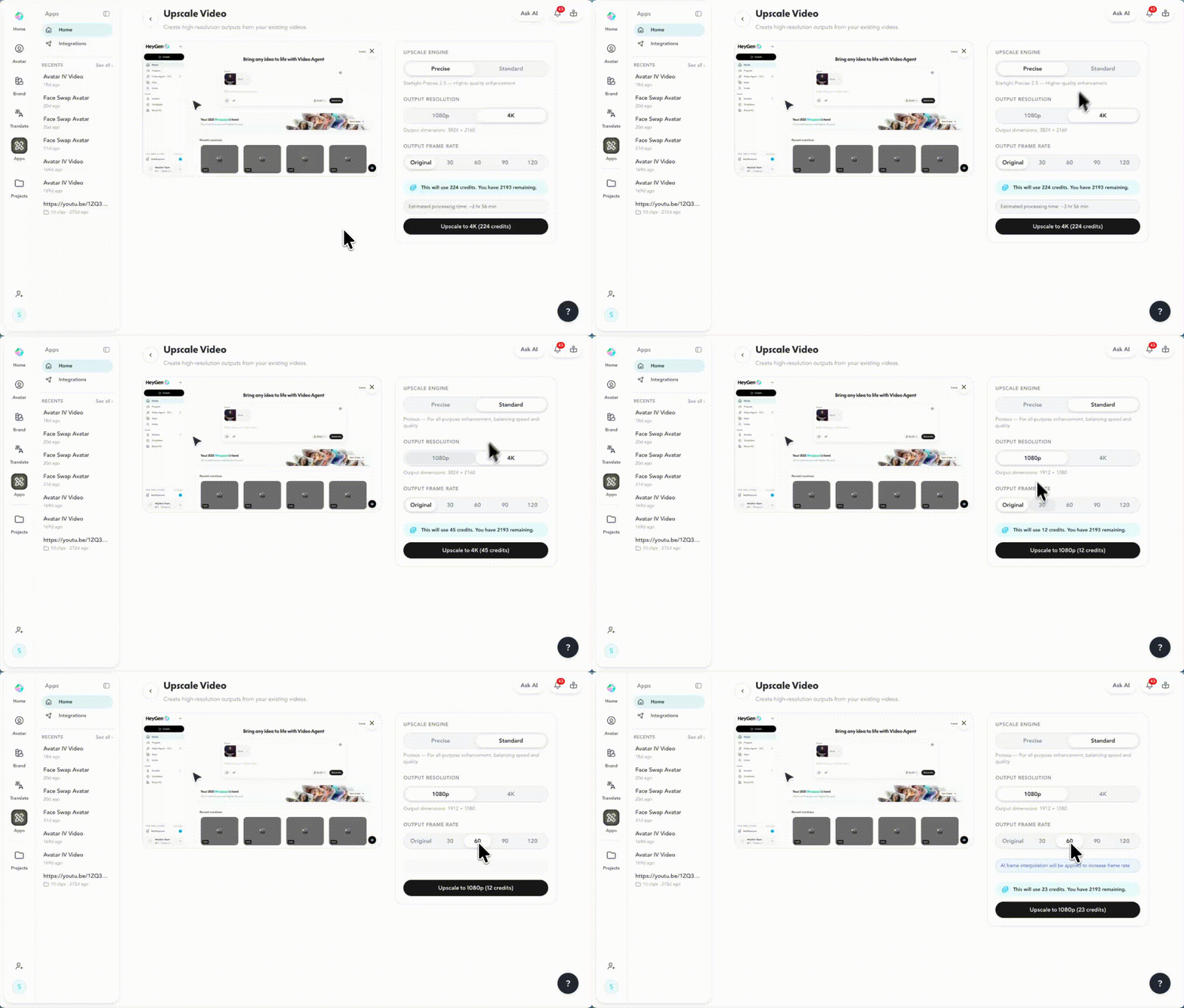
Select your engine from the right panel. Precise is selected by default and is the recommended choice for most use cases. See the section below for a full breakdown of when to use each engine.
Set your output resolution. Choose between 1080p or 4K depending on where you plan to publish the video.
Set your output frame rate. You can keep the original frame rate or boost it to 30, 60, 90, or 120fps. If you're not sure, leave it on Original unless your content would benefit from smoother motion.
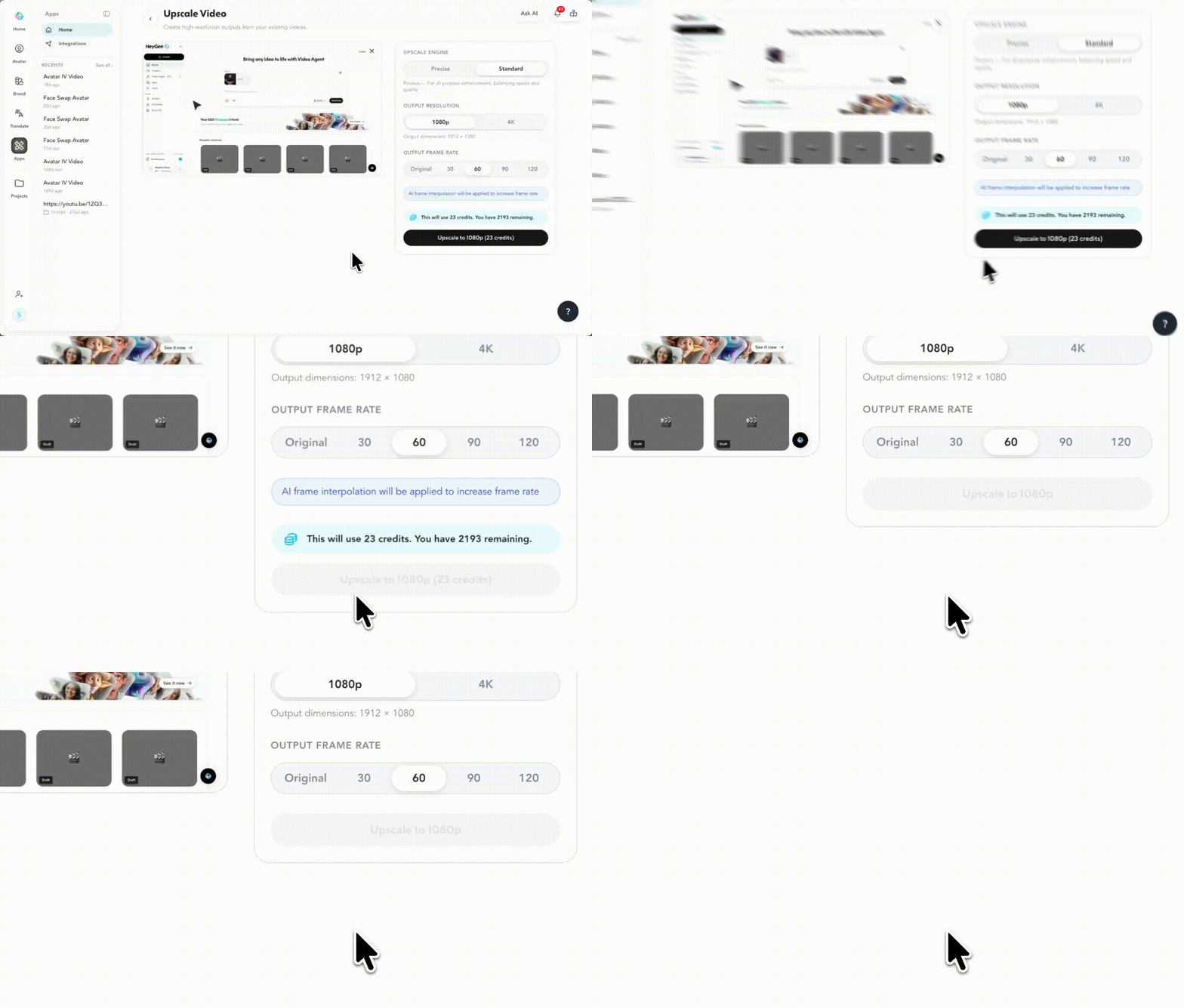
Click upscale to start the render. Once the render is complete, your video is ready to download with no additional encoding needed.
Choosing your engine
Precise is the default engine and is powered by Topaz Labs Starlight Precise 2.5, a diffusion-based model trained on millions of video frames. It reconstructs fine detail, natural facial texture, readable on-screen text, and realistic fabric and foliage at the pixel level. It also handles denoising, sharpening, and artifact correction in a single pass. Use Precise for final deliverables, client-facing content, and anything that will be viewed on a large screen or projector.
Standard delivers a fast, clean resolution increase and is best suited for high-volume workflows or situations where speed matters more than maximum fidelity. You can switch engines at any time without re-uploading your file.
Frame rate options
The Output Frame Rate selector gives you five options: Original, 30, 60, 90, and 120fps.
- Original keeps your source frame rate unchanged, which is ideal if your content was shot or exported at a specific rate you want to preserve
- 30fps is the standard for most web and social content
- 60fps produces smooth motion and works well for product demos and screen recordings
- 90 and 120fps create a cinematic, high-fidelity feel and pair especially well with 4K for content displayed on large screens
AI frame interpolation generates natural in-between frames rather than duplicating existing ones, so the result looks smooth without feeling artificial.
Current limitations
- Supported input formats: MP4, MOV, WEBM only
- Minimum input resolution: 360p
- Maximum output resolution: 4K
- Maximum output frame rate: 120fps
- Both engines cost the same number of credits per upscale
- Videos cannot be edited after upscaling; re-upload and re-render for any changes
Recap
And that's it! You're ready to start upscaling your videos with HeyGen. With two AI engines, resolution options up to 4K, and frame rate boosting up to 120fps, you have everything you need to bring your existing content up to a professional standard.
In this guide, you learned:
- What is Upscale Video
- How to configure and run an upscale step by step
- When to use Precise vs. Standard
- How frame rate interpolation works
- Current limitations to keep in mind
We're looking forward to seeing what you'll create!
Comments (0)
Popular

Dive in
Related
Guide
How to integrate ChatGPT with HeyGen to enhance your video script with AI
Nov 19th, 2024 • Views 3.1K
Video
Avatar IV Tutorial - Turn Any Photo Into a Talking Video with AI
By Audrey Orkild • May 9th, 2025 • Views 2K
Guide
How to integrate ChatGPT with HeyGen to enhance your video script with AI
Nov 19th, 2024 • Views 3.1K
Video
Avatar IV Tutorial - Turn Any Photo Into a Talking Video with AI
By Audrey Orkild • May 9th, 2025 • Views 2K