

API & Integrations
November 19, 2024 · Last updated on March 5, 2026
How to integrate ChatGPT with HeyGen to enhance your video script with AI

# GPT Script Writer
# Scripts
Get the most of the ChatGPT plugin
Welcome to HeyGen! Today, we're diving into how to create professional videos directly inside ChatGPT using HeyGen's native app.
If you already use ChatGPT for research, scripting, or outlining, this integration lets you turn those conversations into finished videos, without ever switching tabs.
Let's walk through each step to get you up and running.

What’s covered in this guide
- What is HeyGen for ChatGPT?
- How to connect your account
- Creating your first video
- Turning an existing response into a video
- Reviewing and generating your video
- Where to edit after generation
What is HeyGen for ChatGPT?
Imagine finishing a script in ChatGPT and instantly turning it into a polished, avatar-led video in the same conversation.
That's exactly what HeyGen for ChatGPT enables.
It's a native ChatGPT app that lets you describe a video in plain language, and generate a finished video with avatars or motion graphics, all without leaving the chat.
No copying and pasting. No new tabs. No rebuilding context somewhere else.
How to get started
From your HeyGen dashboard, go to Integrations and click ChatGPT.
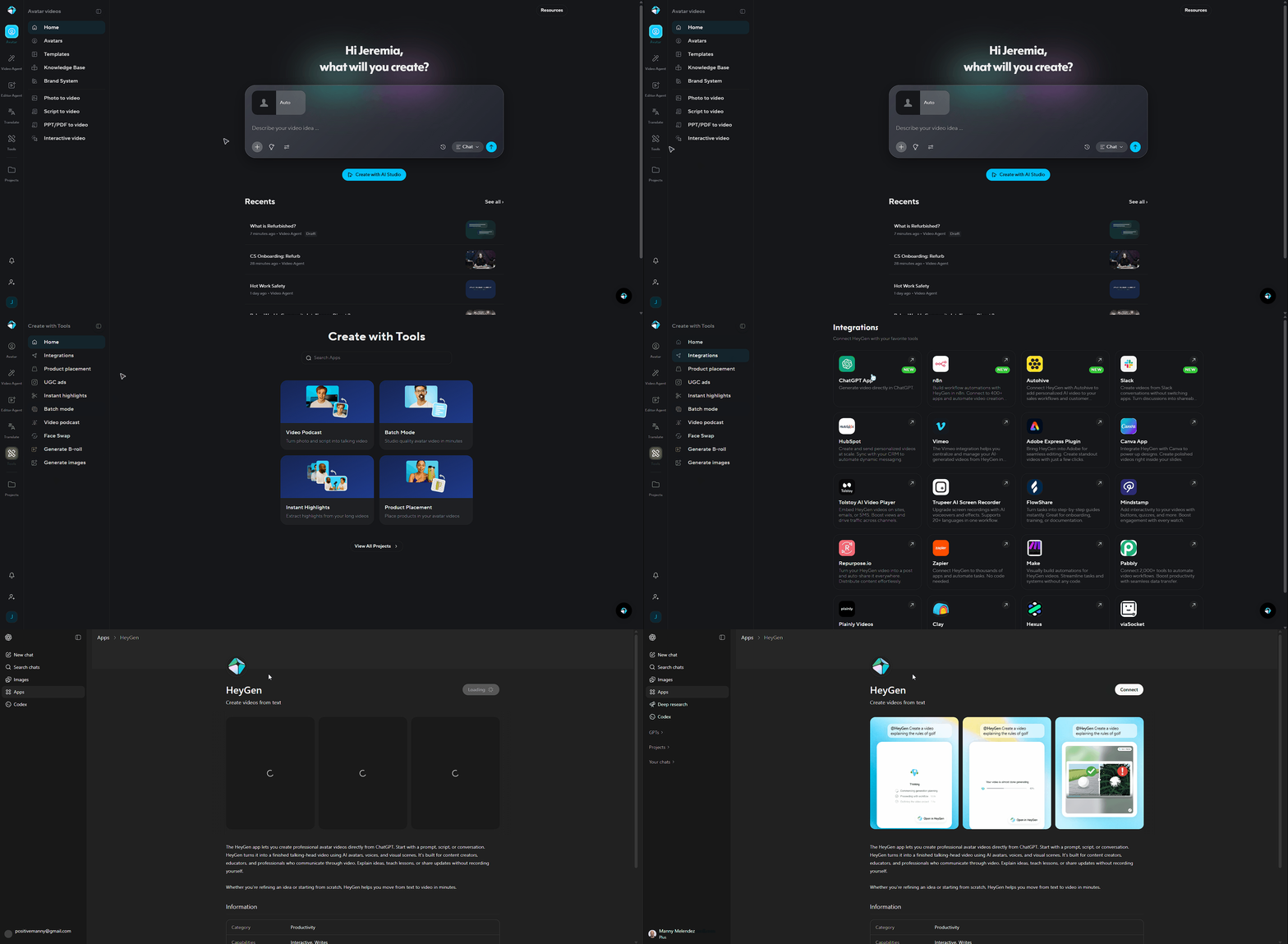
You’ll be redirected to ChatGPT, where you’ll be prompted to connect your HeyGen account.
Click Connect and complete the quick OAuth flow. You only need to do this once.
You can begin in two ways.
Option 1: Start from scratch
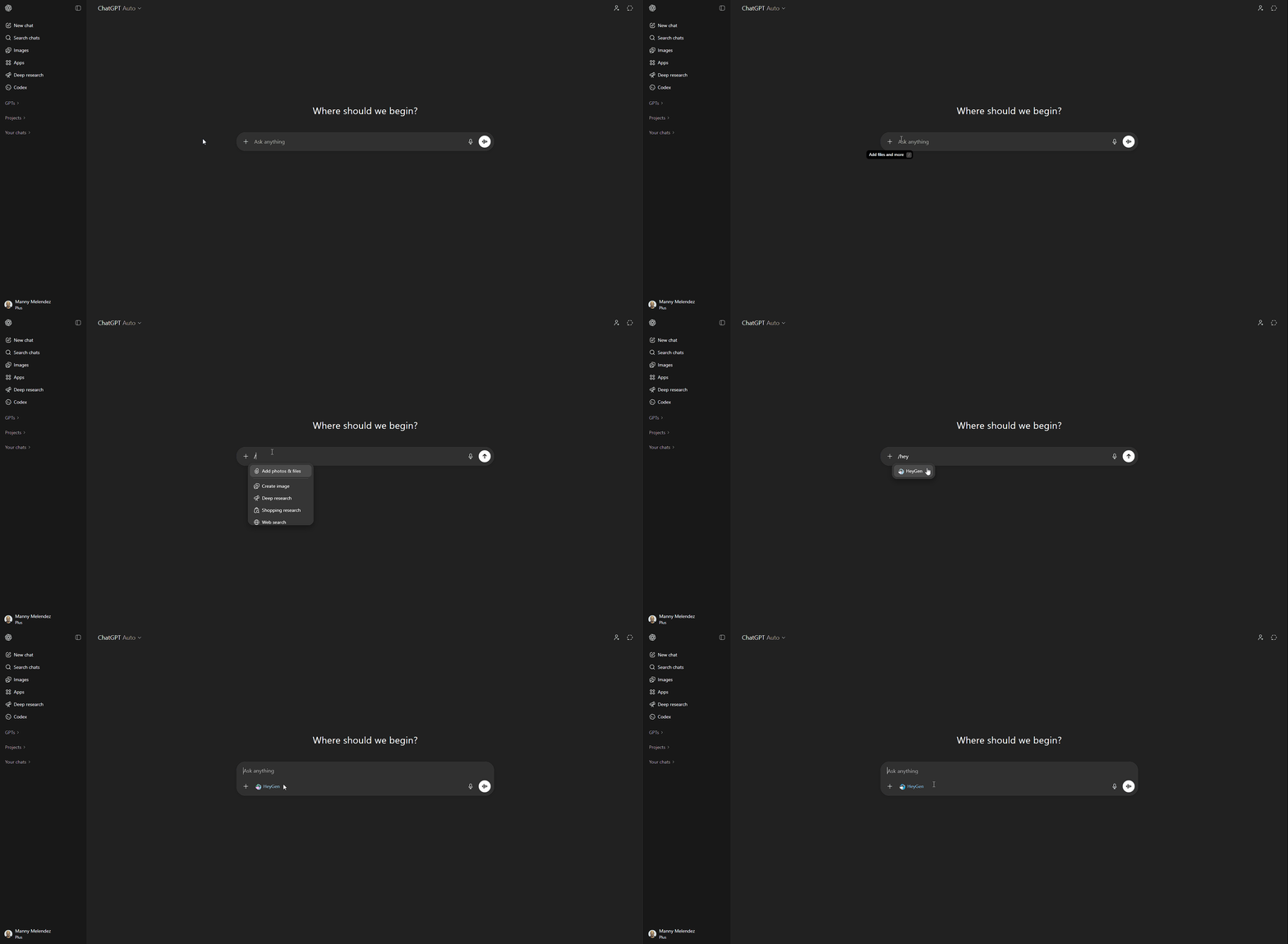
Before generating a video, you need to call the HeyGen app within the chat. This tells ChatGPT to use HeyGen to produce the video.
You can do this in three ways:
Type
/heygen in the chatType
@heygen in the chatClick the + icon in the chat box → More → HeyGen
Once selected, you’ll see HeyGen appear in the chat box, indicating that the HeyGen app is active for that message.
Simply type a prompt describing the video you want to create. For example:
Create a 30-second product explainer with clean motion graphics. No avatar.
Or:
Make a two-minute onboarding video for new customers using a professional female avatar.
The more specific your prompt, the better your results. Here's an example of a detailed prompt for an e-learning company:
Prompt:
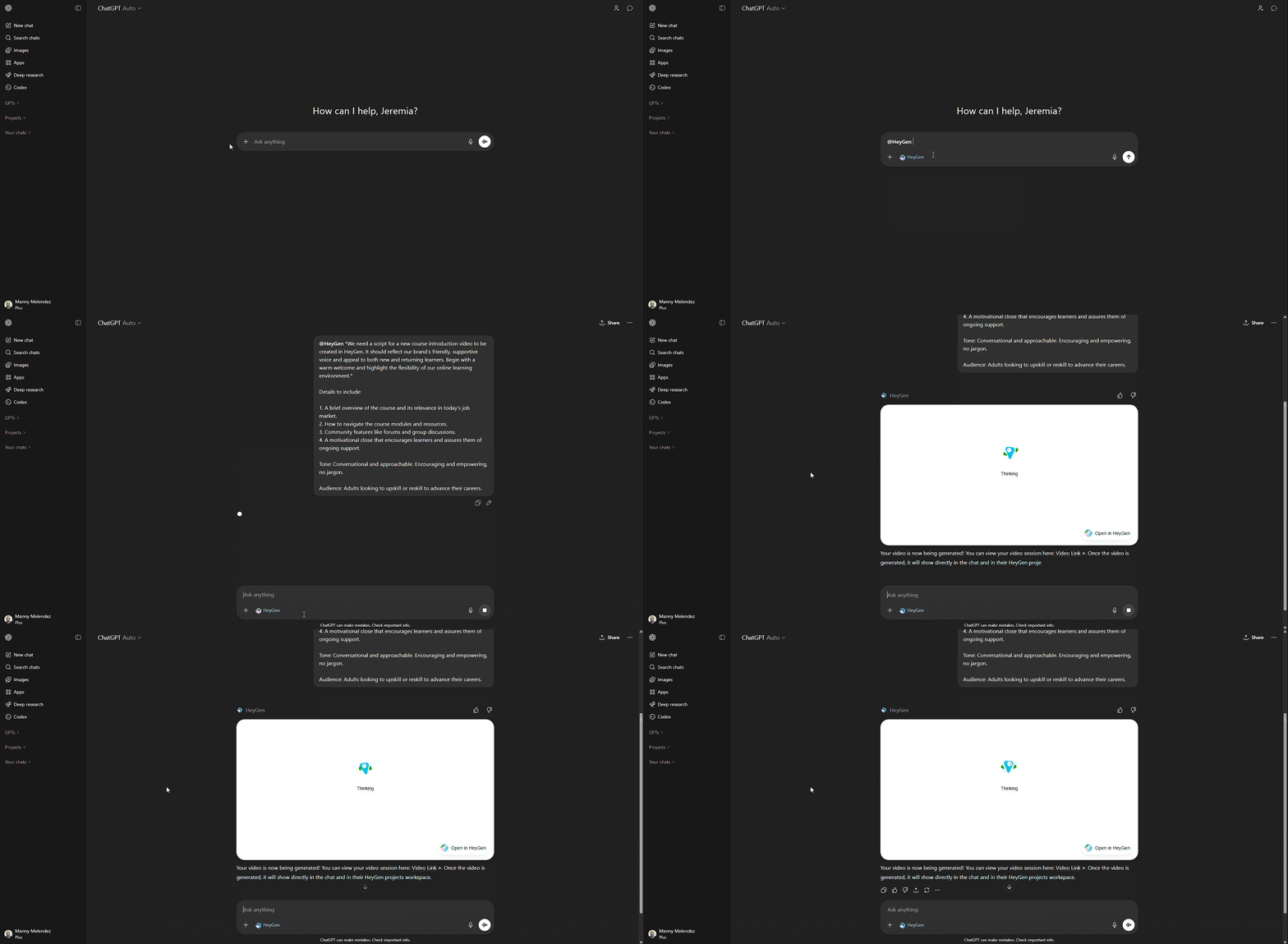
We need a script for a new course introduction video to be created in HeyGen. It should reflect our brand's friendly, supportive voice and appeal to both new and returning learners. Begin with a warm welcome and highlight the flexibility of our online learning environment.
Details to include:
A brief overview of the course and its relevance in today's job market.
How to navigate the course modules and resources.
Community features like forums and group discussions.
A motivational close that encourages learners and assures them of ongoing support.
Tone: Conversational and approachable. Encouraging and empowering, no jargon.
Audience: Adults looking to upskill or reskill to advance their careers.
ChatGPT will use your instructions to prepare a structured production plan.
Option 2: Turn an existing response into a video
This is where the integration really shines.
Let's say you just asked ChatGPT to break down the top data privacy trends for 2026. Instead of reading through the response or copying it into another chat, type
/heygen and describe what you'd like to create:Turn this into a one-minute explainer video. Clean motion graphics. No avatar.
Because the tool runs within your existing conversation, it uses the full context of your thread — no rework required. This is ideal any time you think, "I'd rather watch this than read it."

Reviewing your video plan
Before your video is created, you’ll see a brief explanation of the video plan along with the prompt that will be passed to HeyGen. This gives you a chance to review what will be generated before confirming and starting the video creation process.
Take a moment to review everything carefully. If you'd like to adjust the tone, shorten the script, or change the style, just say so. You can refine the plan before moving forward.
When you're happy with it, click Generate Video to begin rendering.
Previewing your video
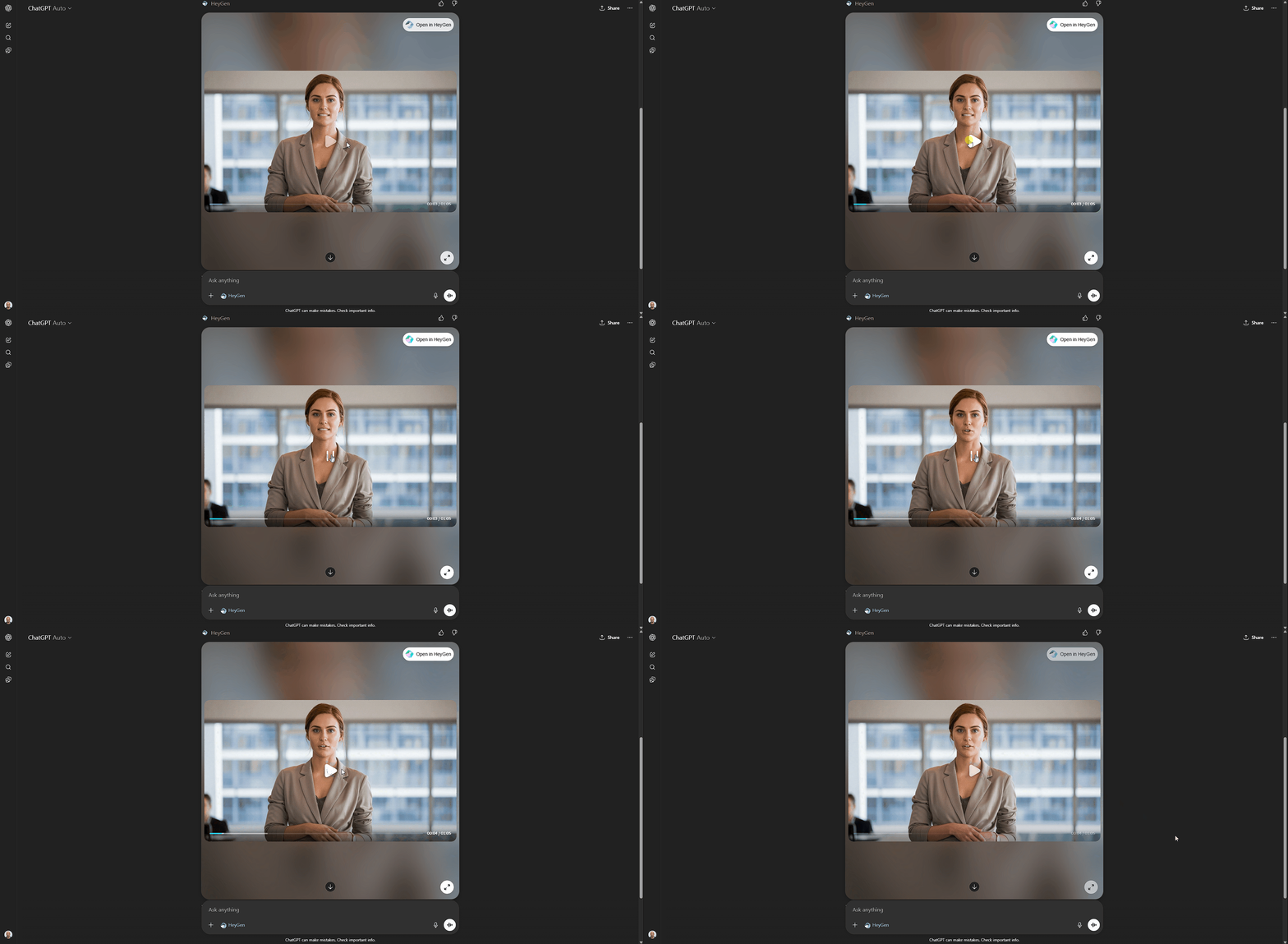
Once rendering is complete, you can watch the video directly inside ChatGPT. If you'd like to make deeper edits or repurpose the video, click through to continue inside the HeyGen platform.
Think of ChatGPT as your creative control room, and HeyGen as your production studio.
Recap
Ready to create a video inside ChatGPT? Give it a try and see how much time you save!
In this guide, you learned:
- What HeyGen for ChatGPT is
- How to connect your account
- How to start a video from scratch or from an existing response
- How to review and generate your video
- Where to continue editing after generation
We're looking forward to seeing what you'll create with HeyGen!
If you share your videos on social media, make sure to tag @HeyGen_Official so we can celebrate them with you.
Comments (2)
Popular

Dive in
Related
Video
HeyGen for Education: How Educators Use AI Video to Teach Smarter
By Joy Chen • May 1st, 2025 • Views 1.1K
Guide
How to enhance any video to 4K with AI-powered upscaling using Upscale Video
May 1st, 2026 • Views 363
Guide
How to get started with HeyGen: from account setup to video creation
Oct 22nd, 2024 • Views 5.2K
Guide
How to enhance any video to 4K with AI-powered upscaling using Upscale Video
May 1st, 2026 • Views 363
Guide
How to get started with HeyGen: from account setup to video creation
Oct 22nd, 2024 • Views 5.2K
Video
HeyGen for Education: How Educators Use AI Video to Teach Smarter
By Joy Chen • May 1st, 2025 • Views 1.1K