

Editing
October 28, 2024 · Last updated on February 2, 2026
How to maintain visual brand consistency with Brand Kit
# Editing
# Brand Kit
# Brand Voice
-
In today’s fast-paced digital world, keeping your brand consistent is key to standing out and being memorable. At HeyGen, we’ve made it easy with our Brand feature!
Prefer to watch instead of read? Check out the video walkthrough below from HeyGen Academy and visit the full course to learn all the basics of HeyGen
What’s covered in this guide
- What is HeyGen Brand?
- How to get started with Brand Kit
- Add your brand's URL
- Adjust assets or set up manually
- Deleting a Brand Kit
- How to apply your Brand Kit to videos using brand systems
- Recap
What is HeyGen Brand?
Wondering what HeyGen Brand is? Let’s break it down. Brand consists of two main parts:
- Brand Kit – all your visual assets (logos, colors, fonts, media)
- Brand Glossary – your pronunciation and translation rules
Together, they help you and your team create videos that look and sound consistently on-brand—no matter who's making them or what language they're in. This guide focuses on Brand Kit (your visual assets). For managing consistent pronunciation and translations, visit our Brand Glossary guide.
How to get started with Brand Kit
Brand Kit stores all your visual branding elements in one place such as logos, brand colors, fonts, images, videos, and optional audio files. It ensures your videos carry a unified look, making them instantly recognizable to your audience.
To create a Brand Kit, go to “Brand Kit” in the left navigation pane.
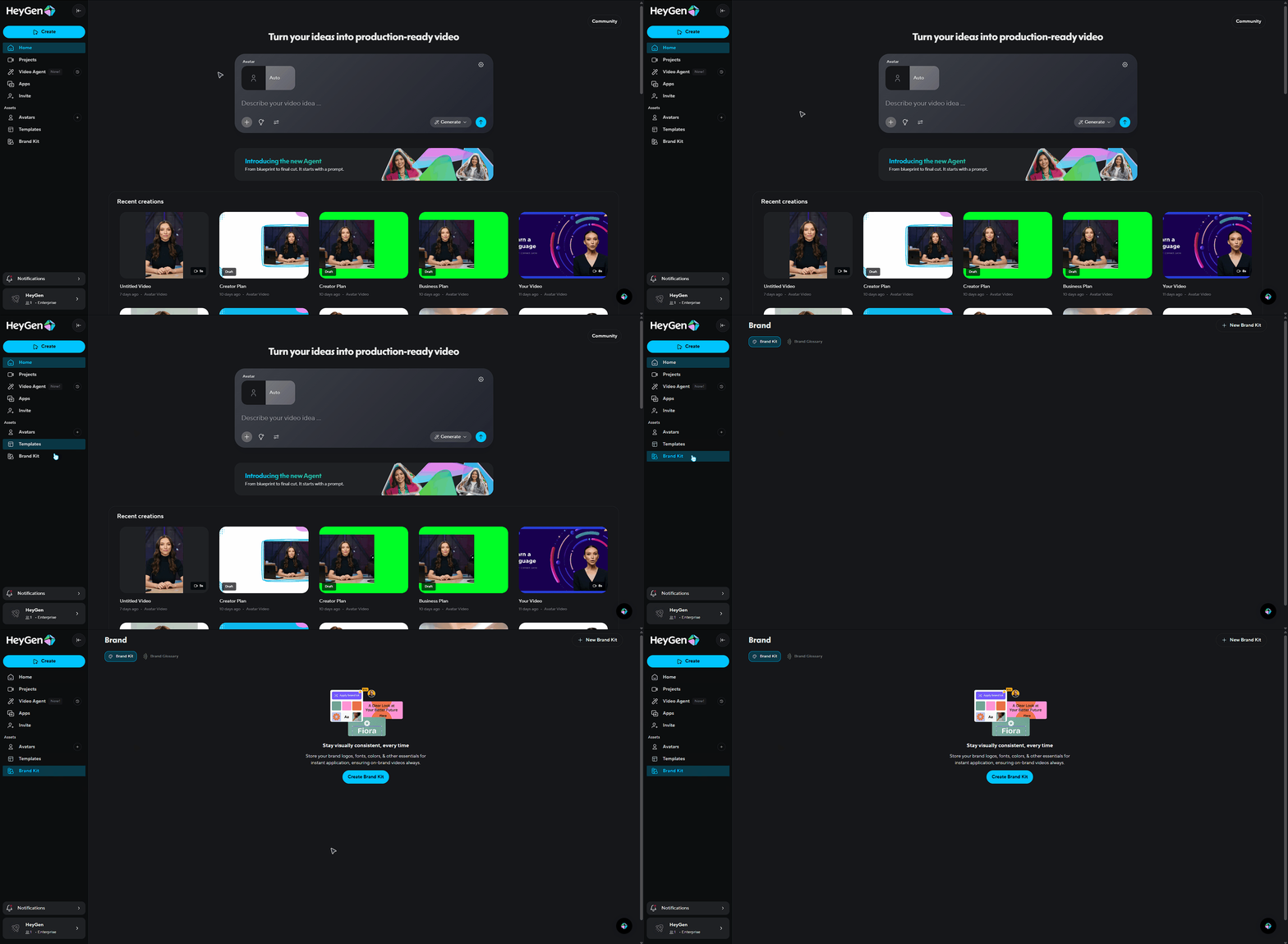
If you’ve never created a brand kit before you can select “Create Brand Kit” in the center of the page.
If you would like to create a new brand kit Click ‘New Brand Kit” to get started. You’ll have two options, add brand's URL, or, set up Brand Kit manually.
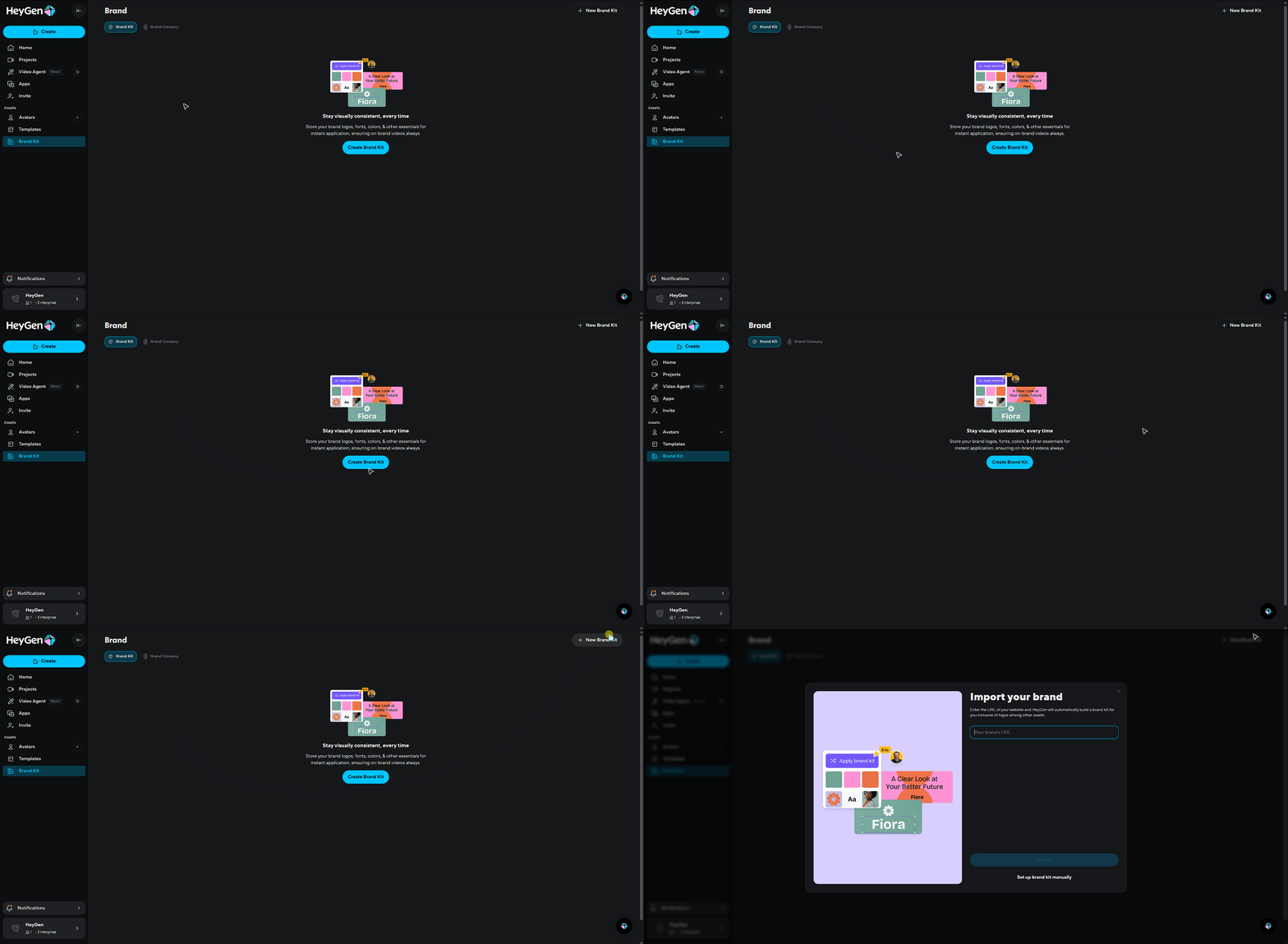
Add your brand’s URL
By selecting this option, HeyGen will automatically extract logos, colors, photos, fonts, and videos from your website to create a complete Brand Kit. If you need to make any adjustments to the elements, you can easily do so after the Brand Kit is created.
Simply enter your brand’s website in the designated field, and wait a few moments for the extraction process to complete.
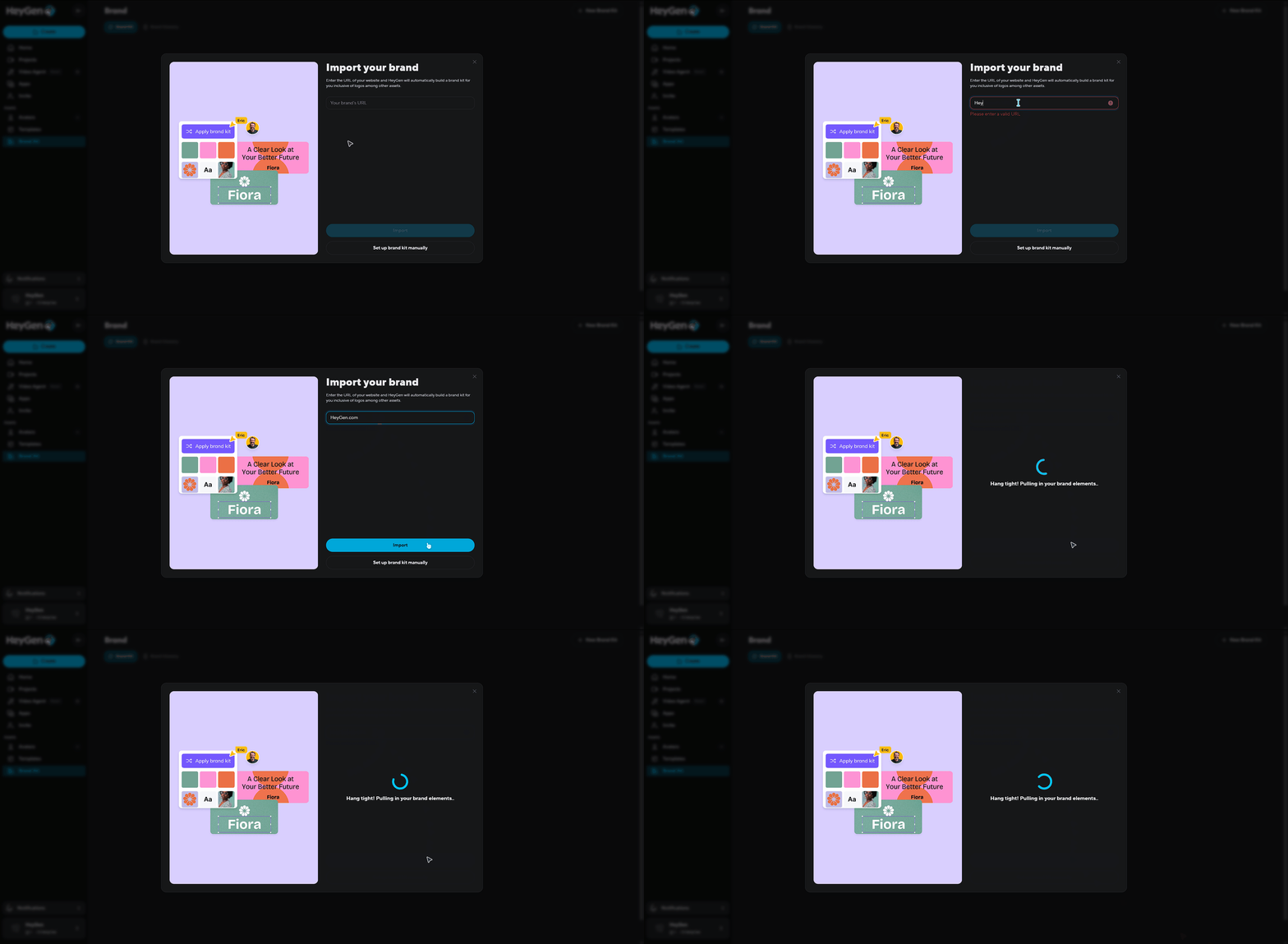
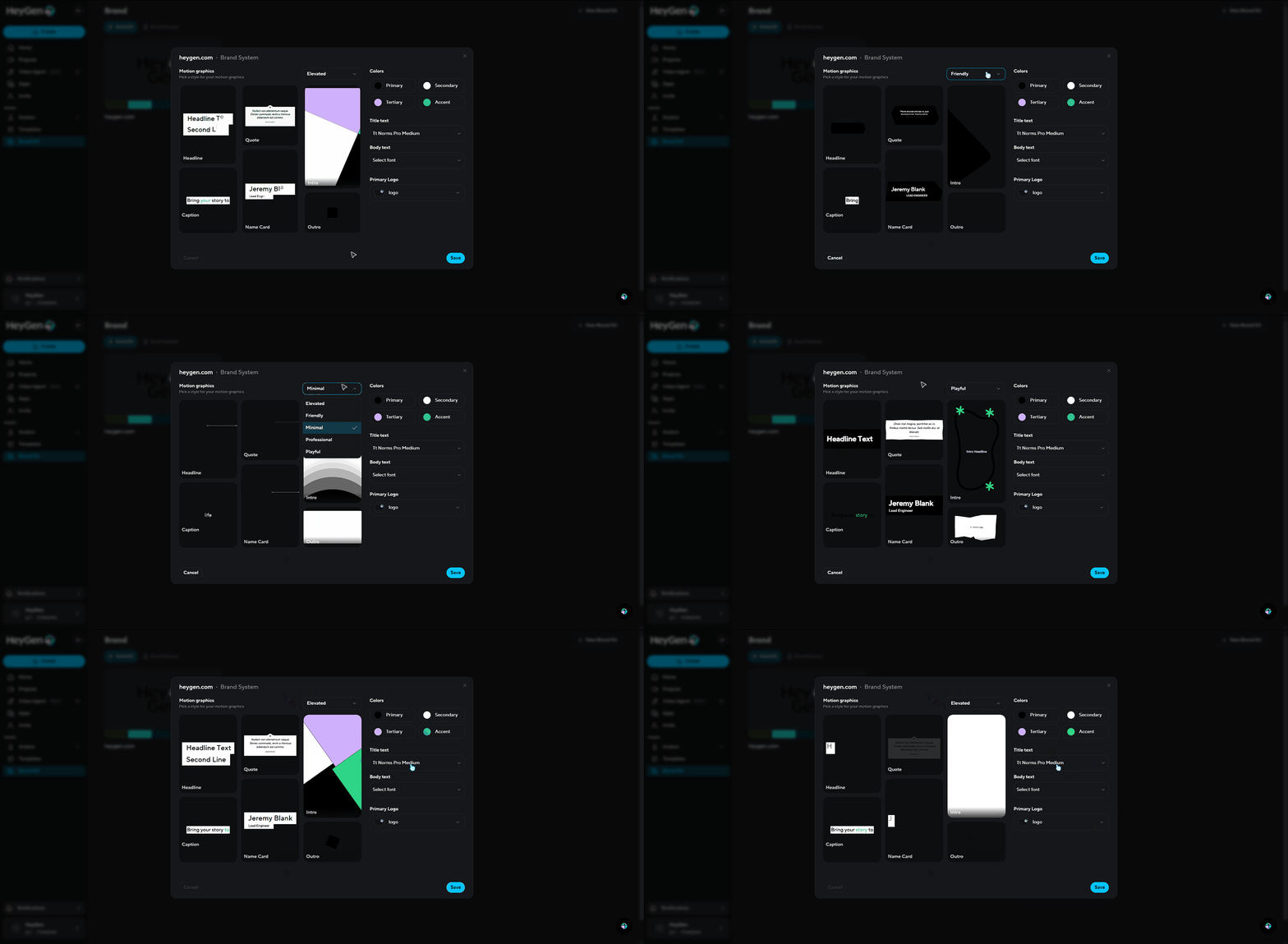
Once finished, you will see that you can edit your brand system, this is a series of animations and graphics that you will be able to use within your videos, already matched to you brands colors, logo, and fonts.
Setting up your brand kit manually
Manual setup is useful to get the exact logos, fonts, photos, or colors that you want. You will have the option to edit all of these using the URL extraction as well.
After you select “New Brand Kit”, select “set up brand kit manually”
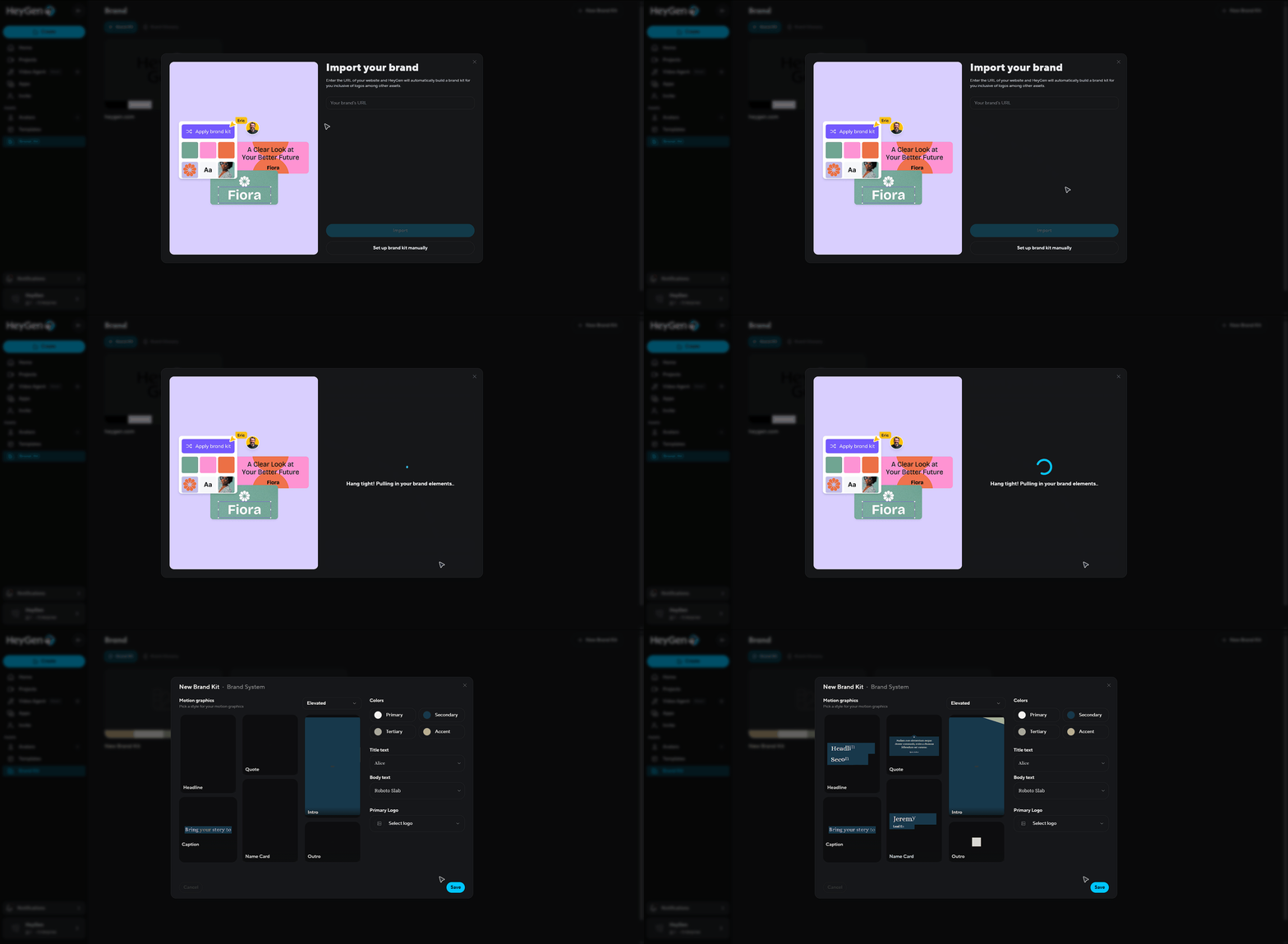
You will see that it now automatically opens into your brand system.
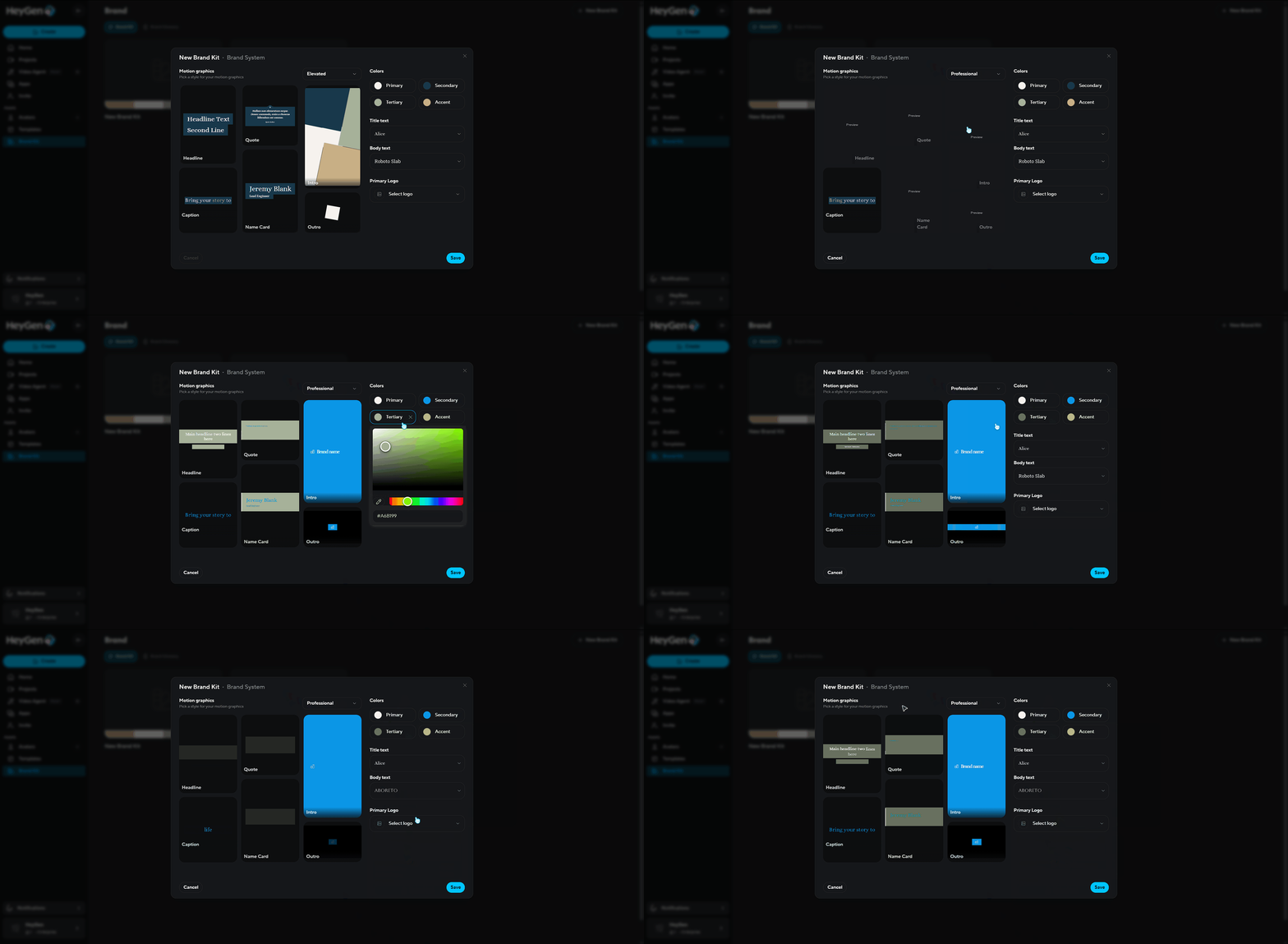
From here go ahead and edit the colors, fonts, logos, and animation style.
After you have completed editing your brand system, you will see it in the brand kit page.
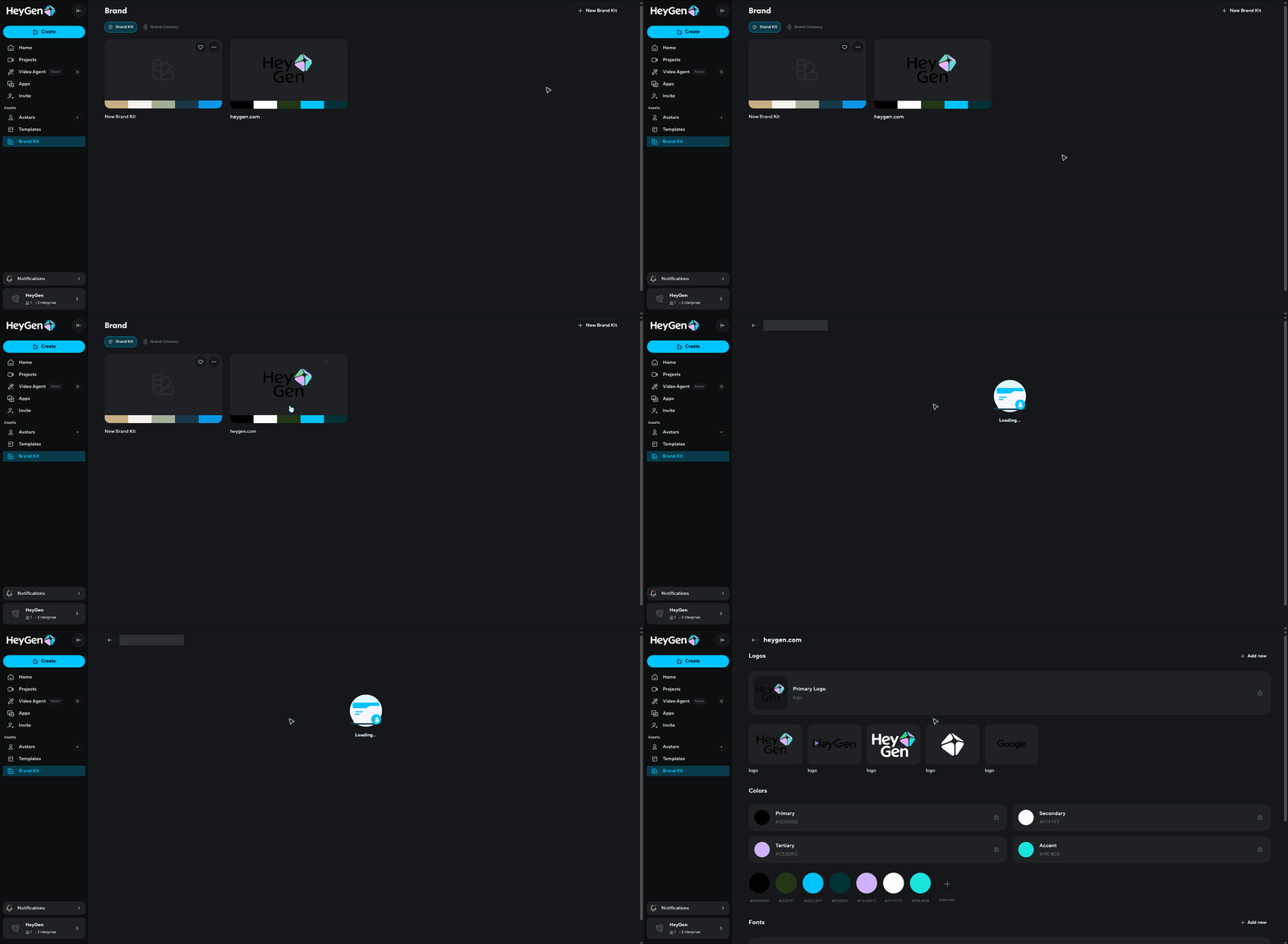
From here you are able to make changes to you brand kit
You can upload or update assets like:
- Images (JPG, PNG, TIFF, WebP)
- Videos (MP4, MOV, WEBM)
- Fonts (TTF, OTF)
- Audio
Deleting a Brand Kit
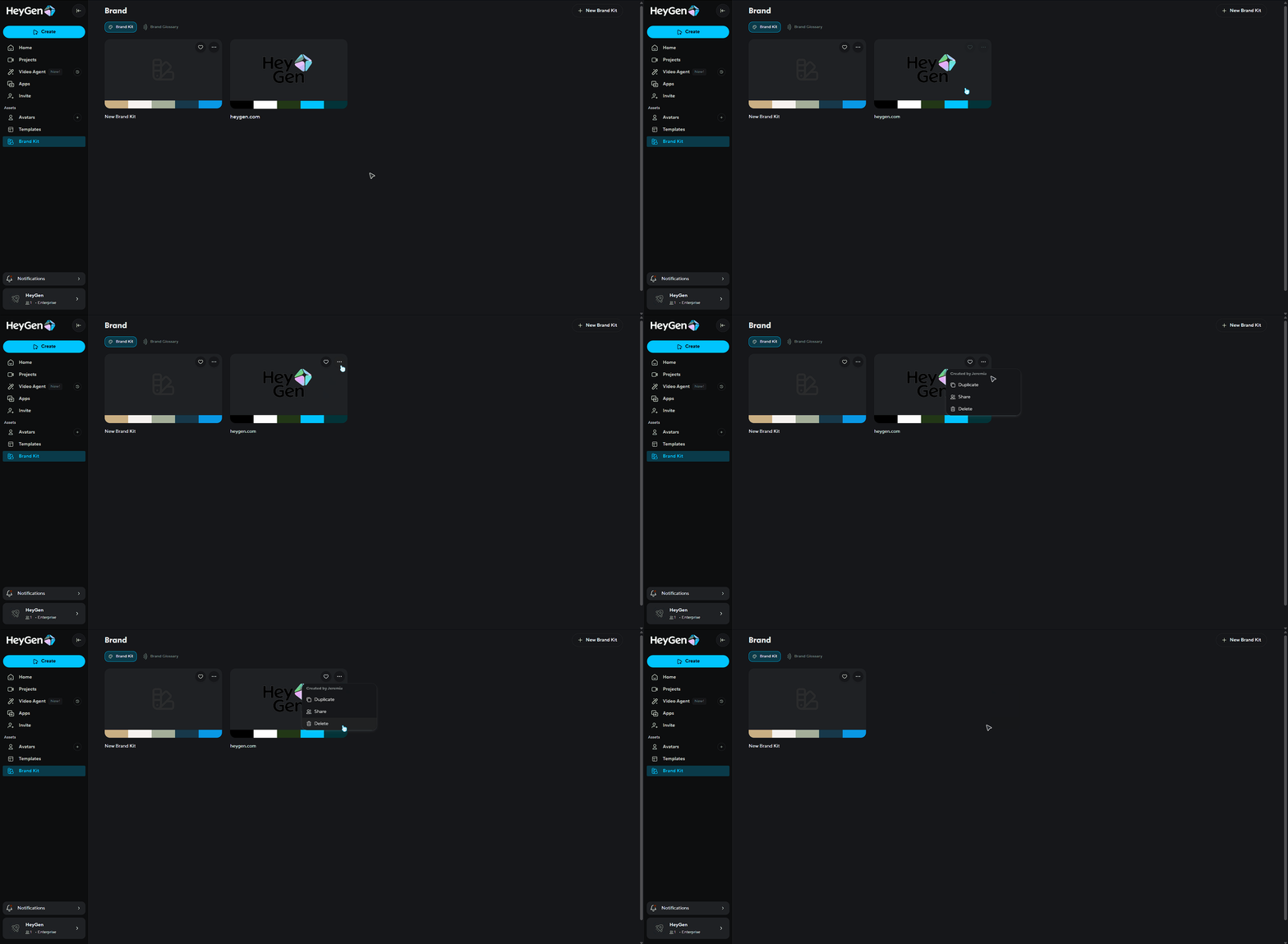
Want to delete a Brand Kit? Just click the three dots next to the Brand Kit in your Brand Hub and select Delete. Don’t worry, videos that already used it will remain unchanged.
Applying your Brand to a video using Brand Systems
Once your Brand Kit is set up, it’s easy to apply it directly while editing your video.
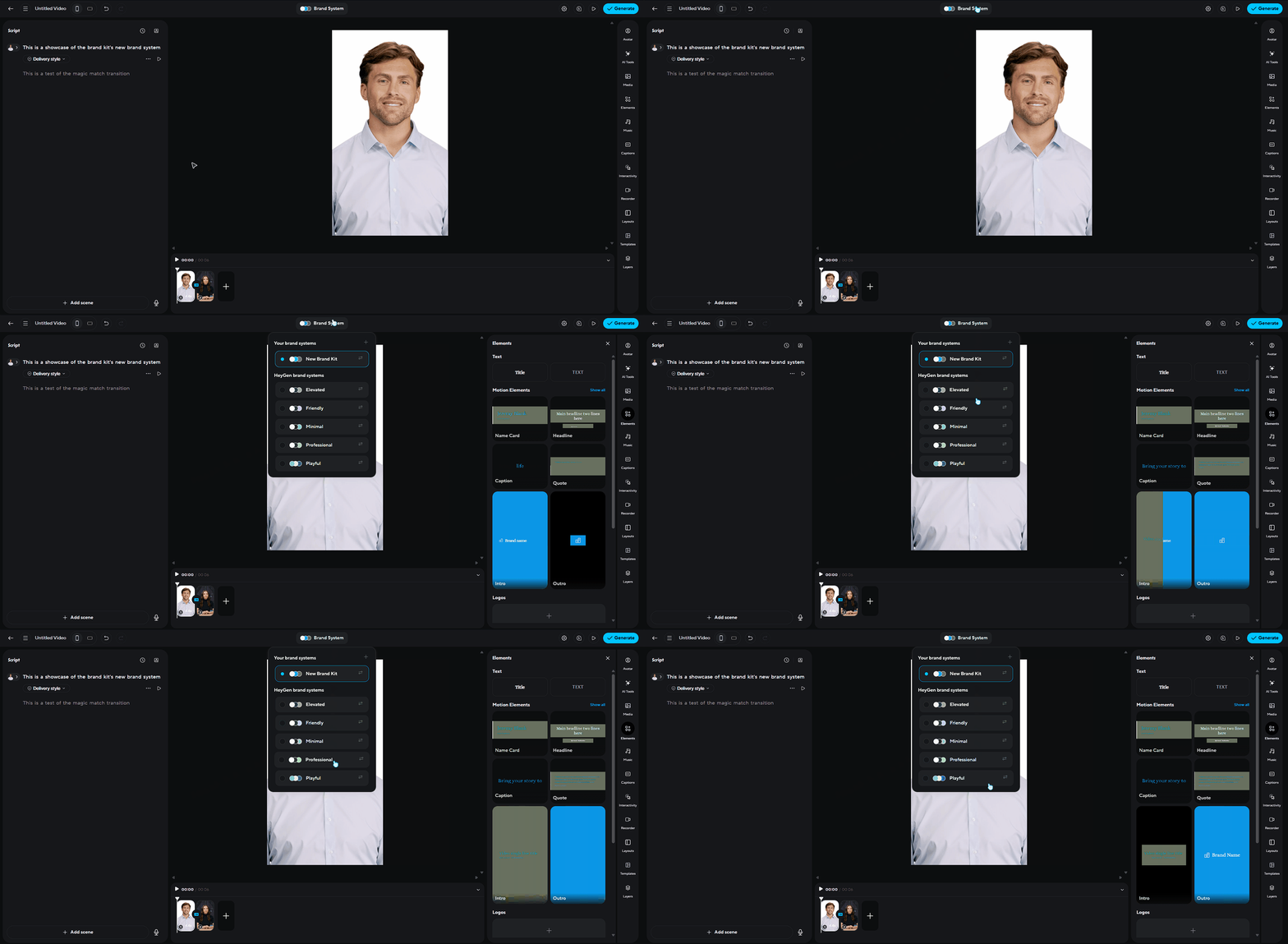
When you're creating a video in AI Studio, click the 'Brand System' button in the top to access your brand system.
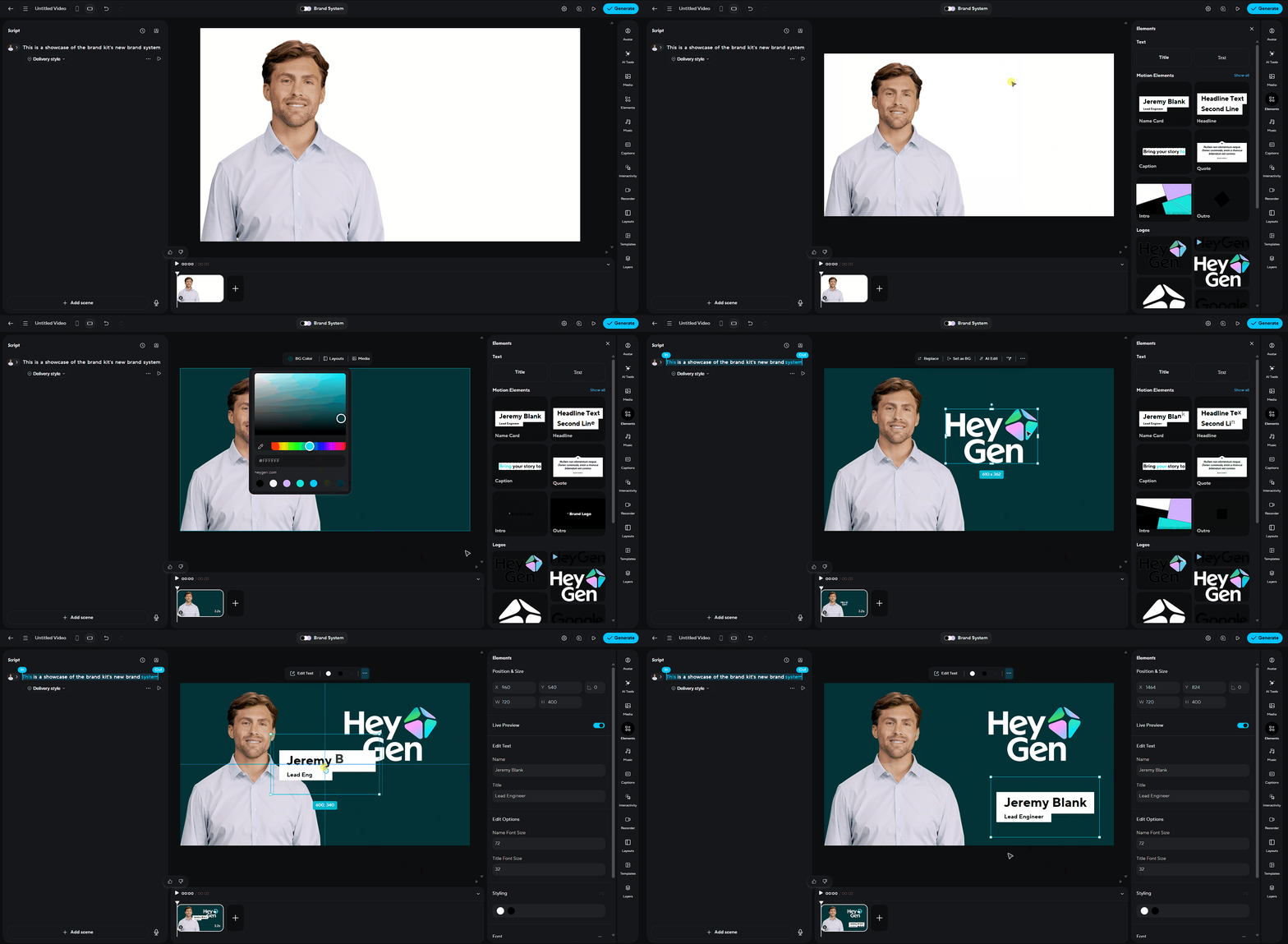
Visually, you can apply your Brand Kit’s logos and place them directly onto your slides.
Fonts and images from your Brand Kit can also be inserted directly into your project, making the editing experience both flexible and fully on-brand.
Accessing Brand Glossary
What is the brand glossary?
The brand glossary is a list of words, that are specific to your brand, that you have manual control over the pronunciation of the words.
From both within the brand kit page and the AI Studio, you are able to access your brand glossary
From the brand kit page Click the "Create Brand Glossary" button to start a new collection of pronunciations.
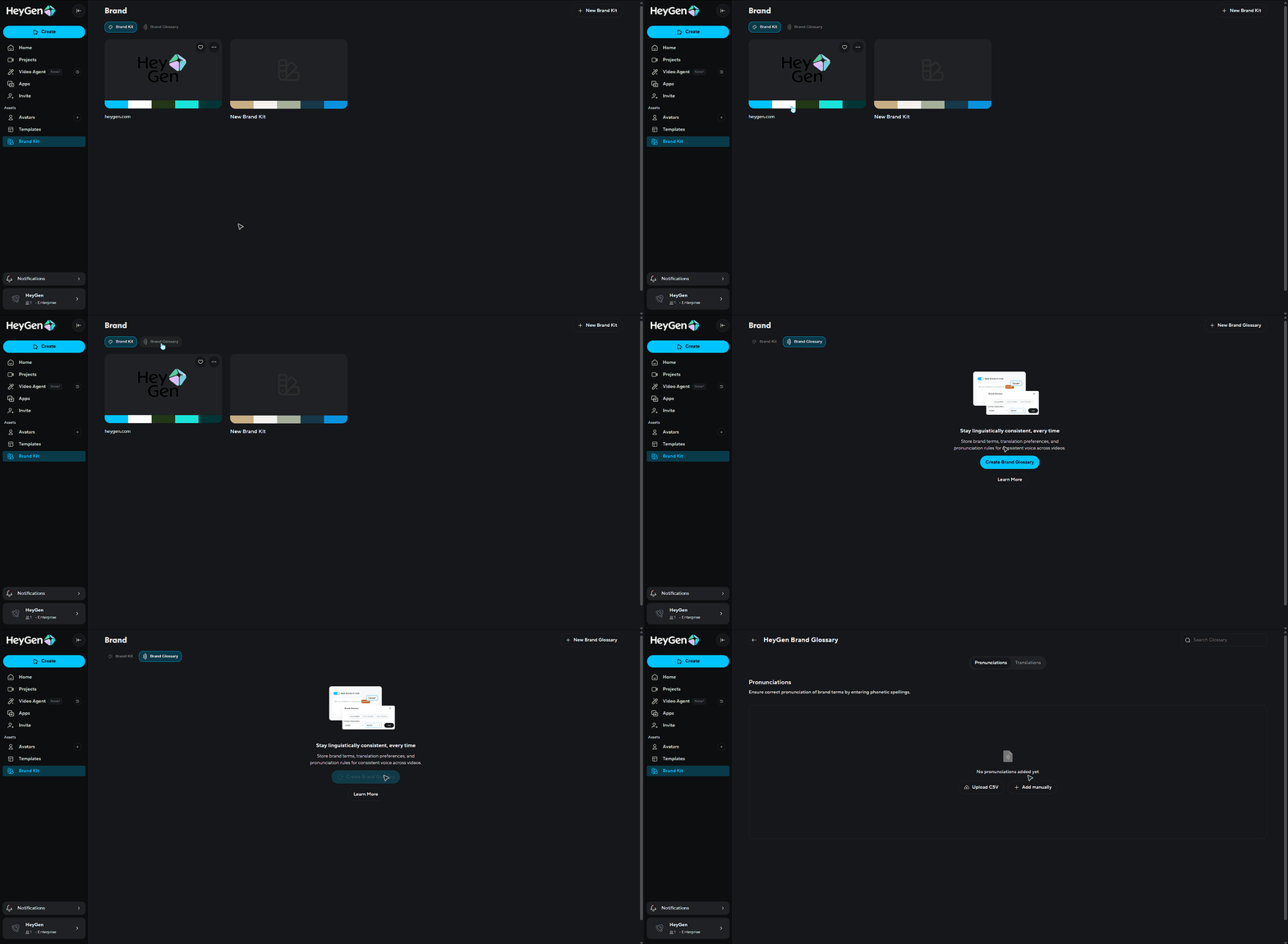
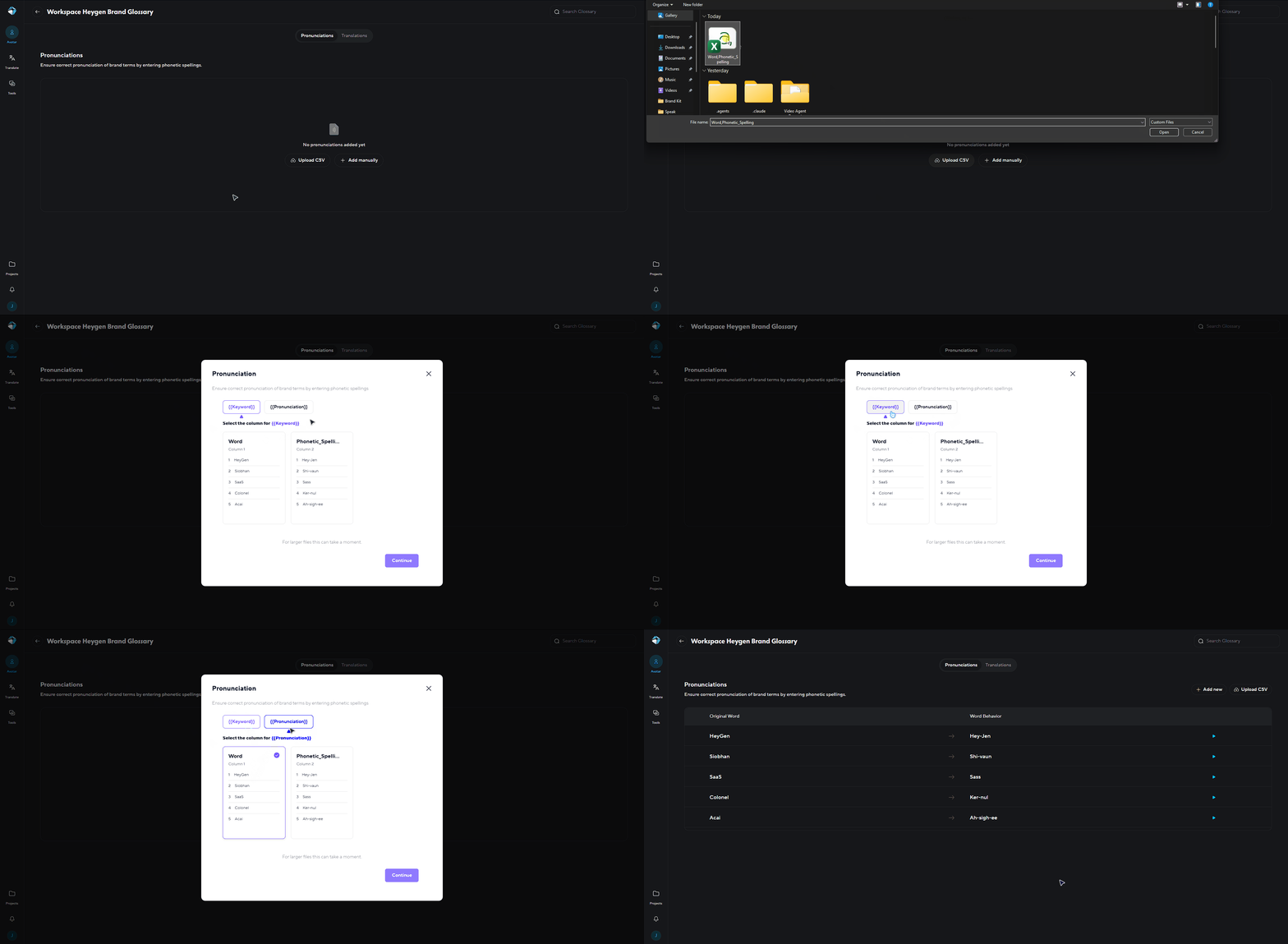
If you have a large list prepared, click "Upload CSV." This allows you to import a spreadsheet containing your words and their phonetic spellings in bulk.
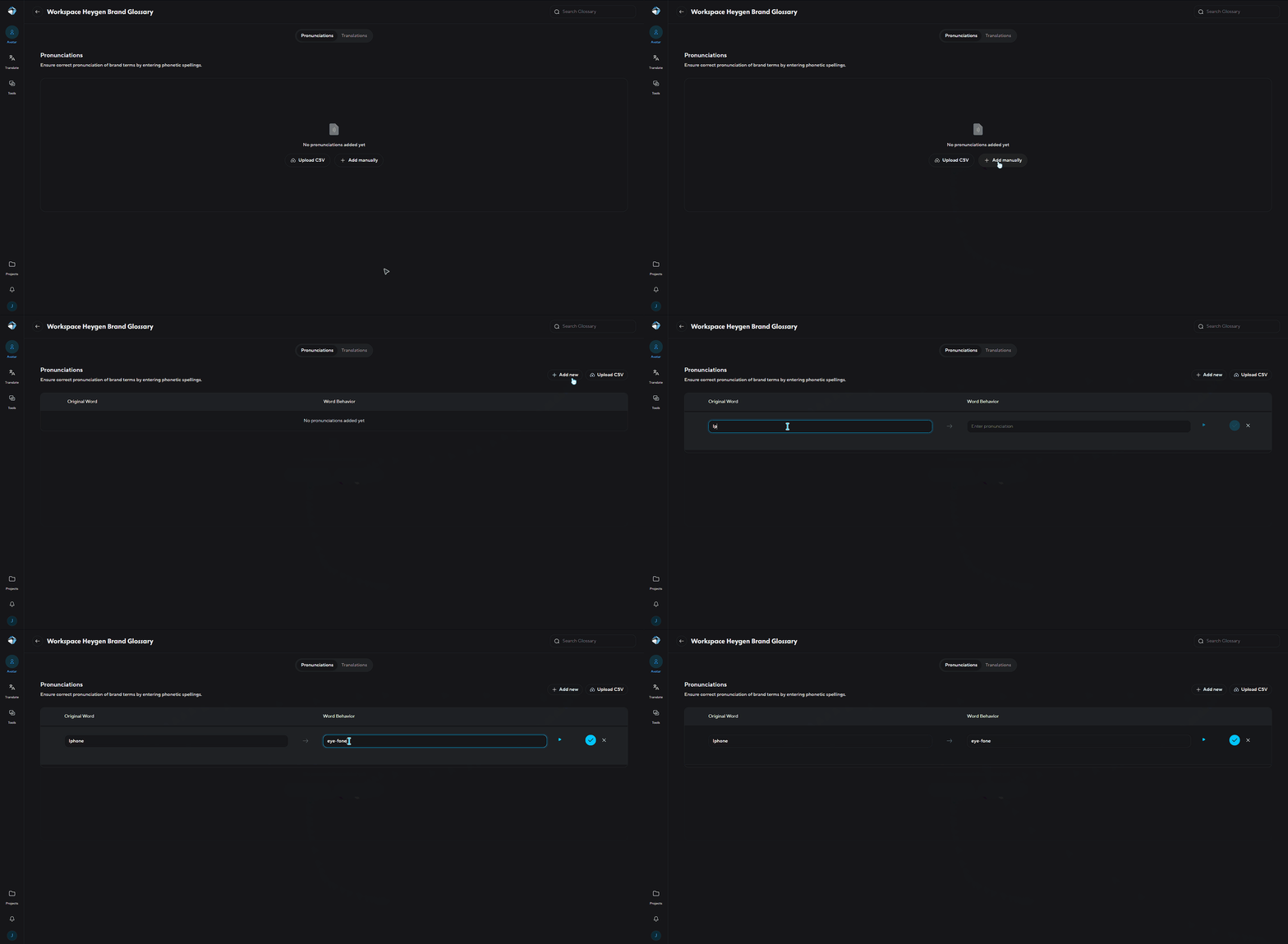
Alternatively, you can input words individually. Click to manually add a new entry. Type the target word in the first box, and the phonetic pronunciation (how it should sound) in the second box
Whether you're starting from scratch or using a template, your Brand Kit assets are seamlessly integrated into the editor, ready to help your videos look and sound exactly the way you want!
Recap
In this guide, you learned:
- What is HeyGen Brand?
- How to get started with Brand Kit
- Add your brand's URL
- Adjust assets or set up manually
- Deleting a Brand Kit
- How to apply your Brand Kit to videos using brand systems
We’re looking forward to seeing what you’ll create with HeyGen!
If you’re posting your videos on social media, make sure to tag any videos you create with @HeyGen_Official so we can celebrate them with you.
Comments (4)
Popular

Dive in
Related
Guide
How to use Brand Glossary to maintain consistent pronunciation and translations
Oct 15th, 2024 • Views 7K
Guide
How to use Brand Glossary to maintain consistent pronunciation and translations
Oct 15th, 2024 • Views 7K