

Editing
September 16, 2025 · Last updated on May 15, 2026
Video Agent: The agentic way to create polished videos
# Video Agent
# Editing
You can turn a single idea into a complete video in minutes!
Video Agent is the first AI agent to turn your ideas into production-grade video: from blueprint to final cut. No timelines, no rendering roulette, no design toolsm just one prompt to a fully-produced, editable video complete with motion graphics, visual storytelling, and brand consistency.
Whether you're launching a TikTok ad, delivering a curriculum lesson, explaining your product, or sharing thought leadership content, Video Agent handles the production so you can focus on your message.
What’s covered in this guide
- What is Video Agent?
- How to create a video with Video Agent
- Editing your video
- Prompting best practices
- Usage limits by subscription type
- Recap
What is Video Agent?
Video Agent is HeyGen’s prompt-native video engine, and the first to act like a true production studio. It doesn’t just assemble footage. It makes creative decisions on your behalf: scripting, storyboarding, editing, and styling. With every video, it delivers production-grade polish and storytelling.
Video Agent is agentic; it understands your intent and makes creative decisions independently. It decides how to break your idea into scenes, which visuals to use, when to show the avatar, and how to pace the narration and motion.
With Video Agent:
- Script: Written automatically, or paste your own for total control.
- Voiceover: Emotion-aware narration added instantly.
- Visuals: Matched to content with motion graphics, stock footage, or AI-generated imagery.
- Brand styling: Fonts, colors, and layout follow your Brand Kit.
- Edits & transitions: Pacing and flow are thoughtfully designed.
- Blueprint-first: You see the creative plan before rendering.
This is not a talking-head generator. It’s an AI video production studio.
How to create a video with Video Agent
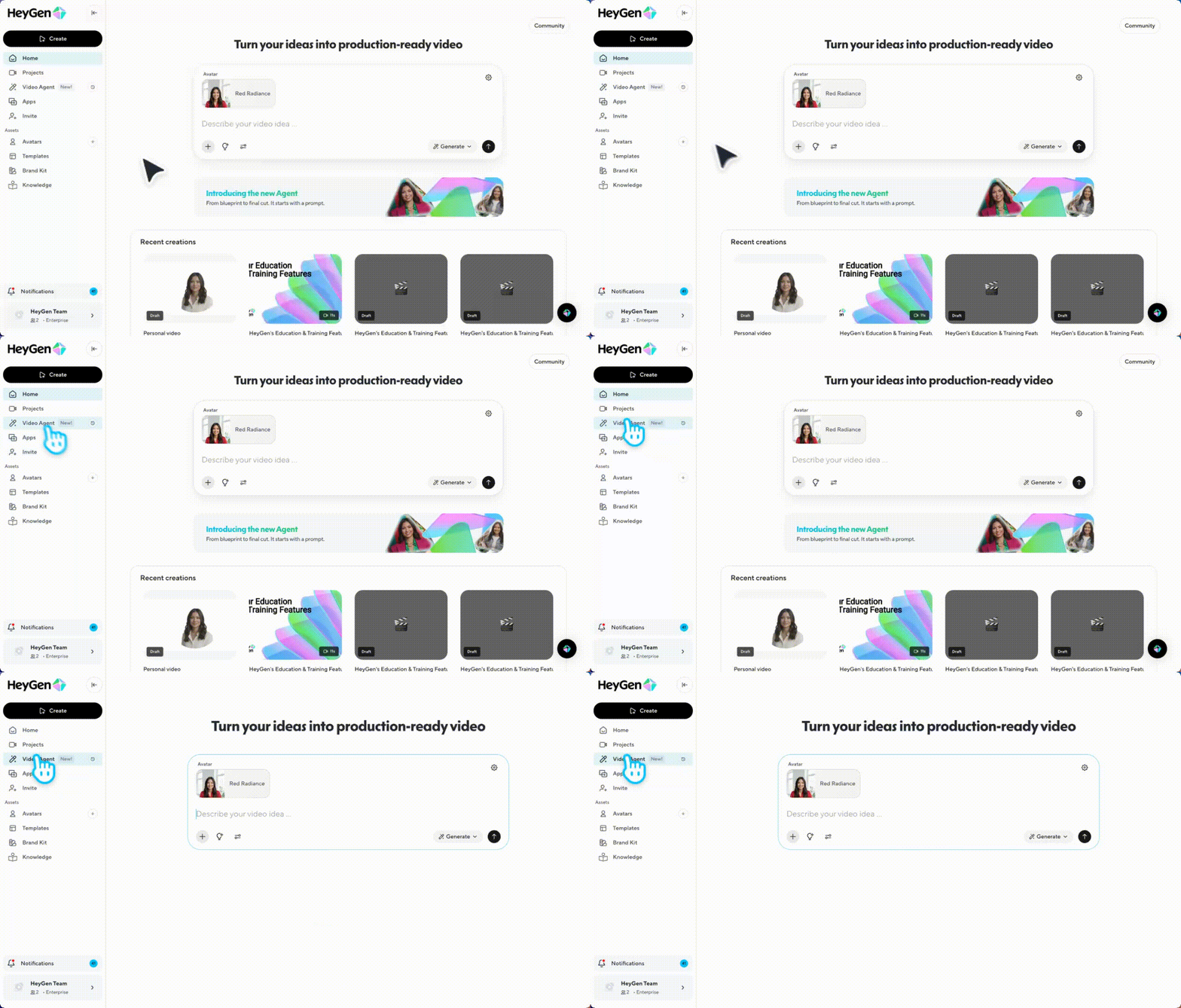
From your HeyGen dashboard, click on Video Agent.
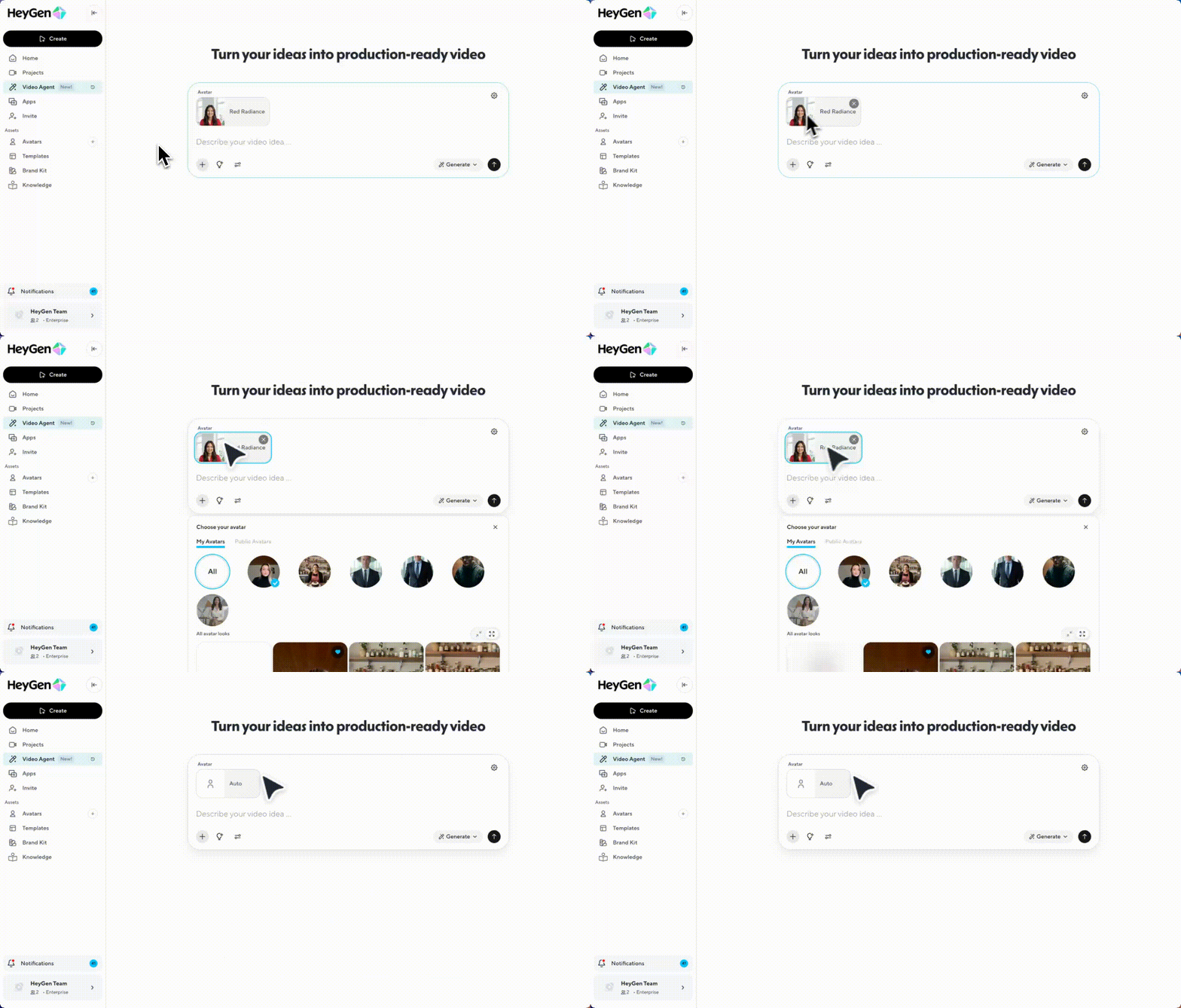
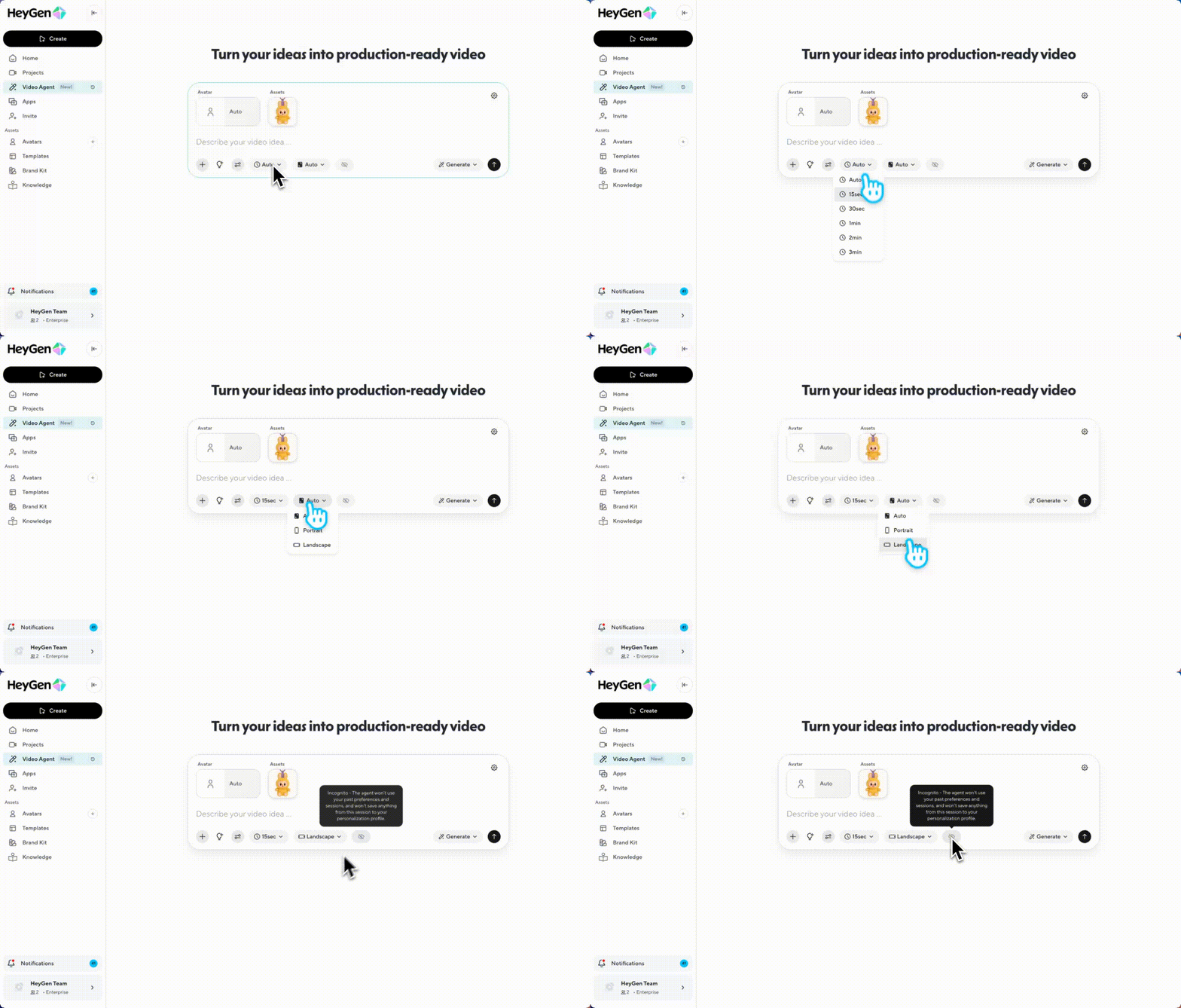
Click on the avatar icon to select one of your existing avatars. If you'd rather let Video Agent choose one automatically, click the X to clear the avatar, this activates Auto Avatar mode, and HeyGen will select one that best fits your content.
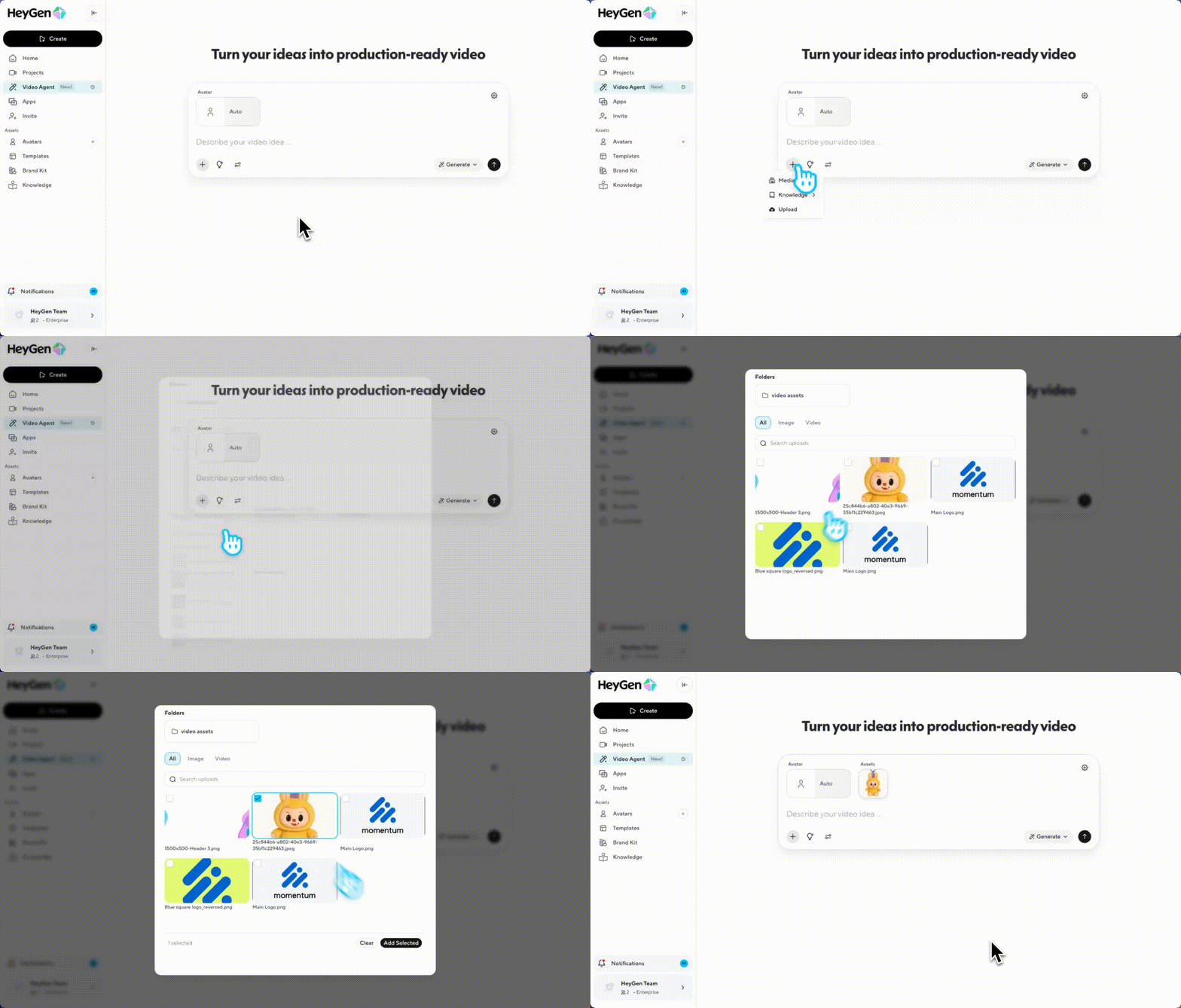
Click the + icon to upload your own images or videos. You can also bring in assets like product shots, charts, or explainer visuals to use throughout your video.
Adjust your settings:
- Duration: Choose from preset options like 30s, 1 min, 2 min, or leave it on Auto.
- Layout: Pick between Portrait or Landscape depending on your platform.
- Incognito Mode (optional): Turn this on if you don’t want the Agent to use your past activity or save this session to your personalization profile.
Describe your idea clearly in the prompt box. Not sure what to write? Click on Prompt Idea to get suggestions, which you can tweak to match your needs.
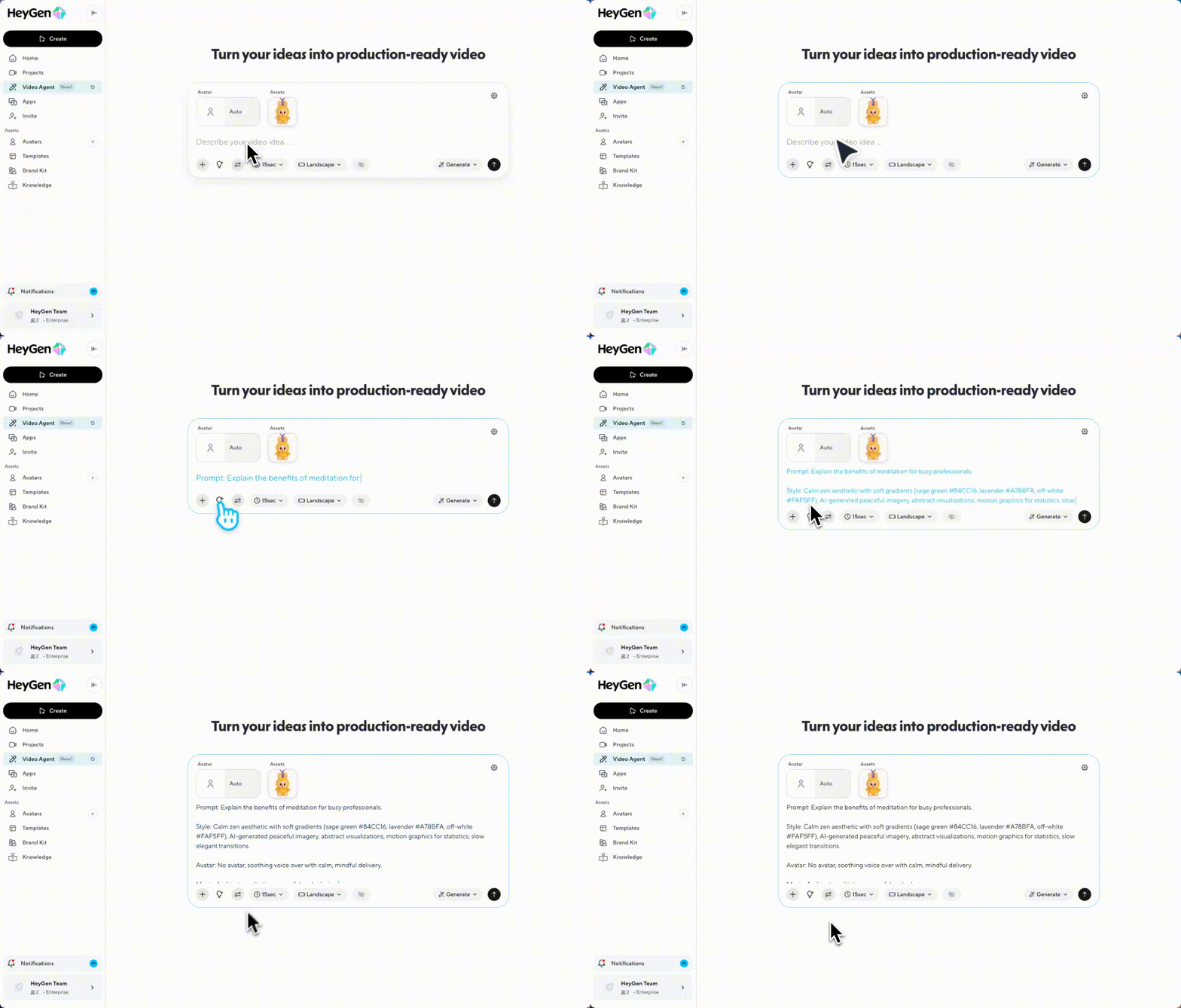
Once you're happy with your settings and prompt, choose how you want to generate:
- Chat to plan: Talk with the Agent step-by-step to refine the structure before generating.
- Generate now: Skip the planning and let Agent create your video instantly.
Templates are also available directly in the Agent tab. These give you a visual starting point, and the Agent will match the style of that template for your own video. You can also reuse styles from your past sessions to keep videos consistent.
Editing your video
Once your video is generated, you can continue the conversation directly inside the Agent chat. From here, you’ll be able to review the entire video and type in any updates you'd like. Want to change the avatar? Tweak the script? Swap visuals? Just describe the change in plain language, the Agent will handle it for you.
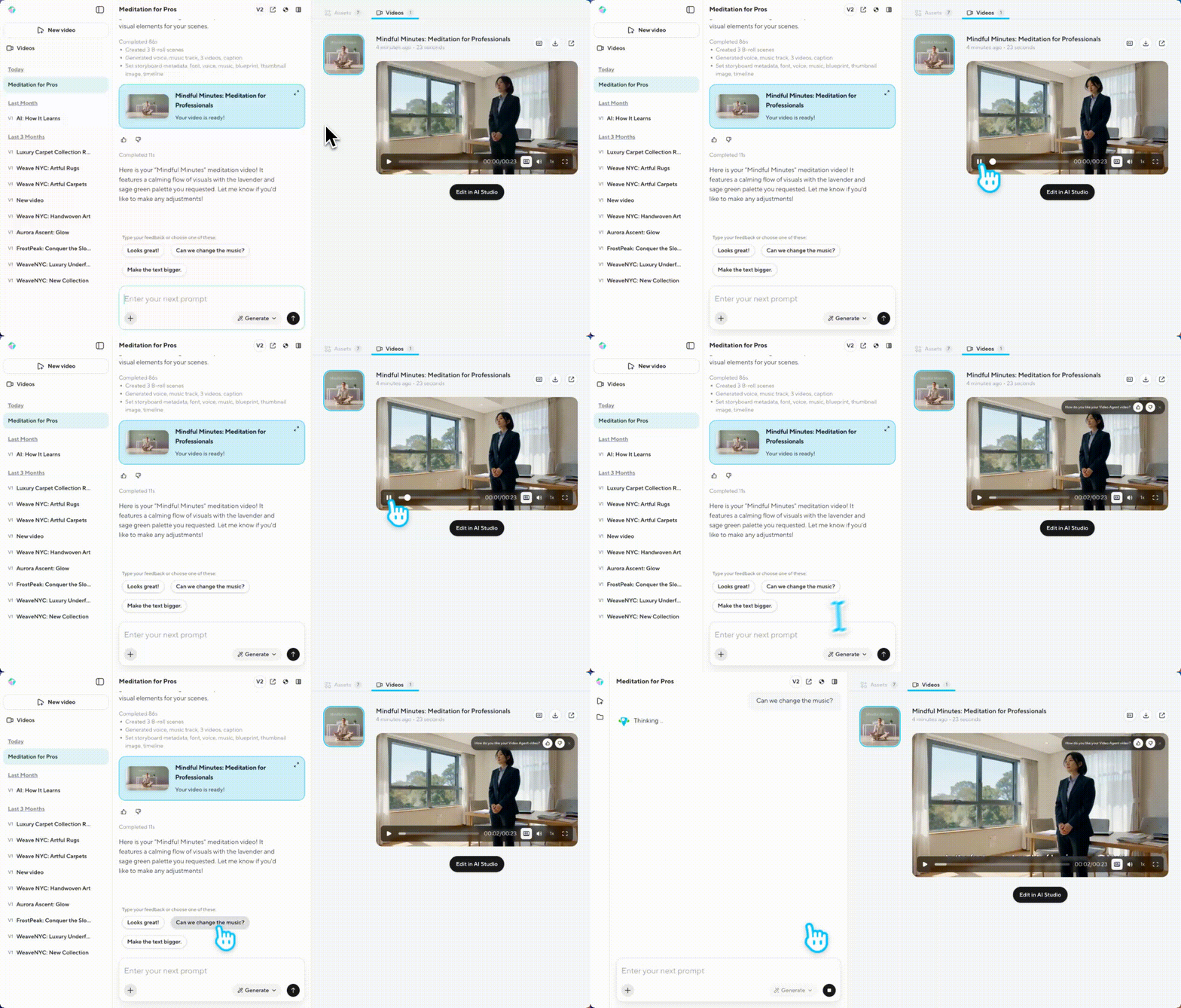
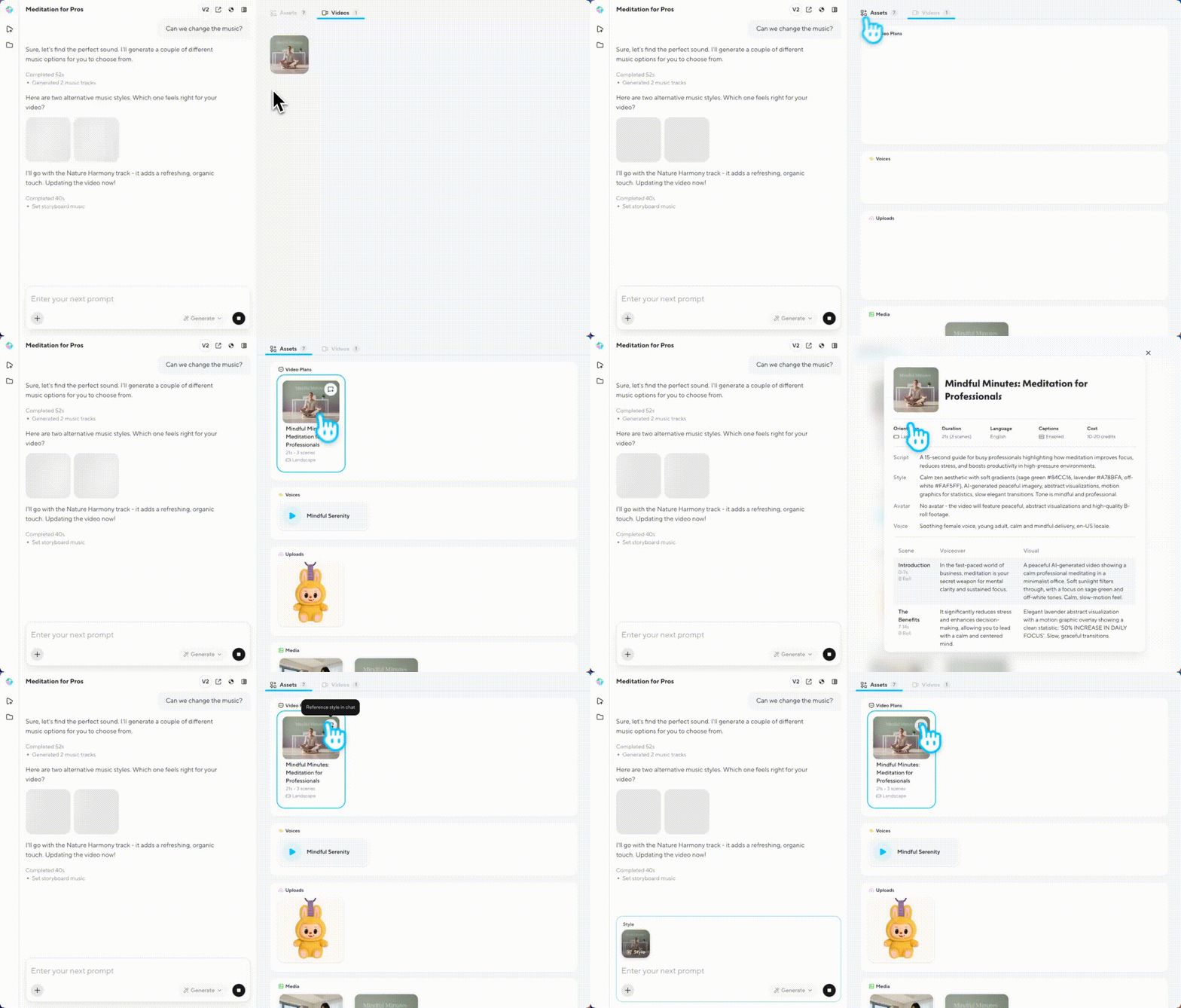
To get a clearer view of your video’s assets, click on the Vision Board and open the Assets tab. This gives you a quick overview of every visual element used in your video. You can click on any asset to reference it in the chat or make a change.
Need more granular control? Click Open in AI Studio to take full control of your project. You’ll be able to fine-tune visuals, reorder scenes, edit on a timeline, and adjust pacing or layout, perfect for final polish or creative experimentation.
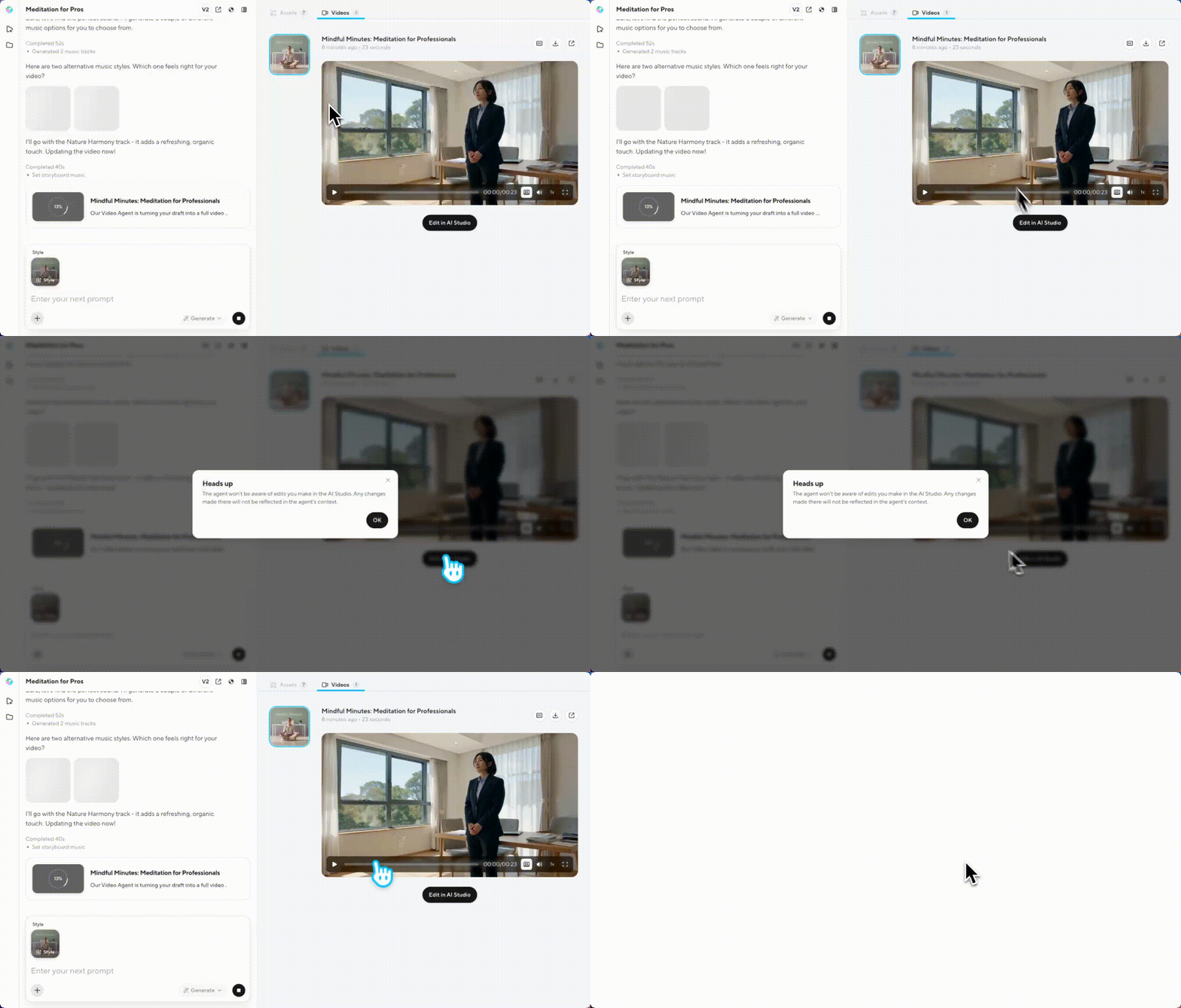
Edits don’t always trigger full regeneration. If your request is small, like updating a single visual or adjusting narration, the Agent will only revise that part. For larger edits, like adding new scenes or changing the structure, the Agent will go back to the planning phase and walk you through the new blueprint.
Why this matters:
Traditional video tools make you guess, prompt, render, hope, regenerate. Editors make you build everything manually. Video Agent shows you the plan first, then produces it. You direct; it produces.
Prompting best practices
Video Agent is your production partner, not just a renderer. The more direction you give, the better the output.
Start with strong content
You can type a natural prompt or paste your script directly.
Prompt Examples:
“Introduce HeyGen to knowledge workers. Highlight Talking Avatars, how customers use them, and end with a mention of the new Video Agent. Use stock B-roll and animated overlays.”
“Make a 1-minute training video explaining phishing attacks. Include examples, animated visuals, and a checklist at the end.”
Script Example:
- Scene 1 (Intro - motion graphics): “If you explain ideas for a living — updates, decisions, strategies — you know video helps. But creating them is painful.”
- Scene 2 (What is HeyGen - B-roll + overlay): “HeyGen makes it easy. No editing, no cameras, no timelines.”
- Scene 3 (Talking Avatars - A-roll + demo cut): “Turn your voice or script into high-quality avatar videos — in your own likeness.”
- Scene 4 (Introducing Video Agent - end beat): “One prompt becomes a full video. Script, visuals, everything handled.”
- Scene 5 (Outro): “HeyGen Video Agent. Built for knowledge-based creators.”
- Add visual and style preferences
Tell Agent how you want the video to look and feel. You can define:
Element | Example Instruction |
|---|---|
Visual Style | “Use clean, minimal design in blue, black, and white.” |
Color Codes | “Primary blue: #1E40AF, background white: #F8FAFC, text: #0F172A.” |
Media Types | “Use motion graphics for benefits, stock footage for real-life scenes.” |
Tone | “Confident, professional, mid-paced delivery.” |
Pro Tip: Try using this prompt addition for polished, repeatable results:
“Use clean styled visuals. Blue, black, and white as main colors. Leverage motion graphics as B-rolls and A-roll overlays. Use AI video when helpful. Use stock media for real-world footage. Add intro/outro sequences and chapter breaks using motion graphics.”
For more prompting tips, check out this prompt guide to get the most out of HeyGen's new Video Agent !
Usage limits by subscription type
Video Agent uses 20 credits per minute of generated video output, drawing from your plan's monthly credit balance.
Plan | Max Video Length | Monthly Credits Included | Access Notes |
|---|---|---|---|
Free | 1 minute | Up to 3 videos/month (no credits) | Limited free quota; upgrade to access more |
Creator | Up to 3 minutes | 600 credits/month | When credits run out, upgrade to Pro |
Pro | Up to 3 minutes | 1,000–100,000 credits/month | Upgrade to a higher Pro tier for more credits |
Business | Up to 3 minutes | 1,500 credits/month | Purchase additional credits at $0.05/credit or enable auto-reload |
Enterprise | Up to 3 minutes | Custom | Full access; contact your account team for details |
For more on how credits work across all features, visit HeyGen Credit-Based Pricing Plans Explained .
Recap
Now you’re ready to create your first video with Video Agent!
In this guide, we covered:
- What is Video Agent?
- How to create a video with Video Agent
- Editing your video
- Prompting best practices
- Usage limits by subscription type
We can’t wait to see what you create with Video Agent! Join the conversation in the HeyGen Community to share your work and get inspired.
Comments (6)
Popular

Dive in