

Editing
April 7, 2026 · Last updated on May 15, 2026
How to use Avatar Shots with Seedance in HeyGen to create cinematic AI videos
# Editing
# Seedance
# Avatar Shots
Create cinematic AI videos using Seedance Avatar Shots in HeyGen
In this guide, we'll show you how to create cinematic AI videos using Avatar Shots, HeyGen's most expressive video generation feature, built in collaboration with Seedance.
Whether you're creating scroll-stopping social content, cinematic B-roll, or multi-person scenes, Avatar Shots lets you describe a scene in natural language and brings it to life with camera movement, dynamic backgrounds, and AI-generated audio. For the first time ever, you can even place up to 3 avatars in the same video simultaneously. Let's dive in!
Avatar Shots is still limited in some regions. If you see a message saying the feature isn't available in your region, join the waitlist as we continue rolling it out.
What's covered in this guide
- How to access Avatar Shots
- How to create a video step by step
- Credit costs
- Current limitations
- Avatar Shots vs. Avatar IV, which one to use
- Recap
How to access Avatar Shots
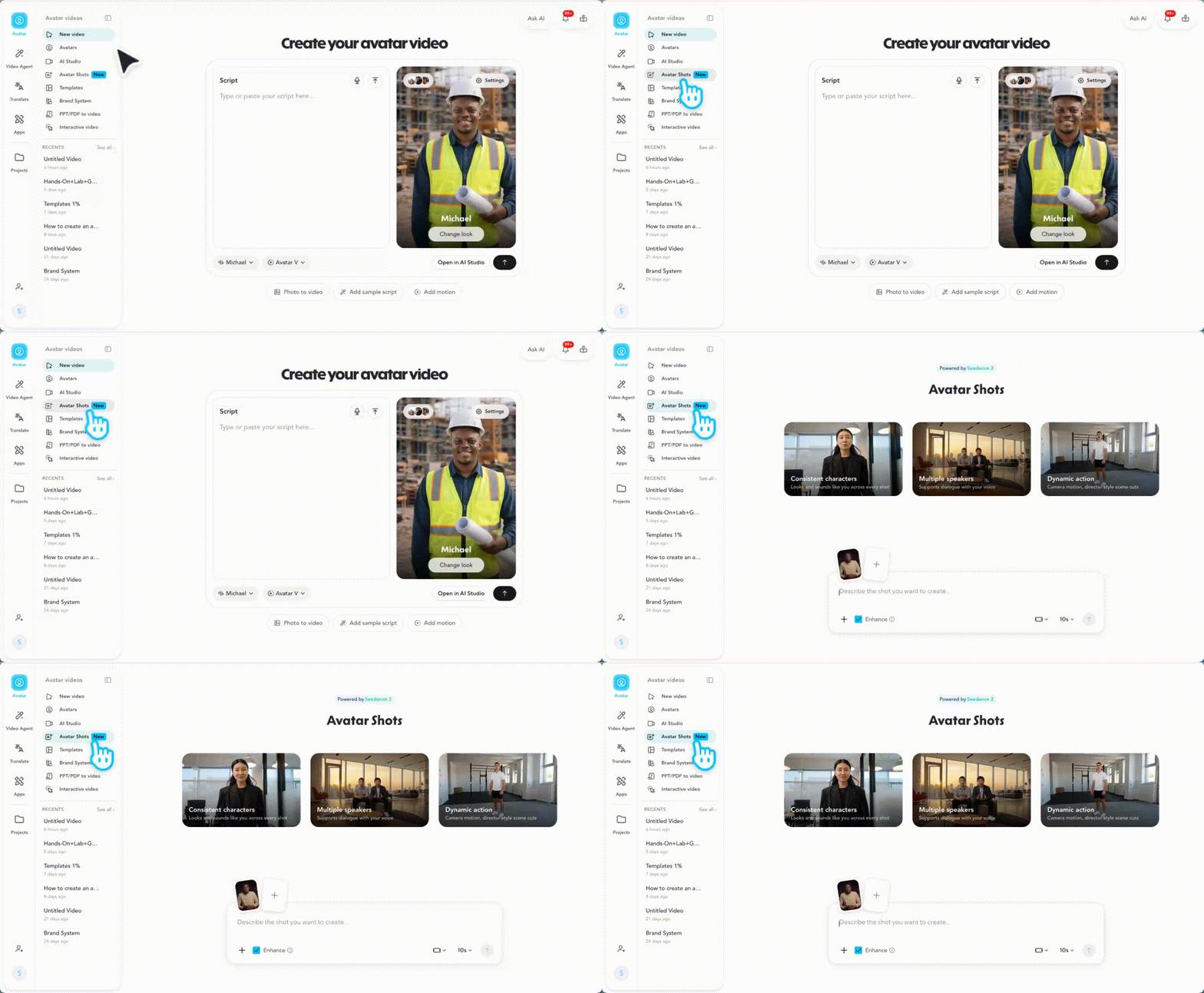
From the HeyGen home screen, click the Avatar tab in the top left corner, then select Avatar Shots from the menu, look for the 🆕 badge.
All of your completed Avatar Shots videos will be saved in the Avatar Shots section, not in the main Projects page, for easy access.
How to create a video step by step
Your avatar thumbnail will appear in the prompt area. You can add up to 3 avatars to a single video. To add more avatars, click the + button in the prompt area. To remove one, click the small grey X on the top right corner of the avatar thumbnail.
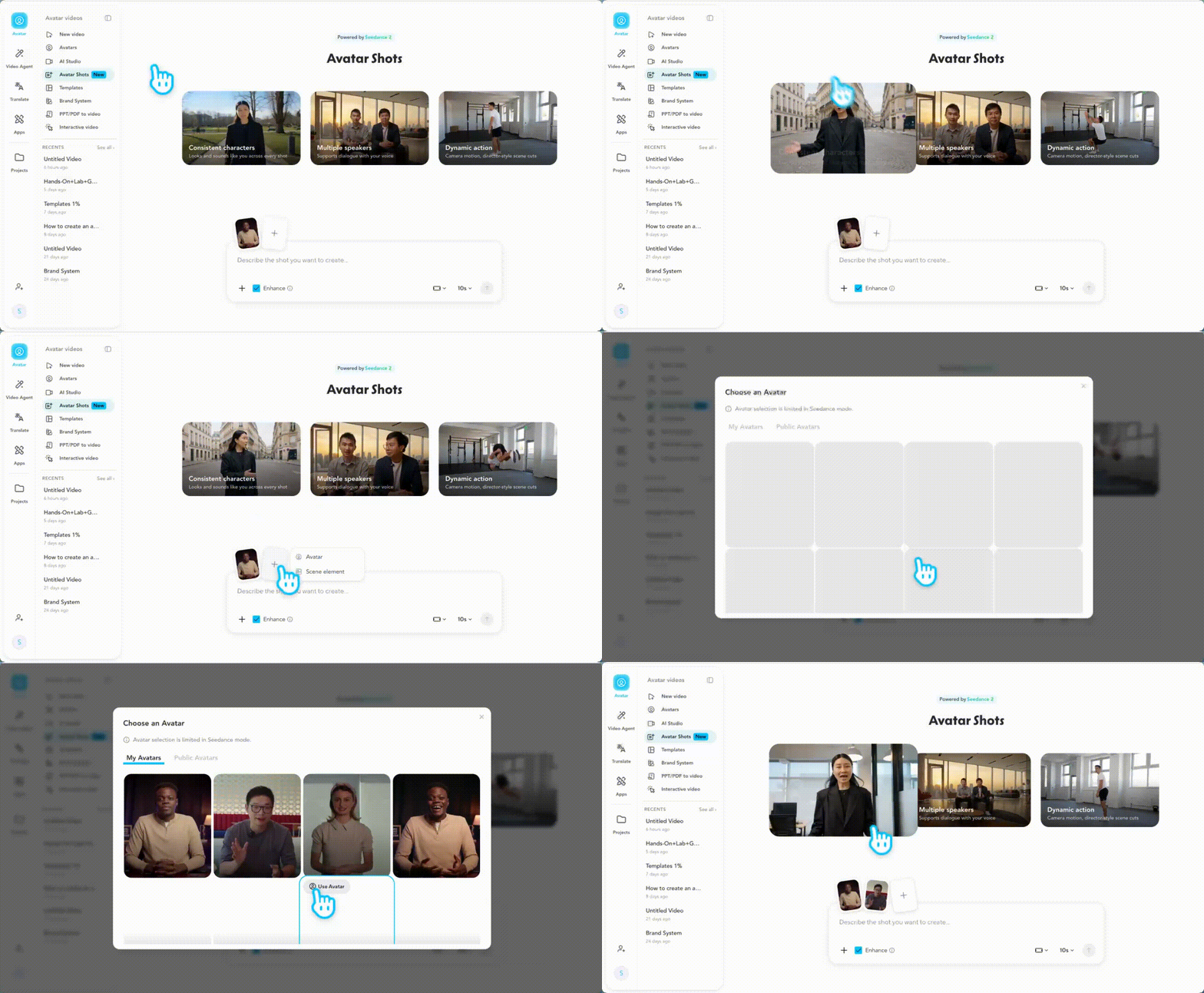
Currently, only Digital Twins with uploaded consent are supported. You can use your own avatar or another person's avatar if they have uploaded their consent inside your HeyGen profile. Learn how to create a Digital Twin here .
Describe the scene you want to create. Think of it like giving a director's brief, the more vivid and specific, the better the result.
A strong prompt includes the setting and mood (e.g. "neon-lit Tokyo street at night, rain, cinematic"), what the avatar(s) are doing (e.g. "two presenters facing each other in a debate"), camera movement (e.g. "slow push-in to close-up"), and audio, since you can't upload audio separately, describe the sound you want directly in the prompt (e.g. "epic orchestral score" or "ambient city sounds").
For a full breakdown of how to write prompts that get the best results, check out our Avatar Shots Prompting Best Practices guide .
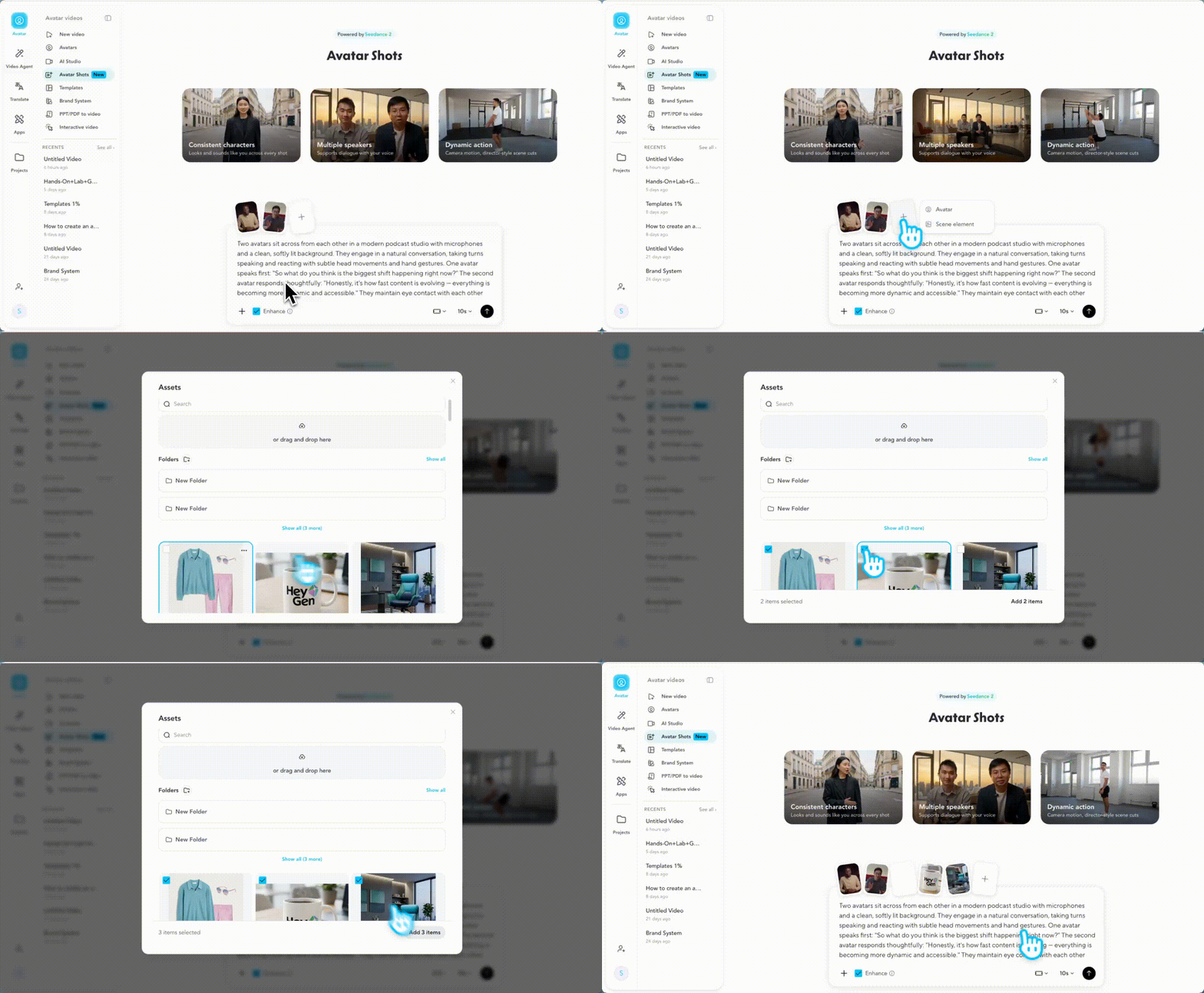
You can upload up to 3 images or videos to guide the visual style or include specific elements in your generated video. References can come from your previously generated HeyGen assets or files uploaded directly from your device.
Use references when you want a specific background or environment, a product your avatar should hold or interact with, a particular outfit, or a color palette carried through the video. Note that elements cannot include a human face, supported types are products, environments, clothing, and similar non-human assets.
Use the controls at the bottom of the prompt panel to set your duration (anywhere from 4 to 15 seconds), your orientation (portrait or landscape), and whether to turn on Enhance, which automatically optimizes your prompt if HeyGen detects room for improvement.
When you're happy with your prompt and settings, click the ↑ arrow to generate.
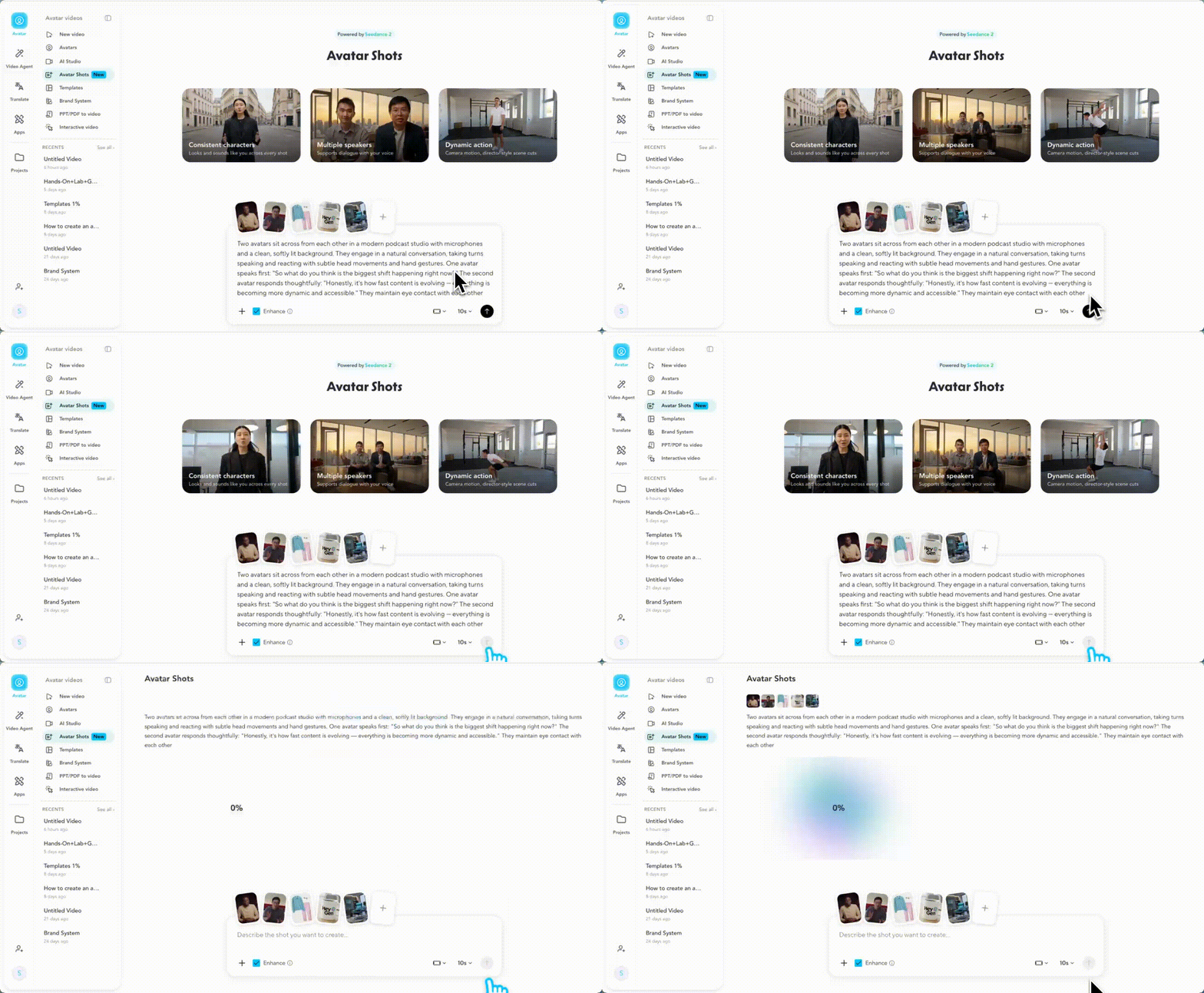
Once you click generate, the video is final. Credits are used immediately and you cannot make changes to the output, even small ones. If the result isn't what you were looking for, you'll need to start a new generation with an updated prompt. If you need precise, scene-by-scene control, consider using HeyGen AI Studio instead to avoid spending credits on multiple attempts.
How much does Avatar Shots cost?
Avatar Shots uses credits at a rate of 4 credits per second of generated video. A 5-second video costs 20 credits, a 10-second video costs 40 credits, and a 15-second video costs 60 credits. Avatar Shots is available on all paid HeyGen plans. You can learn more about plans and pricing here .
Creating videos longer than 15 seconds
Avatar Shots uses credits at a rate of 4 credits per second of generated video.
Duration | Credits |
|---|---|
5 seconds | 20 credits |
8 seconds | 32 credits |
10 seconds | 40 credits |
12 seconds | 48 credits |
15 seconds | 60 credits |
Current limitations
- Maximum 15 seconds per generation
- Maximum 3 avatars per scene
- Maximum 3 reference elements per generation (no human faces)
- Audio upload is not supported, describe audio in your prompt instead
- Videos cannot be edited after generation, a new prompt is required for any changes
- Videos are saved in Avatar Shots, not the main Projects page
- Only Digital Clone avatars with uploaded consent are currently supported
- No negative prompts
Supported languages: English, Mandarin Chinese (including Cantonese), Japanese, Korean, Spanish, French, German, and Portuguese. Other languages may work but results may not be consistent.
Tip: If your language isn't supported, create the video in English first and use HeyGen's Translate feature to convert it.
Avatar Shots vs. Avatar IV, which should you use?
| Avatar Shots (Seedance) | Avatar IV |
|---|---|---|
Best for | Cinematic clips, B-roll, ads, social content | Long talking-head videos, e-learning, explainers |
Max duration | 15 seconds per shot | Up to 180 seconds |
Multiple avatars | Up to 3 in one scene | 1 avatar only |
Motion | Full-body dynamic, physics-based | Head, shoulders, micro-expressions |
Emotions | Full range — screaming, laughing, reacting | Subtle — micro-expressions and gestures only |
Languages | 8 supported languages | 175+ languages |
Beginner friendly | Requires scene prompting skills | Simple script to video |
The best approach is to combine both. Use Avatar IV for your main A-roll, long talking segments, direct delivery, multilingual content. Use Avatar Shots for everything around it, cinematic B-roll, emotional moments, product interactions, and multi-avatar sequences. Together, they give you a complete AI video production workflow. Learn more about Avatar IV .
Recap
And that's it! You're ready to start creating cinematic AI videos with Avatar Shots. With the ability to place multiple avatars in one scene, describe any camera movement, and generate dynamic environments from a single prompt, the creative possibilities are wide open.
In this guide, you learned:
- How to access Avatar Shots
- How to create a video step by step
- How credits are calculated
- Current limitations to keep in mind
- When to use Avatar Shots vs. Avatar IV
We're looking forward to seeing what you'll create!
Comments (0)
Popular

Dive in
Related
Guide
Seedance Avatar Shots prompting guide: get the best results in HeyGen
Apr 8th, 2026 • Views 2.7K
Video
HeyGen ambassador spotlight: Mastering multi-avatar videos & Avatar Shots
Aug 17th, 2026 • Views 250
Guide
Seedance Avatar Shots prompting guide: get the best results in HeyGen
Apr 8th, 2026 • Views 2.7K
Video
HeyGen ambassador spotlight: Mastering multi-avatar videos & Avatar Shots
Aug 17th, 2026 • Views 250